.png)
 简体中文
简体中文 
Twitch is synonymous with streaming and has become one of the most sought-after platforms by content creators. Many creators use it for streaming with high-quality microphones and cameras, such as the Hollyland VenusLiv Air, which features 24/7 live streaming and 4K30 video quality.
From gaming to lifestyle content, you can live-stream various events on your mobile device in real life (IRL). Twitch is built to connect with smartphone brands like the iPhone seamlessly. In fact, many content creators use their iPhones to stream to Twitch.
If you’re fascinated by mobile content creation and want to live stream to Twitch using your iPhone, this guide is for you.
Twitch Set Up
Download twitch
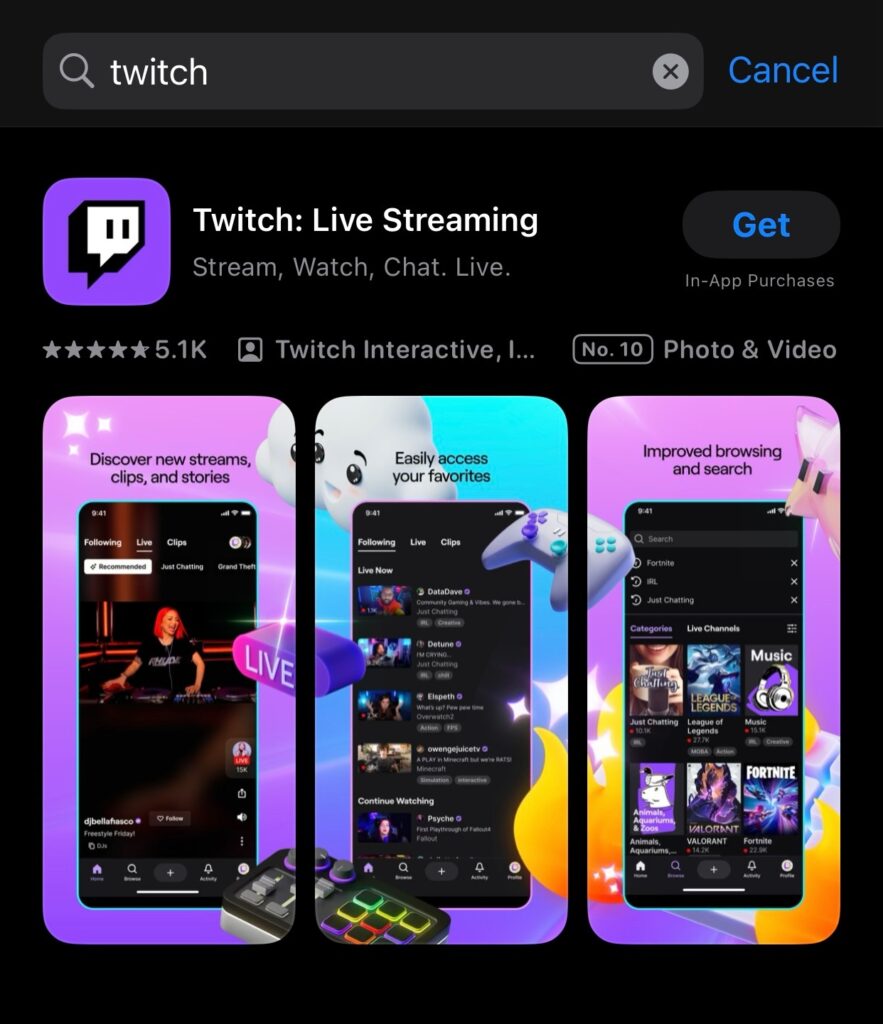
- The first step is to visit the App Store on your iPhone and type ‘Twitch’ into the search bar.
- Then download the Twitch app on your device.
- Sign up for a Twitch account by following the on-screen prompt.

- Once you’re all set, your Twitch account will be ready to stream.
Streaming to Twitch with Your iPhone
There are two ways to stream to Twitch on your iPhone. If you tap on the plus (+) sign at the bottom of the page, you’ll see these two options:

- Stream games: This option allows you to live stream games from your iPhone (which are installed on your device).
- Stream IRL: Broadcast IRL ( in real life) enables you to stream your event or just about anything in real time using your device’s camera.

Stream games
Let’s examine these two ways to stream games to Twitch with your iPhone.
Direct
The direct method enables you to stream games installed on your mobile device directly from the Twitch app, eliminating the need for a third-party application. Let’s look at how to stream directly from the Twitch app. Later, we will consider streaming via third-party apps.
- First, select the game you want to play. You will see a list of games that you have downloaded on your iPhone. So after choosing the game, click Next.

- The next interface contains some key points to consider before proceeding.

- Once you’re done reading the instructions, click Next.
- The next page is where you set up your stream before going live.

- You can set your: Stream title, stream volume, stream notification.
- Afterwards, you’ll find Twitch game streaming guidelines that will help you achieve the best streaming quality. There are also instructions on how to start a broadcast from the control center on your iPhone.
Then tap on the record button at the bottom of the page. Next, activate your iPhone’s microphone and select Start Broadcast.

- Since you are live, the iPhone will display your Stream Manager. A chat box will be available on that page.

Stream IRL
Apart from game streaming, you can also stream in real life (IRL). This means you can stream to Twitch using the camera to capture events, lifestyle, or anything you want.
- To start, click on Stream IRL after clicking the Plus sign on the homepage.

- Then give the camera and mic permission.

- Once both are enabled, Twitch will open up a camera interface where you can switch between your iPhone’s rear and selfie cameras.
- This interface will also allow you to turn your mic on and off.
- Then there’s a circular button at the bottom of the page that allows you to start broadcasting in real life. Once you tap it, you are live on Twitch!

- You can use the red stop button to end the stream at any time.

Streaming to Twitch from Your iPhone using a Third-party App
Using a third-party application gives you more options when streaming from your iPhone. You can use external gears, customize your livestream, etc.
- One of the easiest third-party apps to use is the Streamlabs: Live Streaming App. Install it from the App Store. Then sign in using your Twitch account. You’ll see the Twitch icon at the bottom of the screen alongside other platforms. You can also use your Streamlab account to sign in.
- With StreamLab, you can:
- Stream to Twitch and other platforms simultaneously.
- Use custom themes.
- Use overlays.
- Collaborate with other creators.
- Access consolidated chats across different platforms.

- Then log in to your Twitch account.
- Authorize and tap on continue.

- Allow access to camera, audio, and storage.
To stream from your iPhone to Twitch
- Tap the hamburger icon at the top left corner of the screen.

- Then click on Scenes and then on “Create a New Scene.”
You can use the Premade options or set up your Custom layout scene. This scene layout is how your stream screen will appear when you are live.

- You can resize some elements on the screen to your taste using the drag and resize feature.
- Once you are done, tap on save in the top left corner. You’ll get a notification that you can stream in both landscape and portrait modes.
- Go back to the homepage and tap on Go Live at the lower part of the screen.

- You’ll get two options: Camera and Screenshare. Select a camera for IRL (in real life) streaming on Twitch. And choose Screenshare if you wish to stream your game on Twitch.

For Camera
If you pick the camera option. Here’s how to set it up:
- Add your Twitch account. If you logged in with your Twitch account, then simply toggle it on.

- You can also add other platforms in case you want to multi-stream.
- Next, set up your stream details by adding: Stream title, description, output resolution, frame rate, and video bitrate. Next, tap on Go Live.
- Next, start filming. And when you are done, tap on Stop.

For Screenshare
- If you select the Screenshare option, add your Twitch account. If you logged in with your Twitch account, then simply toggle it on.
- You can also add other platforms for multi-stream purposes.
- Next, fill in stream details by setting: stream title, description, output resolution, frame rate, and video bitrate.
- The tap on Go Live. Next, click Start Broadcast on the next interface. You can also turn on your iPhone’s microphone. Now you are live on Twitch. You can start playing your game, and everything on your screen will be live-streamed.

- When you are done, click on Stop to end your stream.
Conclusion
Streaming on Twitch using your iPhone is straightforward. As we’ve considered in this guide, you can stream in real life (IRL) or screenshare to stream mobile games, all from your iPhone. And if you want extra features such as transition effects, sharing multiple camera angles, or adding an external mic, third-party apps like Streamlabs and Switcher Studio are there for use.
FAQ
Can I stream on Twitch with just my iPhone?
Yes, mobile IRL streaming and screenshare allow you to stream on Twitch using your iPhone. You can livestream games or just stream events and more with your phone.
Can I stream on Twitch without showing my face?
You can stream on Twitch without showing your face. Using the screenshare on Twitch, you can stream your game or other onscreen activities.
Is it better to show your face on Twitch?
Showing your face on Twitch can improve your connection with viewers. Be it IRL or game stream, you can interact better by using a facecam to capture your expressions and more.