.png)
 简体中文
简体中文 
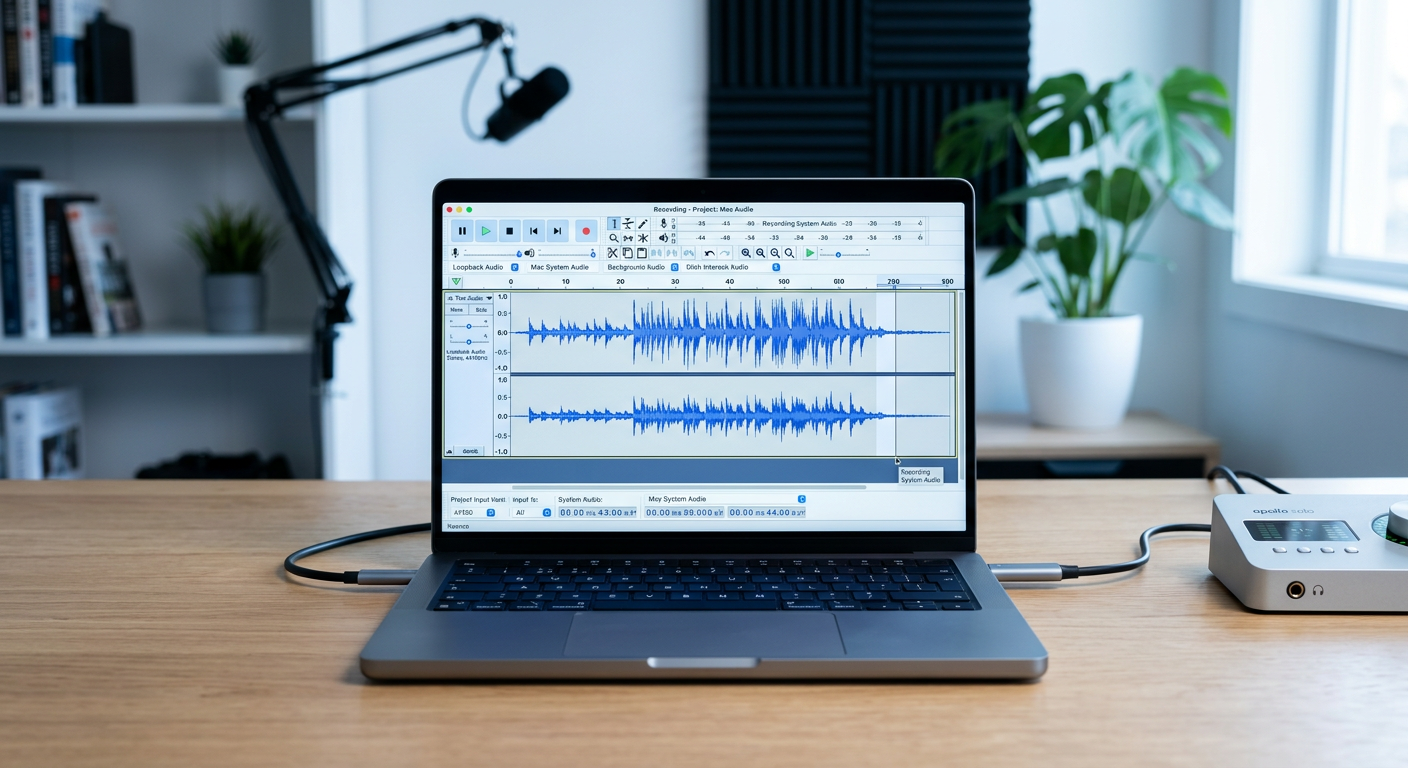
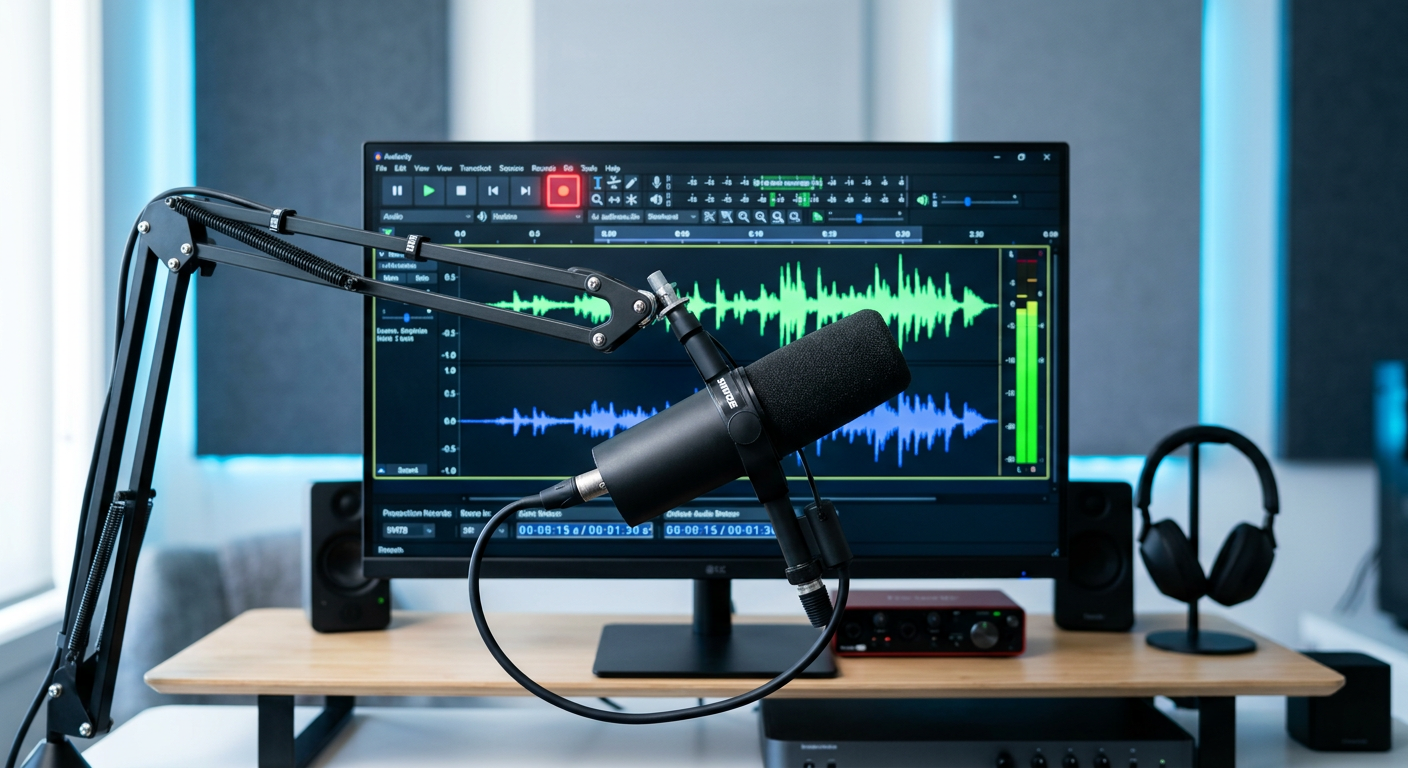
There is nothing more frustrating than hitting the big red Record button, delivering your script, and looking back to see a completely flat blue line. No waveform, no peaks—just silence.
If you are currently staring at that flat line and wondering how to fix audio not recording in Audacity, take a breath. In the vast majority of cases, your microphone is not broken. The issue is rarely a physical failure; instead, it is usually a “digital handshake” failure between your Operating System Windows or macOS, and Audacity.
Essentially, Audacity is trying to listen, but your computer is either blocking the signal at the privacy door or routing the audio to the wrong place.
If you are seeing a flat line or receiving an error, it is likely due to one of these four common culprits:
- Privacy Permissions: Your computer’s security settings may be blocking “desktop apps” like Audacity from accessing the microphone.
- Incorrect Audio Host: Audacity might be set to an older driver protocol (like MME) that isn’t communicating well with your specific USB interface.
- Mismatched Sample Rates: A conflict where your microphone broadcasts at 48000Hz but Audacity tries to record at 44100Hz.
- Disabled Devices: Windows sometimes “soft disables” audio devices to save power.
Step 1: Check Privacy Settings (The #1 Culprit)
Before you uninstall Audacity or buy a new cable, check your Operating System’s “gatekeeper.” Modern versions of Windows 10/11 and macOS automatically block applications from accessing the microphone to protect your privacy.
If Audacity is not explicitly allowed to use your microphone, the OS will send it absolute silence. No amount of tweaking settings inside Audacity will fix this if the OS is blocking the signal.
How to Fix on Windows 10 & 11
Windows separates permissions for “Microsoft Store Apps” and “Desktop Apps.” Audacity is considered a Desktop App, so you must ensure the correct toggle is active.
- Open the Start Menu and select Settings (the gear icon).
- Go to Privacy (Windows 10) or Privacy & security (Windows 11).
- Select Microphone.
- First, ensure “Microphone access” (or “Allow apps to access your microphone”) is toggled ON.

- Scroll down to the section labeled “Allow desktop apps to access your microphone.”
- Make sure this specific toggle is ON. You should see Audacity listed below as one of the apps currently using the microphone.

How to Fix on macOS
Since macOS Mojave (10.14), Apple has required strict permission for microphone access. If you accidentally clicked “Don’t Allow” when you first installed Audacity, the input will be dead.
- Click the Apple Logo in the top-left corner and select System Preferences (or System Settings).
- Click on Security & Privacy.
- Select the Privacy tab.
- In the left-hand column, click Microphone.
- Look for Audacity in the list on the right.
- Check the box next to Audacity to grant permission.
- Note: If Audacity is open, macOS will ask you to quit and reopen the application for the changes to take effect.
Step 2: Configure Audacity Audio Host & Input Device
If your privacy settings are correct but the line is still flat, the issue often lies within Audacity’s internal configuration. Audacity needs to know exactly which “driver” to use to talk to your hardware and which specific microphone to listen to.
Understanding Audio Hosts
The Audio Host is the interface protocol Audacity uses to communicate with your sound card. Selecting the wrong host can result in recording errors or latency (delay).
On the main toolbar, locate the Audio Setup button (or the dropdown menu on older versions) and check the Host section. Here is how to choose the right one for Windows:

| Audio Host | Best Used For | Pros & Cons |
|---|---|---|
| MME | Troubleshooting / Default | Most Compatible. It is the oldest driver and works with almost all audio devices. However, it has higher latency. Start here if you have issues. |
| Windows DirectSound | General Recording | Newer than MME with slightly lower latency. It accesses the sound card more directly but can conflict if other apps are using audio. |
| Windows WASAPI | High Quality / Loopback | Lowest Latency. This is the modern standard. It allows for “Loopback” (recording computer system audio), but it can be finicky if sample rates don’t match exactly. |
Mac Users: You will typically see Core Audio. This is standard for macOS and rarely needs changing.
Selecting the Correct Recording Device
The most common reason for a “flat line” is that Audacity is trying to record from the wrong source. It often defaults to “Microsoft Sound Mapper” or your computer’s built-in “Realtek High Definition Audio,” even if you have a professional USB microphone plugged in.
To fix this:
- Click Audio Setup in the top toolbar.
- Hover over Recording Device.
- Select your specific hardware from the list (e.g., “Microphone (USB Audio Device)”, “Blue Yeti”, or “Hollyland LARK MAX”).

- Avoid generic options: Do not select “Primary Sound Capture Driver” or “Stereo Mix” unless you intend to record internal computer sounds.
Step 3: The “Rescan Audio Devices” Trick
One of the most common reasons Audacity fails to recognize a microphone is simply timing.
Audacity creates a “snapshot” of your available audio hardware the moment the application launches. If you opened Audacity first and then plugged in your USB microphone, the software does not know the device exists. It will default to your computer’s built-in microphone or show no input device at all.
You do not need to restart your computer to fix this. You just need to force the software to refresh its list.
How to Rescan Audio Devices:
- Ensure your microphone is securely connected to your computer.
- In the top menu bar, click on Transport.
- Select Rescan Audio Devices from the dropdown menu.

- Wait 2–3 seconds for the scan to complete.
- Check the Recording Device dropdown menu again. Your external microphone should now be listed.
Pro Tip: To avoid this error in the future, adopt the “Hardware First” workflow: Always plug in your microphone before you launch Audacity.
Step 4: Fix Sample Rate Mismatches
One of the most technical yet common reasons for a “flat line” or an “Error opening sound device” message is a Sample Rate Mismatch.
Think of sample rate as the speed at which your computer and Audacity are communicating. If your microphone is sending data at 48000Hz (standard for video), but Audacity is trying to record at 44100Hz (standard for music), the “handshake” fails, and recording stops.
You must ensure the Windows Default Format and the Audacity Project Rate are identical.
1. Identify Your Microphone’s Sample Rate (Windows)
First, find out what sample rate your operating system is enforcing for your microphone.
- Right-click the Speaker icon in your taskbar and select Sounds (or go to Control Panel > Hardware and Sound > Sound).

- Click the Recording tab.
- Right-click your microphone (e.g., “USB Audio Device”) and select Properties.
- Navigate to the Advanced tab.
- Look at the Default Format section. It will display a value like 2 channel, 16 bit, 48000 Hz (DVD Quality).

- Memorize this number (specifically the Hz value).
2. Match the Rate in Audacity
Now that you know the source rate, you need to tell Audacity to listen at that same speed.
- Open Audacity.
- Look at the bottom-left corner of the window for a dropdown menu labeled Project Rate (Hz).
- Click the dropdown and select the number that matches your Windows setting exactly (e.g., if Windows said 48000 Hz, select 48000 in Audacity).
- Restart Audacity to ensure the changes take effect.
Hardware Check: Is Your Equipment Holding You Back?
Sometimes, the “flat line” isn’t a setting in Audacity—it’s a hardware conflict. Audacity is famously sensitive to audio drivers. If you are using an older audio interface, a cheap USB adapter, or a microphone requiring complex ASIO drivers (which Audacity doesn’t support natively on Windows), the software simply gives up trying to talk to the hardware.
If you find yourself constantly reinstalling drivers or “rescanning” devices with no luck, your recording hardware might be the bottleneck.
The Professional Solution: Hollyland LARK MAX 2
For creators who want to bypass software headaches and driver conflicts, the Hollyland LARK MAX 2 offers a streamlined workflow. Unlike traditional interfaces that require specific software panels to function, the LARK MAX 2 utilizes a high-fidelity USB-C output that connects directly to your PC or Mac.

Hollyland LARK MAX 2 - Premium Wireless Microphone System
A premium wireless microphone for videographers, podcasters, and content creators to capture broadcast-quality sound.
Key Features: Wireless Audio Monitoring | 32-bit Float | Timecode
This direct digital connection means Audacity recognizes the microphone instantly as a generic USB Audio Device—no third-party drivers required.
Why it pairs perfectly with Audacity:
- 32-bit Float Recording: This is a major safety net for Audacity users. 32-bit float captures such a massive dynamic range that it is virtually impossible to clip (distort) your audio. If you accidentally scream into the mic and the waveform looks like a solid block, you can simply lower the gain in Audacity during post-production, and the detail is preserved.
- Studio Quality Specs: It records at 48kHz/24-bit depth by default, matching the industry standard for video and podcast production.
- Environmental Noise Cancellation (ENC): If you are recording in an untreated room (like a bedroom), the onboard ENC cleans up the signal before it even hits your timeline, saving you hours of noise reduction work.
For creators tired of troubleshooting connection errors, the LARK MAX 2 provides reliability that lets you focus on your content, not your control panel.
Advanced Fixes: Error Code -9999 and Drivers
If you are seeing the dreaded “Error opening sound device” or “Error code -9999,” it means Audacity has completely lost the connection to your microphone. This usually happens because another program is “hogging” the audio driver or the driver itself is outdated.
Here is how to force your system to cooperate.
Disable “Exclusive Mode” in Windows
The most common cause of Error -9999 is Windows allowing one application (like Zoom, Discord, or Skype) to take Exclusive Control of your microphone. When this happens, Audacity gets locked out.
Follow these steps to release the microphone:
- Right-click the Speaker Icon in your system tray and select Sounds.
- Navigate to the Recording tab.
- Right-click your active microphone and select Properties.
- Click the Advanced tab.
- Uncheck the box that says: “Allow applications to take exclusive control of this device.”
- Click Apply and OK.

- Restart Audacity and try recording again.
Pro Tip: If you have Skype, Zoom, or a web browser with a video call open in the background, close them completely. These apps often trigger “Exclusive Mode” even if you aren’t currently on a call.
Update or Reinstall Audio Drivers
If disabling Exclusive Mode didn’t work, your audio drivers might be corrupt. This is common after a major Windows update.
- Press Windows Key + X and select Device Manager.
- Expand the section labeled Audio inputs and outputs.
- Right-click your microphone (e.g., “Microphone (Realtek Audio)” or “USB Audio Device”).
- Select Update driver -> Search automatically for drivers.
If Windows says the best driver is already installed but the error persists, try selecting Uninstall device instead. Once uninstalled, restart your computer. Windows will automatically detect the hardware and reinstall a fresh version of the driver upon reboot.
Frequently Asked Questions (FAQ)
Why is Audacity recording but the line is flat?
A “flat line” usually means Audacity is recording silence. This happens for three main reasons:
- Wrong Input Device: You may have “Microsoft Sound Mapper” selected instead of your actual USB microphone.
- Input Volume is Zero: Look at the recording slider (the microphone icon) in the top toolbar. If it is slid all the way to the left, no audio will pass through.
- Privacy Settings: Windows or macOS might be blocking Audacity from accessing the microphone entirely.
How do I fix “Error opening sound device” in Audacity?
This generic error (often code -9999) typically indicates a sample rate mismatch or a driver conflict.
- Check Sample Rates: Ensure the Project Rate (Hz) in Audacity matches the default format in your Windows Sound Control Panel (e.g., both set to 48000Hz).
- Disable Exclusive Mode: Go to Windows Sound Settings and uncheck “Allow applications to take exclusive control of this device.”
- Rescan Audio Devices: Go to Transport > Rescan Audio Devices to refresh the connection.
Can I record two microphones at once in Audacity?
Natively, no. Audacity can only record from one input device at a time. To record two mics, you usually need an Audio Interface or Mixer. Audacity will then see the Interface as a single device and record the two mics on separate channels (Left and Right) within a stereo track.
Does Audacity support 32-bit float recording?
Yes, Audacity fully supports 32-bit float audio. This format allows you to recover audio that sounds distorted or “clipped” by simply lowering the gain in post-production. However, your microphone must support this feature to take advantage of it. This is why pairing Audacity with the Hollyland LARK MAX 2 is ideal—it handles the 32-bit float processing internally, giving you a safety net that standard USB microphones cannot provide.
Conclusion
Troubleshooting audio software can be exhausting, but the dreaded “flat line” in Audacity is rarely a sign of broken equipment. In nearly 90% of cases, the solution is a simple software fix: ensuring your OS Privacy Settings allow microphone access or running a quick Rescan Audio Devices command within the Audacity toolbar.
Now that you have configured your inputs and matched your sample rates, run a quick test recording. You should see a healthy, active waveform immediately.
However, if you find yourself constantly battling driver conflicts, undefined error codes, or “robotic” audio quality, your current hardware interface might be the issue. For creators looking to avoid these technical headaches entirely, upgrading to a driver-less solution like the Hollyland LARK MAX 2 is a smart move. Its direct USB-C connection integrates seamlessly with Audacity, providing professional 48kHz audio without the need for complex driver installations or precarious workarounds.
Stop fighting your settings and start recording.