.png)
 简体中文
简体中文 
A polished video can lose quality after reaching TikTok. The platform reduces file quality during its processing stage. But better export choices help protect more visual detail. This guide explains which settings give stronger results. You’ll also learn the complete export process from beginning to end.

Best Export Settings for TikTok in CapCut — Quick Reference
Use the table below as your go-to reference before every export.
| Setting | Recommended Value | Why It Matters |
|---|---|---|
| Resolution | 1080p (1080×1920) | TikTok’s effective playback ceiling; gives compression more to work with |
| Aspect Ratio | 9:16 | Required for full-screen vertical video on TikTok |
| Frame Rate | 30fps (60fps for fast motion) | 30fps suits most content; 60fps handles dance, sports, and fast transitions |
| Quality | Recommended or High | Higher quality means more data before TikTok recompresses |
| Bit Rate | High | Preserves more detail through TikTok’s server-side compression |
| Format | MP4 (H.264) | TikTok’s preferred format; widest device compatibility |
| Color Profile | SDR (BT.709) | TikTok’s player doesn’t fully support HDR; SDR prevents color shifts |
Why Do These Settings Matter on TikTok?
Every video uploaded to TikTok goes through server-side re-compression, regardless of how it was exported. TikTok reduces file sizes automatically to enable fast streaming across different devices and connection speeds. That process removes data from your video, and the less data you started with, the worse the result.

Exporting at the highest quality your editor supports gives TikTok more visual information to compress from, which means the final output retains more sharpness, color accuracy, and clarity. You cannot control what TikTok does on its end, but you can control the quality of the file you hand it. The settings above are built to maximize that starting point.
CapCut Export Settings Explained
Resolution: Always Use 1080p (1080×1920)
1080p is the best resolution for TikTok videos. TikTok does not consistently show 4K quality on playback. Exporting in 4K often increases file size without benefits. The platform compresses larger files more heavily during upload. This can reduce quality instead of improving it for viewers.
720p is not recommended. Even if your footage looks acceptable in CapCut’s preview, TikTok’s compression will push a 720p upload further toward pixelation, soft edges, and lost detail in text overlays or fine patterns.

Aspect Ratio: 9:16 Is The Standard
The 9:16 aspect ratio is non-negotiable for TikTok. Vertical video fills the full mobile screen, and any other ratio will display with black bars or get cropped unpredictably.
Use: 1080p | 9:16 aspect ratio
To make sure you have the correct aspect ratio for TikTok:
- Open your project.
- Locate the toolbar menu at the bottom.

- Scroll through the options until you see the Aspect ratio icon.

- Select 9:16 and tap on the checkmark.

Note: If the original version of your video is shot horizontally or in a different aspect ratio, then changing these settings is important if you are planning to upload the edited video to TikTok. An incorrect aspect ratio can cause black bars, stretched subjects, and cropped details.
Frame Rate: 30fps vs. 60fps
The right frame rate depends on your content type.
30fps is the standard for most TikTok videos: talking heads, lifestyle footage, voiceovers, text-based content, and slow-paced visuals. It produces smaller files and processes cleanly through TikTok’s system.
60fps is worth selecting when your video contains fast motion such as dance routines, sports clips, rapid transitions, or smooth slow-motion sequences. TikTok supports 60fps playback, but on slower connections the platform may stream a reduced-quality version regardless of the original frame rate.
Use: 30fps for most content | 60fps for fast motion

Quality and Bitrate: Always Select “Recommended” or Higher
CapCut displays a quality slider when you open the export panel. Options typically range from Low to Recommended to High, with a corresponding bit rate indicator shown alongside.
Select Recommended at minimum, and use High when file size is not a concern. A higher bit rate means your exported video contains more data per second of footage, giving TikTok’s compression algorithm more information to work with. The difference between High and Low is visible even before upload, and it compounds significantly after TikTok processes the file.
Do not use the Low setting at all. TikTok compresses videos again after upload. This can cause visible blurriness and blocky details. The quality loss becomes more noticeable after processing.
Use: Recommended or High values (You can set the value from 5 to 100 in the 2026 CapCut UI)

Format: Stick with MP4 (H.264)
Export as an MP4 file using the H.264 codec. This is the default in most CapCut versions, and it is the format TikTok is optimized to receive.
Note: CapCut mobile usually exports videos as MP4 using H.264. The format setting often does not appear on mobile devices. Desktop versions provide more detailed export options.
Use: Default format (MP4)
Color Profile: Use SDR (BT.709), Not HDR
This is one of the most overlooked settings, and it is often the cause when videos appear washed out or show unexpected color shifts after upload.
When you export an HDR file and TikTok processes it, the tone mapping conversion is inconsistent, resulting in colors that look flat, blown out, or noticeably different from how they appeared in CapCut’s preview.
Set your color profile to SDR using the BT.709 color space before exporting. If your original footage was shot in HDR (such as Dolby Vision or HLG from a smartphone camera), convert it to SDR within CapCut before reaching the export step.
Use: SDR (BT.709)
Note: The SDR and HDR color space settings are mainly found in CapCut desktop. This option may not appear for every mobile app user. Also, the availability can depend on your device, app version, location, and plan. Some export and color settings may also require a CapCut Pro subscription.
How to Export from CapCut for TikTok (Step-by-Step)
Follow these steps in the CapCut mobile app on iOS or Android:
- Open your project in CapCut and look at the top-right corner of the screen. You will see a “Resolution” menu (AI UHD) alongside the “Export” button.
- Tap the AI UHD option to change the export settings.

- The first option you see there is the AI Ultra HD toggle. Enable it to make your videos smooth and clear using artificial intelligence.
- Then, go to the Resolution section and place the slider on 1080p.
- Adjust the slider to a Frame rate of your choice, such as 30 fps or 60 fps.
- Then, choose the Bitrate by selecting the available values from 5 to 100 through the slider.
- Optional: If your version of CapCut shows a Color Profile option under Settings or the export panel, confirm it is set to SDR.
- When you’re done, tap the “Export” button and do not close the app until the process is complete.

- Upload the exported file directly through the TikTok app. Avoid sharing via third-party messaging apps or cloud storage services that may re-compress the video before it reaches TikTok.
Note: CapCut’s interface updates frequently. Exact labels and panel layouts may vary slightly between iOS and Android versions, but the core settings listed above are present in all current releases.
Tips to Minimize Quality Loss After TikTok Upload
Even with the best export configuration, TikTok compresses every video server-side. These steps limit how much quality is lost during and after that process:

- Upload using the TikTok app, not a web browser. The native app handles file transfer more efficiently and consistently.
- Turn off Data Saver in TikTok Settings before uploading. Data Saver reduces playback quality and affects how your video is served to viewers.
- Upload over a stable Wi-Fi connection. Slow or interrupted uploads increase the chance of compression artifacts in the final video.
- Never upload a file that was already compressed once. Re-exporting a downloaded TikTok video compounds quality loss significantly. Always upload from the original CapCut export.
Good source quality also matters before any export settings come into play. If your audio was recorded poorly during filming, no post-processing fully recovers it. Creators shooting on-the-go for TikTok often pair CapCut with a compact wireless mic like the Hollyland LARK M2 to ensure clean audio from the start. At 9g with a 40-hour battery, it fits any creator workflow without adding bulk to a shoot.
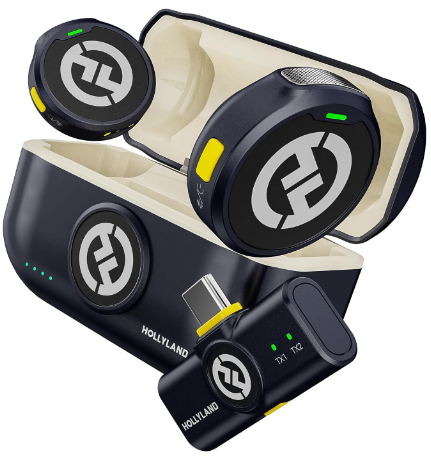
Hollyland LARK M2 - Mini Lavalier Microphone
An incredibly lightweight and compact wireless button microphone that captures high-fidelity audio.
Key Features: 9g Button Size | 48 kHz/24-bit | 40 Hours Battery
FAQs
Q: Why does my TikTok video still look blurry after using these settings?
TikTok re-compresses every uploaded video on its servers, so some quality reduction is unavoidable. Exporting at 1080p with high quality gives TikTok the best source file to work from. Also confirm that Data Saver is turned off in your TikTok app settings, since it reduces the quality stream delivered to your viewers.
Q: Should I export in 4K from CapCut for TikTok?
TikTok does not consistently show true 4K quality in playback. Larger 4K files get reduced more during processing. This extra compression does not improve viewer quality. Instead, it can lower detail in the final video. For TikTok, 1080p is the highest useful export quality.
Q: Does CapCut’s direct “Share to TikTok” button use the same settings as manual export?
The shortcut button applies your active export settings, so the file quality is the same. But manually exporting and uploading separately gives you control over timing, captions, scheduling, and upload conditions. Manual export is the more reliable approach for consistent results.
Conclusion
For most TikTok videos, these settings are a good starting point. Keep your exports at 1080p with 30fps or 60fps. Choose a higher bitrate and save in MP4 H.264 format. Once you find these settings suitable, you can use them for your future TikTok videos. But it is always better to test. So before posting new content, upload a short sample first. Then compare it with an older upload from your account. This simple check can help you spot quality changes quickly.