.png)
.png) Français
Français .png) Deutsch
Deutsch .png) Italiano
Italiano .png) 日本語
日本語 .png) Português
Português  Español
  简体中文
简体中文 
Want to make your Samsung phone truly yours with a custom ringtone from your favourite YouTube song? You’re not alone. Whether it’s a trending tune, a funny clip, or a personal favourite, YouTube is full of sounds people want to turn into ringtones.
But here’s the catch: Samsung doesn’t let you use YouTube audio as a ringtone directly. The good news? It’s still possible with just a few tools and simple steps. This guide shows you how to safely convert YouTube audio into a custom ringtone that works perfectly on your Samsung device.
Is It Legal to Use YouTube Audio for Ringtones?
Legally speaking, downloading audio directly from YouTube is a violation of its Terms of Service unless the content is explicitly copyright-free or you have direct permission from the creator. YouTube’s policies are designed to protect creators’ rights and prevent unauthorized distribution of their work.
However, things get a little fuzzy when it comes to personal use, such as setting a YouTube song as your ringtone. While it’s unlikely you’ll face legal consequences for using a 20-second clip as your ringtone privately, it’s still considered a legal grey area.
To stay on the safe side:
- Stick to royalty-free music or public domain content.
- Look for tracks labeled as Creative Commons, which often allow personal use.
- Use songs you’ve composed, recorded, or purchased with a license.
- Never share or sell converted ringtones made from copyrighted music.
How to Set a YouTube Song as a Ringtone on Samsung?
Customizing your ringtone using a YouTube track is doable; you just need the right tools and a few quick steps.
Step 1: Convert the YouTube Video to MP3
Firstly, copy the YouTube video link:
- Open the YouTube app or website.
- Find the video or song you want.
- Tap “Share” and then “Copy Link.”
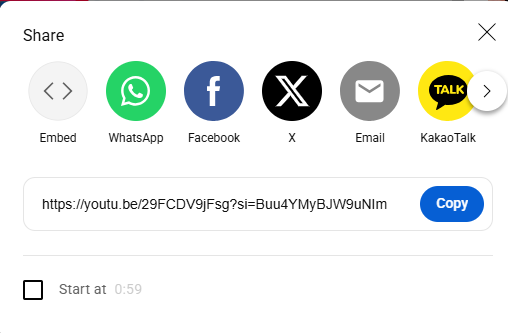
Now use a reliable MP3 converter:
- Open a reliable MP3 converter like:
- YTMP3.cc
- Kapwing
- FonePaw
- Inovideo
- YTMP3.cc
- Paste the YouTube link into the converter.
- Choose MP3 as the output format.
- Download the converted MP3 to your phone or PC.
Avoid websites filled with pop-ups or redirects. Use converters with HTTPS for better safety.
Step 2: Trim the MP3 File for Ringtone Use (Recommended)
Samsung devices support ringtones, but shorter clips work better, ideally under 30 seconds.
Why Trim?
- Long intros waste time.
- Some phones may not play full-length MP3S.
- Shorter ringtones are cleaner and more functional.
How to Trim the Audio
Use tools like:
- MP3Cut.net – Simple online audio cutter.
- MP3 Cutter – Android app for trimming and editing.
- AudioLab – For advanced edits and fade-ins/outs.
Steps:
- Upload your MP3 file.
- Select a start and end time (keep it under 30 seconds).
- Save or export the trimmed file.
Step 3: Move the Audio File to the Ringtones Folder
Your phone needs the ringtone file in the right location to recognise it.
If Using a PC:
- Connect your phone to your computer using a USB cable.
- Open your phone’s internal storage.
- Navigate to or create a folder named “Ringtones.”
- Copy and paste the trimmed MP3 file into that folder.
If Using Your Samsung Phone:
- Open the My Files app.
- Go to Downloads (or where the MP3 is saved).
- Tap and hold the file > choose Move or Copy.
- Navigate to Internal Storage > Ringtones and paste the file.
Step 4: Set the MP3 as Your Default Ringtone
- Open Settings on your Samsung device.
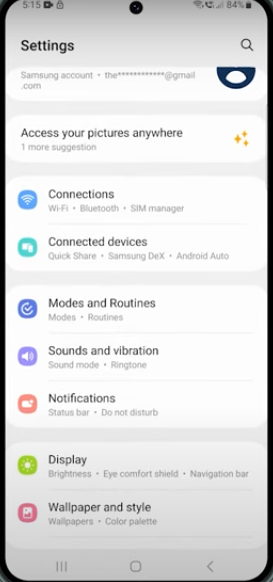
- Tap Sounds and Vibration > Ringtone.

- Tap the “+” or “Add” option at the top.

- Select your trimmed MP3 file from the list.
- Tap Done to save and apply the ringtone.

Want a custom ringtone for just one contact?
- Go to the Contacts app.
- Choose the contact > tap Edit > View More > Ringtone.
- Select your new custom file and save.
Best Apps for YouTube to Ringtone Conversion
If you are not a fan of using websites, here are some trusted apps and tools that make it even easier:
- Zedge – Browse ringtones or upload and edit your own.
- MP3 Cutter & Ringtone Maker – Trim, cut, and set audio files.
- Inovideo / FonePaw Video Converter – Great for downloading and converting YouTube videos to high-quality MP3S.
- Kapwing – An online editor that can trim YouTube clips and export them in audio formats.
Always use official sites or app stores like Google Play to avoid viruses or hidden malware.
Why Isn’t Your Custom Ringtone Showing Up?
If your custom ringtone isn’t appearing in the list, try these quick checks:
- Wrong folder: Make sure your MP3 file is inside the Ringtones folder in Internal Storage.
- Unsupported format: Samsung supports MP3, WAV, M4A, and OGG. Other formats might not work.
- File too long or large: Keep it under 30 seconds and ideally below 1MB for best performance.
- Phone hasn’t refreshed: Restart your device to ensure it detects the new audio file.
After rebooting, go to Settings > Sounds and Vibration > Ringtone and check again.
Conclusion
Setting a YouTube song as your ringtone on a Samsung device isn’t as straightforward as tapping a button, but it’s doable with the right tools and steps.
You can enjoy a truly unique ringtone by converting the YouTube video to MP3, trimming the audio, and placing it in the correct folder. Just make sure you’re using copyright-free music or have permission to convert and use the track.
Now, go ahead and give your phone a ringtone that reflects your personality—and make sure it turns heads the next time it rings!
FAQs
Q1: Is it safe to use YouTube to MP3 converters online?
Yes, as long as you use reputable websites. Look for a secure HTTPS connection and avoid platforms that prompt unnecessary downloads, pop-ups, or suspicious permissions.
Q2: Why isn’t my custom ringtone showing in the Samsung ringtone list?
Make sure the audio file is in the Ringtones folder, uses a supported format, and that you’ve restarted your device. This refreshes the system and allows the file to appear in the selection menu.
Q3: Can I use YouTube Music Premium tracks as ringtones?
No. Premium tracks are DRM-protected, meaning they cannot be downloaded or used outside the YouTube Music app, including for ringtones.
Q4: What’s the ideal length for a ringtone?
For best performance, keep your ringtone between 15 and 30 seconds. Longer tones may be cut off or fail to play properly.
Q5: Can I set custom ringtones for individual contacts on Samsung?
Absolutely. Open the Contacts app, choose a contact, tap Edit > View More > Ringtone, and select your custom audio file.