.png)
 简体中文
简体中文 
People love Roblox! And we’re not claiming it on our own. Stats show that Roblox had 79.5 million active users in the 2nd Quarter of 2025. Many players create unique worlds and share them with excited fans. Some creators even earn money by trading rare and valuable items. One creator named SonOfSevenless owns collectibles worth over one million.
This article teaches you how to stream Roblox using a laptop and a streaming platform like Discord. You will learn steps that work on both Windows and Mac laptops.
Method 1: How to Stream Roblox on a Laptop when Playing via the Roblox App
- Run Roblox on your laptop and launch the Discord software.
To make sure your camera feed is visible during the livestream, check if the camera and mic are enabled.
- Click on the “User Settings” icon in the left panel.

- Scroll to the “Voice & Video” option from the left-side menu.

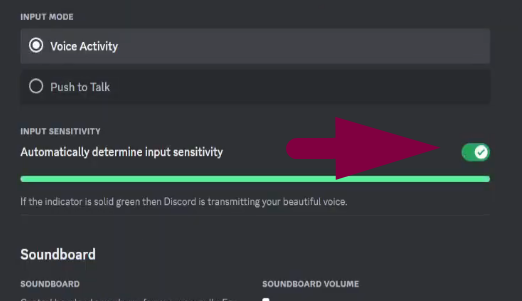
- In the Input Mode, choose “Voice Activity” and ensure the toggle is on for “Automatically determine input sensitivity.”
- On the same page, go to the Video Settings section. Click the drop-down list under the Camera tab, and select your camera.

After selecting your camera, click “Test Video.”
Here, you can set up features like AI tuning and 4K Cinematic image quality, which cameras such as the Hollyland VenusLiv Air offer before you go live.

- Now, return to the main Discord screen, click the “User Settings” icon, and select the “Registered Games” option from the left-side menu.


Important: Roblox must be running, and the app shouldn’t be closed.
- Click the “Add it!” option. Search for Roblox (or click the downward arrow to open the app and choose Roblox), and hit “Add Game.”

On the main screen, Roblox will appear with the option to stream.

- Click the “Stream Roblox” icon to open the Screen Share window.

- Select the Voice Channel and Streaming Quality, such as 720p resolution and 30 frame rate, and click “Go Live.”

If you have Discord Nitro, you can stream at a higher resolution and frame rate.
- Return to the main screen, and under the Game Server section, and the VOICE CHANNELS tab, click “Gaming.”

Important: The Voice channel names can be different, depending on your preference.
- Once you click Gaming, the preview window for the Roblox game will appear on Discord’s interface. Double-click to maximize it and enjoy streaming.

- You can also end Roblox streaming on Discord by clicking the small Cancel icon under the Game Server section.

Method 2: How to Stream Roblox on a Laptop without Downloading the Game?
There are several sites that let you play Roblox online from your browser and without downloading the Roblox Studio or app from the official site, Windows Store, or App Store. For this method, we have used the EasyFun.gg so you can understand the process. The core steps may apply to all platforms offering the online playing service.
- Go to easyfun.gg website from your Chrome browser (or any browser of your choice) and type “Roblox” in the search option.

- Click “Play Now” and allow the game to load.


Once the loading is complete, log in or sign up by clicking the profile icon. Or, else you will need to wait in the queue of online players.

- When the game starts, open Discord and go to “User Settings.”

- Select the “Registered Games” option.

- Click “Add it!” and choose “Google Chrome” from the drop-down list.


Why Choose Chrome? Because the source is now your browser, as you’re playing without downloading Roblox to your laptop’s hard drive.
- Then click “Add Game.”

A notification will appear on Discord that “Google Chrome” is now playing.

- Go back to Discord’s main screen and click the “Stream Google Chrome” icon.

- Select the Voice Channel and Stream Quality, and click “Go Live.”

- Double-click the preview window to maximize the view of your livestream.

Wrap Up
You wanted to stream Roblox from your laptop, and now you can. First, you can stream after downloading Roblox directly to your system. Second, you can stream while playing through a browser without problems. Discord makes both ways simple and keeps your live session smooth for friends to watch.
FAQs
1. How much money can you make as a Roblox streamer in the initial days?
It depends on how many players are attracted to your created games on Roblox. With about 1K active players, you might make around $10,000 to $50,000 (monthly estimation). The exact income depends on the way you’re promoting the game and the items available to offer. Keeping players engaged helps earnings remain steady over time.
2. How to adjust the Roblox screen on a laptop?
To change graphics in Roblox, press ESC or click the top-left logo. Open the Settings tab at the top of the menu to see options. Automatic mode lets Roblox manage graphics quality for you. Manual mode allows moving the slider right for better graphics or left for smoother performance. Press ESC or Resume to return to your game after adjusting.
3. Why is Roblox showing a white screen when I stream on Discord?
A white screen usually appears because graphics drivers are outdated or incompatible. High in-game settings or recent updates to Roblox or Discord may also cause conflicts. Restarting both apps often fixes the problem. Updating drivers and lowering graphics settings normally makes streaming work smoothly again.