.png)
 简体中文
简体中文 
When you hit export in Audacity, the software usually mixes all your audio layers into a single, flattened file. But what if you need to keep your host mics, guest audio, and background music apart? Learning exactly how to export multiple tracks separately in Audacity is a crucial skill for any audio editor.
Why Export Multiple Tracks Separately? (Understanding “Stems”)
To prevent Audacity from squashing your project into one file, you need to export your audio as stems. Stems are individual, isolated audio tracks saved as completely separate files.
Exporting stems preserves your editing flexibility. It guarantees that you can tweak individual audio sources later without permanently baking them together.
Here are the top three reasons you need to export separate tracks:
- Sending files to a professional mix engineer: Audio pros require isolated tracks to apply precise EQ, compression, and volume leveling. A single mixdown makes it nearly impossible to fix issues on a specific microphone.
- Importing into video editors: If you are moving your audio to software like Premiere Pro or DaVinci Resolve, you need separate dialogue, sound effects, and music layers to sync perfectly with different camera angles.
- Archiving isolated vocals and instruments: Saving raw, unmixed stems ensures you always have clean backups of individual performances for future remixes or alternative projects.
Method 1: The Standard Way (Exporting by Tracks)
If your project has multiple stacked audio sources—like individual host microphones and background music—this method ensures each layer exports as its own isolated file.
Follow these exact steps:
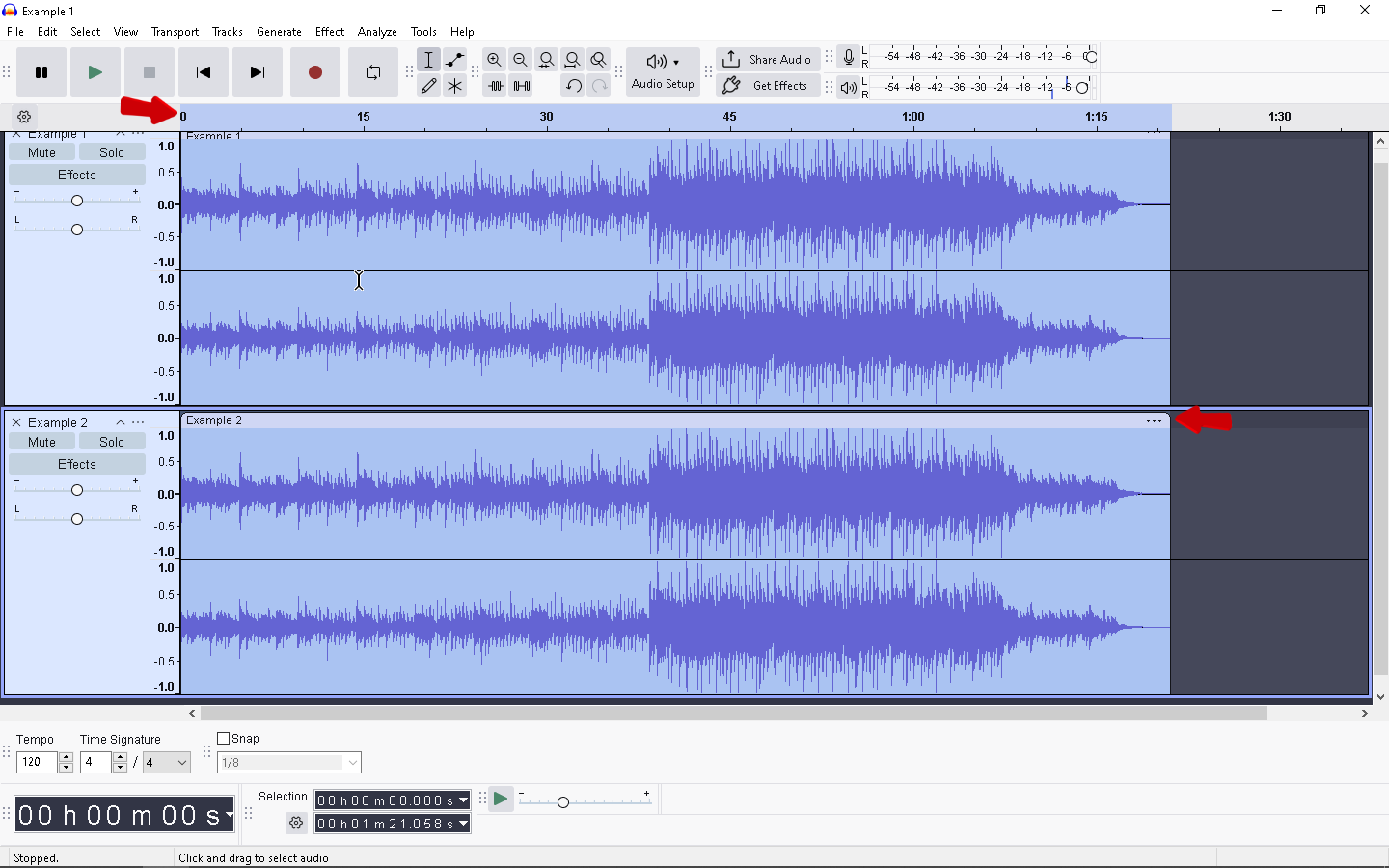
- Ensure all tracks are unmuted. Audacity ignores muted tracks during a batch export. Check your timeline and make sure the “Mute” buttons on your desired tracks are toggled off.
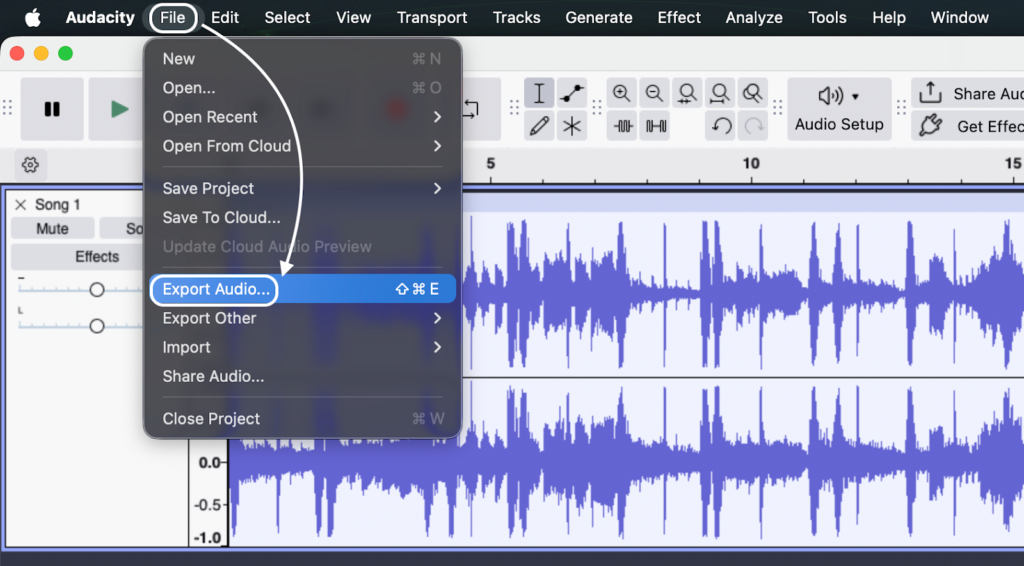
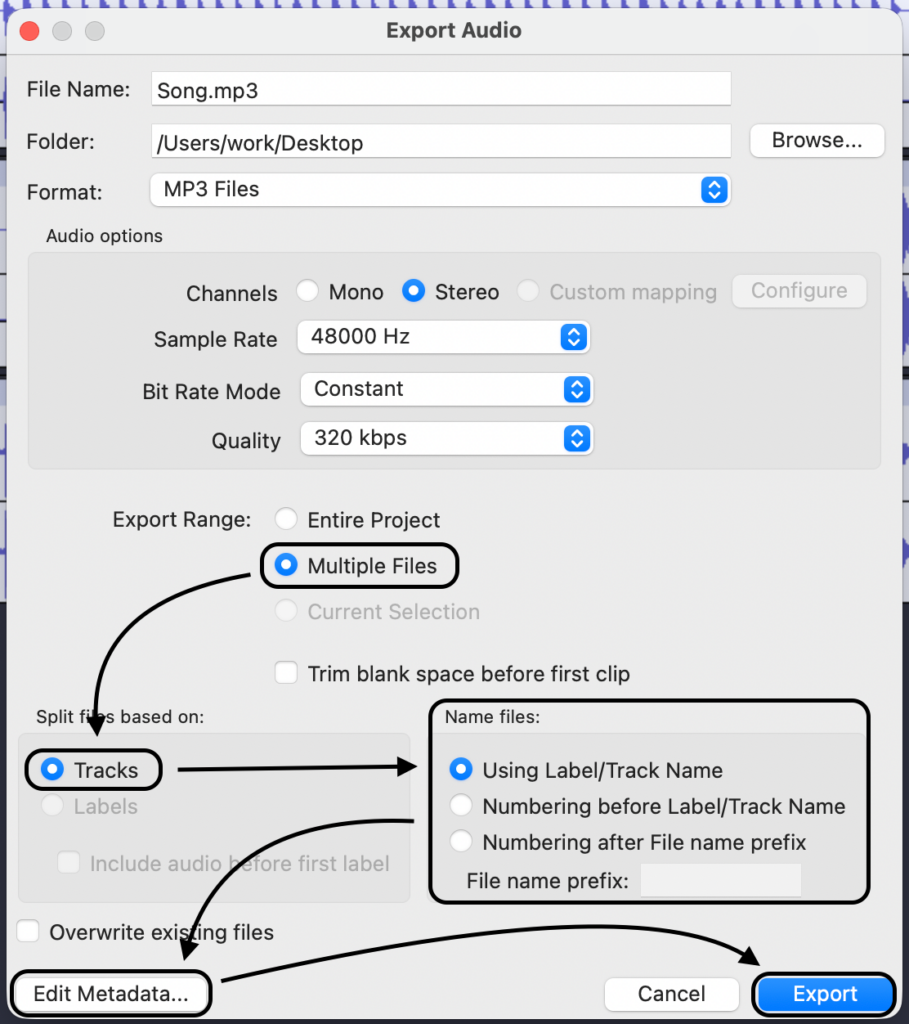
- Navigate to the Export menu. Go to File > Export Audio, then select Multiple Files at the top of the dialog box.
- Select your split method. In the export window, look for the “Split files based on” section. Choose Tracks so the software knows to separate the audio based on your timeline layers.
- Choose your audio format. Select your final file type. WAV is highly recommended here, as it is an uncompressed, lossless format that preserves absolute audio quality. You can also select MP3 depending on what you need.
- Set your naming conventions. Under the “Name files” section, choose how to label your new files. Using Label/Track Name keeps the exact titles from your timeline (e.g., “Host_Mic.wav”). Numbering before Label/Track Name adds a sequential prefix to keep things organized (e.g., “01_Host_Mic.wav”).
- Click Edit Metadata and click Export. A metadata tag window will pop up for each track. Fill out any necessary details and click OK to finish the process. Hit the Export button.
Method 2: The Alternative (Exporting by Labels)
Sometimes, you don’t have multiple stacked layers. Instead, you have one continuous recording—like a one-hour podcast interview or a long voiceover take—and you need to chop it into separate, bite-sized files.
If you want to split a single timeline into individual files (like Intro, Chapter 1, and Chapter 2), exporting by labels is the way to go. It skips the tedious process of manually copying, pasting, and exporting sections one by one.
Here is how to slice a single track into multiple files using labels:
- Highlight your target audio. Click and drag your cursor over the specific section of the track you want to isolate.
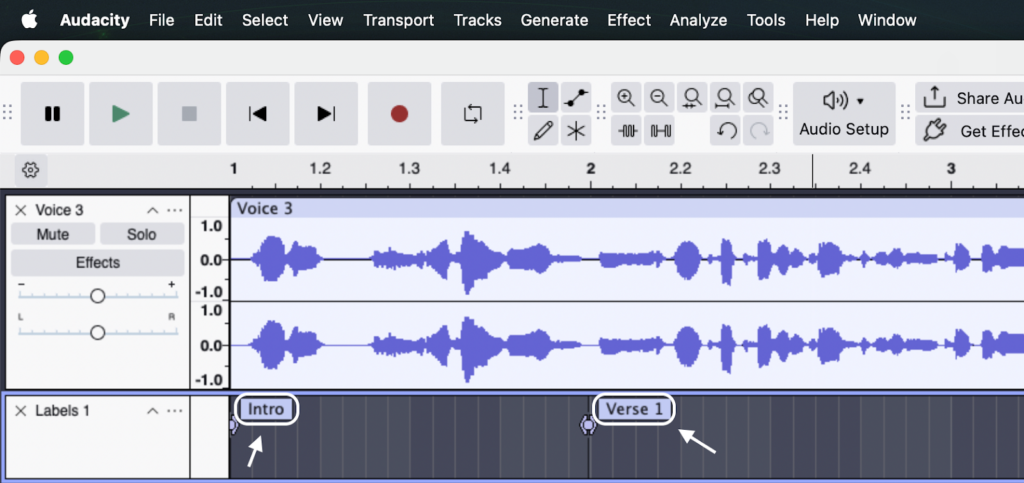
- Create a label. Press Ctrl + B on Windows or Cmd + B on Mac. A new “Label Track” will instantly appear beneath your audio with an active text box.
- Name your label. Type a clear, descriptive name (e.g., “Intro”). Audacity will use this label to name your final exported file.
- Repeat the process. Continue moving down your timeline, highlighting and labeling every section you want to turn into a standalone track.
- Navigate to the Export menu. Go to File > Export Audio, then select Multiple Files at the top of the dialog box.

- Split based on labels. In the export dialog box, look for the “Split files based on” section. Select Labels instead of Tracks.
- Export. Choose your preferred audio format, confirm your save destination, and click Export. Audacity will automatically generate a separate audio file for every labeled section.

Pro Tip: Start with Better Multi-Track Source Audio
Exporting separate stems only matters if your original recordings actually sound good. Trying to fix blown-out, distorted audio during post-production is a nightmare. The secret to a smooth edit is capturing pristine audio right at the source.
If you record multi-person interviews, podcasts, or video content, upgrading your hardware solves these issues before you even open your DAW. The Hollyland LARK MAX 2 is engineered specifically for creators who need flawless multi-track audio without the technical headaches.

Hollyland LARK MAX 2 - Premium Wireless Microphone System
A premium wireless microphone for videographers, podcasters, and content creators to capture broadcast-quality sound.
Key Features: Wireless Audio Monitoring | 32-bit Float | Timecode
- 32-Bit Float Recording: This is a massive timesaver for Audacity editors. It provides an ultra-wide dynamic range, meaning your audio will never clip or distort—even if your subject suddenly yells or laughs. If a track comes in too hot, you simply lower the gain in Audacity to reveal perfectly clean audio.
- Uncompromised Studio Quality: The system captures rich, uncompressed 48kHz/24-bit audio. When you finally export your individual stems, they maintain a professional, broadcast-ready sound.
- Real-Time Wireless Monitoring: You can monitor your isolated tracks wirelessly using the new OWS earphones. This lets you check for background noise and lock in perfect levels for each speaker before you press record.
Choosing the Right Audio Format for Export
Selecting the correct file format in the export dialog box is a critical step. Your choice dictates the final audio quality and file size of your stems.
Use the guide below to determine which format fits your workflow:
| Format | Quality | Best Used For |
|---|---|---|
| WAV | Uncompressed / Lossless | Video editing (Premiere Pro, DaVinci Resolve), professional mixing, and mastering. |
| MP3 | Compressed / Lossy | Quick drafts, email sharing, or uploading to web platforms with strict file size limits. |
| FLAC | Compressed / Lossless | Long-term archiving and saving hard drive space without losing audio fidelity. |
I
If you are handing your tracks off to a video editor or a sound engineer, always select WAV. It preserves the exact audio data you recorded without introducing any compression artifacts.
Use MP3 only when file size is your absolute top priority, like sending a quick preview to a client. Because MP3 permanently degrades audio quality to shrink the file size, it is a poor choice for multitrack stems intended for further editing.
Common Pitfalls When Exporting Multiple Tracks
Even seasoned editors occasionally mess up an export. Watch out for these three common traps.
1. Muted Tracks Left Behind
If you finish an export and realize a specific stem is missing, check your timeline. Audacity completely ignores muted tracks during the export process.
Before starting a batch export, scan your workspace and ensure the Mute button is toggled off for every layer you need. Conversely, you can use this feature to intentionally leave out scratch tracks or bad takes.
2. The Accidental Mixdown
There is nothing quite as frustrating as expecting ten pristine stems and getting one giant, overlapping audio file. This happens when you accidentally execute a standard export without the correct batch settings.
In Audacity 3.4 and newer, ensure the Multiple Files option is actively selected in the main export dialog box. Always double-check that your settings are configured to split files based on Tracks to avoid a messy, irreversible mixdown.
Frequently Asked Questions (FAQ)
Why is “Export Multiple” grayed out in Audacity?
If the option is unavailable, your playback is likely paused instead of stopped. Audacity locks most editing and export features while audio is actively playing or paused. Hit the Stop button (the square icon) or press the Spacebar to halt playback completely.
Can I export just selected parts of multiple tracks?
Yes. Use the Selection Tool to highlight the specific timeframe you want to export across your multiple tracks. Then, navigate to File > Export > Export Selected Audio.
Keep in mind that, depending on your settings, this action may mix the highlighted sections down into a single master track. If you need those sections preserved as separate files, trim the unwanted audio first, then run the standard Export Multiple process.
Does exporting multiple tracks reduce audio quality?
No, the batch export process itself does not degrade your audio. Quality loss only occurs if you choose a lossy compression format (like MP3 or OGG) inside the export dialog box. To maintain the exact studio quality of your original recording, always select a lossless format like WAV (16-bit or 24-bit) or FLAC.
Conclusion
Exporting individual stems is a non-negotiable step for building a professional audio workflow. Whether you are handing files off to a video editor, sending tracks to a mix engineer, or simply archiving isolated vocals, keeping your layers separated gives you ultimate control over the final product.
Before applying this to a massive multi-hour podcast episode, try Exporting Multiple Files on a small, two-track project. This allows you to get comfortable with the naming conventions and folder routing without the pressure of a looming deadline.
Finally, if you are tired of spending hours fixing clipped, distorted audio in Audacity, it might be time to upgrade your hardware. The Hollyland LARK MAX 2 features incredible 32-bit float recording technology, ensuring your multi-track source audio is pristine, perfectly leveled, and completely unclipped from the moment you hit stop.