.png)
 简体中文
简体中文 
If you are trying to figure out how to convert M4A to WAV in Audacity, you probably started by dragging your file into the program—only to get hit with a frustrating “Import Error.” If you recorded your audio on a smartphone, especially an Apple Voice Memo, this is a very common roadblock.
The issue comes down to the file format itself. Audacity cannot natively read M4A (AAC or ALAC) files right out of the box due to software patent and licensing restrictions. Because Audacity is a free, open-source program, its developers cannot legally bundle proprietary audio decoders into the default download.
To fix this error, you need to install the FFmpeg library. FFmpeg is a free, open-source collection of audio and video decoders that acts as a translation bridge for your software.
Once installed, FFmpeg runs quietly in the background and gives Audacity the ability to import and export hundreds of different file formats. It is a mandatory, one-time setup that solves the M4A import error for good.
Method 1: How to Convert M4A to WAV in Audacity (The Standard Way)
To convert an M4A file natively inside Audacity, you must first install the FFmpeg library. We have broken this process down into two simple phases.
Phase 1: Install the FFmpeg Library
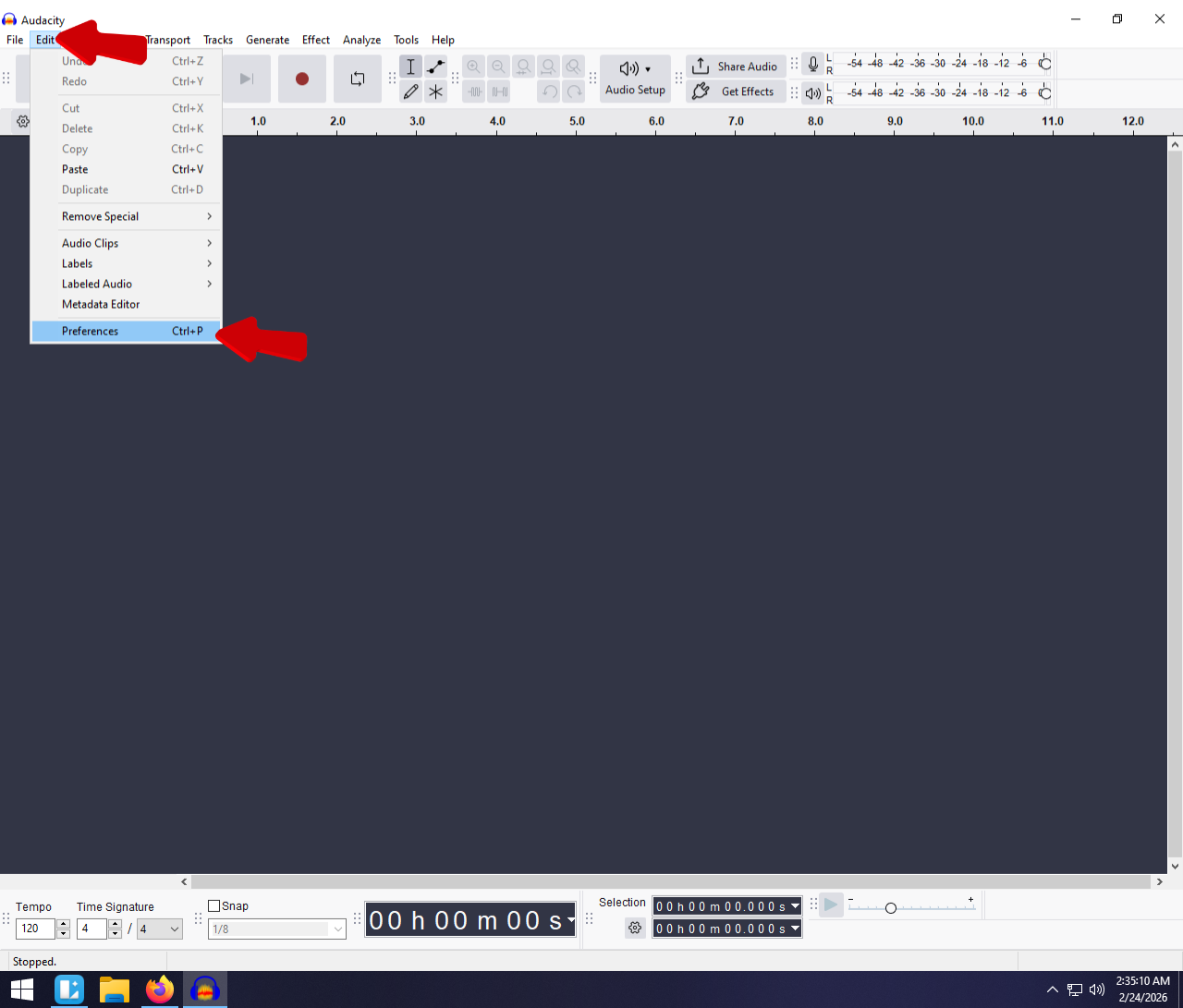
- Open Audacity and go to Edit > Preferences > Libraries (on a Mac, go to Audacity > Settings > Libraries).

- Find the FFmpeg library section and click Download. This will take you to the official installation page. Follow the specific instructions for your operating system – Windows or Mac.

- Restart Audacity completely so the software can detect and load your new plugin.
Phase 2: Import and Export
- Drag and drop the M4A file directly into your Audacity workspace.
- (Optional) Make any necessary edits, trims, or volume adjustments to your audio track.
- Go to the top menu and select File > Export Audio.

- Select WAV as your format and choose your encoding format. Select 24-bit PCM (professional studio quality) for the best lossless results.

Method 2: Quick Alternatives if You Don’t Want to Install Plugins
Installing third-party libraries like FFmpeg can feel overly technical. If you just need a quick conversion without modifying system files, try these simpler workarounds.
Alternative A: Free Online Converters (Best for Small Files)
Browser-based tools like CloudConvert or FreeConvert are perfect if you only have a few small M4A files. You simply upload your audio, select WAV as the output format, and download the converted file to your computer.
Be careful: Because this method requires uploading your data to a third-party server, do not use online converters for sensitive, confidential, or unreleased audio material.
Alternative B: Apple Music or iTunes (Best Desktop Alternative)
If you already use a Mac or have iTunes installed on your Windows PC, you have a free converter already on your computer. This method processes everything locally, keeping your files completely private.
Here is how to set it up:
- Open Apple Music (Mac) or iTunes (Windows).
- Choose Music > Settings, click Files, then click Import Settings.


- Change the “Import Using” dropdown menu to WAV Encoder and click OK.

- Highlight the M4A file in your music library.
- Go to File > Convert and select Create WAV Version.

Your new WAV file will appear right next to the original M4A in your library. You can now drag it directly into Audacity without any import errors.
Pro Tip: Does Converting M4A to WAV Improve Audio Quality?
The short answer is no.
M4A is a lossy, compressed format. This means audio data was permanently discarded to keep the original file size small. Converting it to an uncompressed WAV simply puts low-quality audio into a larger digital container.
While editing in WAV prevents further quality loss, it does not magically restore the frequencies and depth lost during the original M4A recording.
If you find yourself constantly converting smartphone voice memos to salvage your sound, it is time to upgrade your capture source. To get true lossless quality, you need to record in high fidelity from the very first take.
The Hollyland LARK MAX 2 is a flagship wireless microphone that fixes this problem at the source. It captures studio-quality 48kHz/24-bit audio directly to your device, giving you broadcast-ready sound without heavy editing. It features 32-bit Float Recording, which provides massive dynamic range so your audio will never clip or distort—even if someone unexpectedly screams. You can even monitor your wireless feed in real-time using their new OWS earphones, guaranteeing perfect audio long before you ever open Audacity.

Hollyland LARK MAX 2 - Premium Wireless Microphone System
A premium wireless microphone for videographers, podcasters, and content creators to capture broadcast-quality sound.
Key Features: Wireless Audio Monitoring | 32-bit Float | Timecode
Upgrading Your Phone Audio Workflow (Stop Relying on M4A)
Smartphone voice memos default to the compressed M4A format. Converting these files to WAV won’t bring back the acoustic depth lost to your phone’s tiny, distant microphone. The fastest way to improve your audio is to bypass the phone’s internal mic entirely.
Hollyland LARK A1: The Plug-and-Play Solution
For creators shooting directly to their phones, you can skip the post-production conversion hassle altogether. The Hollyland LARK A1 offers budget-friendly professional sound with a direct, plug-and-play receiver built specifically for iPhone and Android devices.

Hollyland LARK A1 - Affordable Wireless Microphone
A perfect starter mic for creators on a budget. It’s simple to use and features effective noise cancellation.
Key Features: 48kHz/24-bit | 3-Level Noise Cancellation | 54-Hour Battery
It features a simple 3-level noise cancellation system, ensuring your voice cuts through loud environments before the file ever reaches your editing timeline.
Hollyland LARK M2: The Invisible Vlogging Mic
If you are an active vlogger who needs a microphone that stays out of the shot, the Hollyland LARK M2 is a great mobile upgrade. Weighing just 9 grams, this coin-sized microphone remains practically invisible on your clothes. Despite its tiny footprint, it provides a 40-hour battery life, guaranteeing crisp audio capture for all-day shoots without relying on lossy phone recordings.
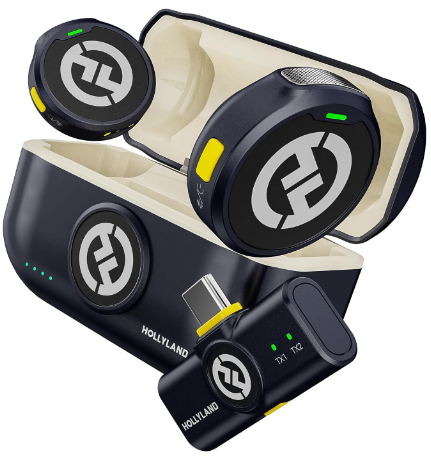
Hollyland LARK M2 - Mini Lavalier Microphone
An incredibly lightweight and compact wireless button microphone that captures high-fidelity audio.
Key Features: 9g Button Size | 48 kHz/24-bit | 40 Hours Battery
Frequently Asked Questions (FAQ)
Why is my WAV file so much larger than the M4A?
M4A is a compressed format that permanently discards audio data to save storage space on your device. WAV is an uncompressed, lossless format that stores raw audio data exactly as it was processed.
Because WAV files retain every single bit of audio information without compression, they take up significantly more hard drive space.
Is it better to edit in M4A or WAV in Audacity?
It is always better to edit using WAV files. When you import any compressed file into Audacity, the software automatically converts it into an uncompressed format internally to allow for precise editing.
Starting with a WAV file prevents your audio from undergoing multiple rounds of compression, which can permanently degrade your final sound quality.
Can Audacity export MP3 instead of WAV?
Yes, modern versions of Audacity natively support MP3 exporting right out of the box. You no longer need to download the separate LAME encoder plugin required by older versions of the software.
Simply go to File > Export > Export as MP3 to create a compressed, easily shareable audio file.
Conclusion & Next Steps
While encountering the “Import Error” in Audacity can be frustrating, installing the FFmpeg library is a simple, one-time setup. Once installed, you can easily drag, drop, and convert M4A files into high-quality, uncompressed WAVs.
Go ahead and test your newly exported WAV file in your video editor or digital audio workstation (DAW) to ensure the audio syncs perfectly with your project.
Remember, converting a compressed mobile recording into a lossless format won’t magically restore missing audio data. To capture studio-grade sound right from the first take, explore the Hollyland wireless microphone lineup. By upgrading to a flagship system like the Hollyland LARK MAX 2, you can record in pristine, distortion-free 32-bit float audio directly at the source—allowing you to skip the tedious format-fixing process entirely.