.png)
 简体中文
简体中文 
If you are recording a podcast intro, a YouTube narration, or a voice-over, the goal is often the same: a rich, authoritative tone. A deep, resonant voice signals confidence and trustworthiness to the listener. It is the standard that separates amateur recordings from professional productions.
But if your playback sounds thin, nasal, or “tinny,” you are likely looking for how to make your voice sound deeper in Audacity.
Before you start twisting knobs, it is critical to understand the difference between Pitch and Timbre. Beginners often confuse the two, which leads to unnatural, robotic results.
- Pitch (The Note): This is how “high” or “low” the note is. If you lower the pitch too aggressively with software, you won’t sound deeper; you will sound like you are in a witness protection program or a slow-motion video.
- Timbre (The Texture): This is the quality of the sound. When you think of a “radio voice,” you are actually thinking of a voice with a rich low-end timbre. This is achieved through Equalization (EQ) and bass resonance, not just by lowering the key of your voice.
The “Garbage In, Garbage Out” Rule
Audacity is a powerful, free tool, but it is not magic. Software cannot fix a bad source recording.
If your raw audio sounds thin or distant, applying heavy bass effects will only result in “muddy” distortion. To get the best results, you need to capture those low frequencies during the recording phase. We will cover how to simulate depth using software, but the most natural deep voice starts at the microphone.
Step 0: The Secret is in the Recording (The Proximity Effect)
Before opening the software, remember one rule: You cannot boost bass that isn’t there.
If you record your voice from three feet away, it will sound thin. No amount of “Bass Boost” in Audacity can fix that without making the audio sound processed. The most effective way to get a deep, “movie trailer” voice is a physical technique called the Proximity Effect.
What is the Proximity Effect?
The Proximity Effect is simple physics: the closer you get to a directional microphone, the more the low-frequency response (bass) increases.
- 12 inches away: Natural, balanced tone.
- 2–3 inches away: Enhanced bass, warmer tone, and immediate “depth.”
Radio DJs and voice actors use this trick to make their voices sound larger than life. However, getting this close to a microphone usually comes with a major risk: Distortion.
The Risk of Getting Close (and How to Solve It)
When you speak directly into a standard microphone from close range, the increased pressure usually causes “clipping.” This creates harsh distortion that ruins the recording.
This is why we recommend using a microphone capable of 32-bit Float Recording, such as the Hollyland LARK MAX 2.

Hollyland LARK MAX 2 - Premium Wireless Microphone System
A premium wireless microphone for videographers, podcasters, and content creators to capture broadcast-quality sound.
Key Features: Wireless Audio Monitoring | 32-bit Float | Timecode
The LARK MAX 2 is ideal for capturing deep vocals for two specific reasons:
- 32-bit Float Recording: This feature makes it nearly impossible to clip or distort your audio. You can confidently lean into the microphone to trigger the Proximity Effect, knowing the audio will remain crystal clear even if you speak loudly.
- Studio Quality (48kHz/24-bit): To deepen a voice in post-production, you need a high-resolution file. The LARK MAX 2 records at a studio-grade sample rate, capturing the subtle low-end textures that cheaper microphones often miss.
The Strategy:
To get the best results in Audacity, start by recording with the LARK MAX 2 placed roughly 2 to 4 inches from your mouth. This captures the raw “body” of your voice naturally, giving Audacity a rich foundation to polish rather than a thin file it needs to rescue.
Method 1: Using the “Change Pitch” Effect (The Direct Approach)
If you want to physically lower the key of your voice—changing the note you are speaking without slowing down your speech—this is the tool to use. Unlike “Change Speed,” which makes you sound like a slow-motion recording, Change Pitch alters the frequency while keeping your original tempo.
Follow these steps for a subtle, natural drop:
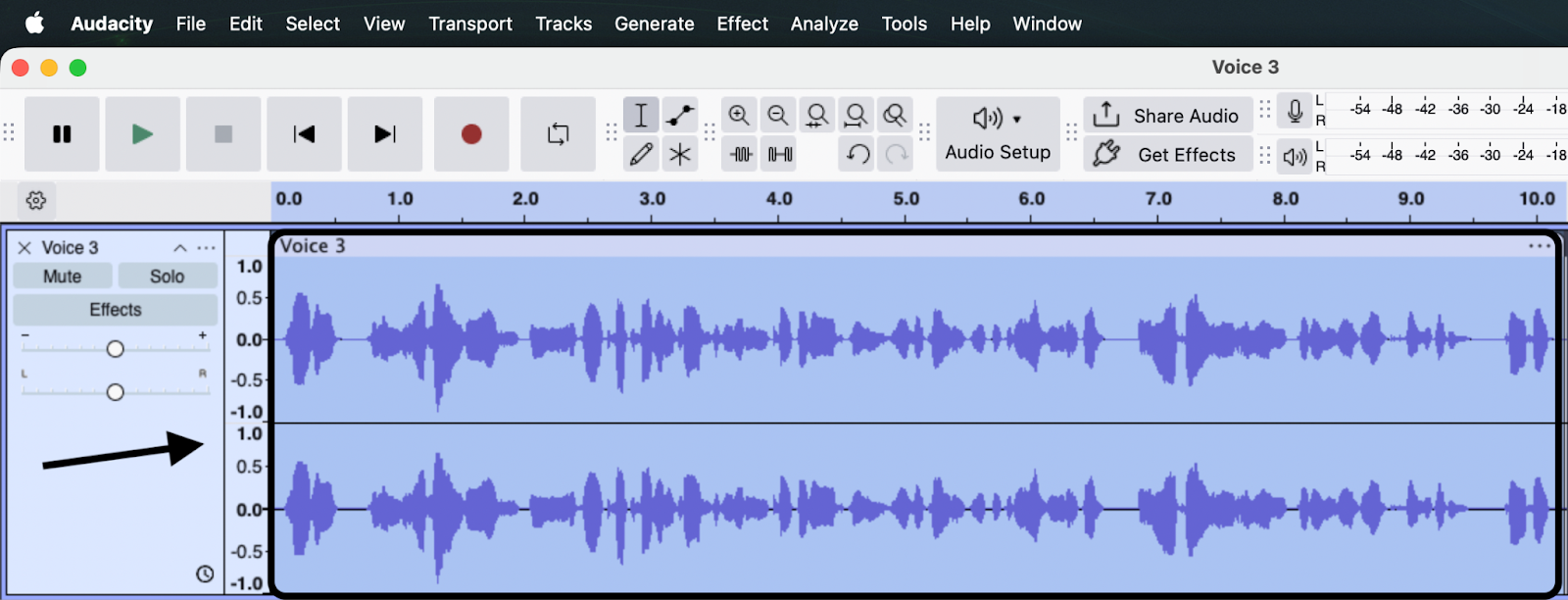
- Select Your Audio: Click the track header or press Ctrl + A (Windows) / Cmd + A (Mac) to select everything.

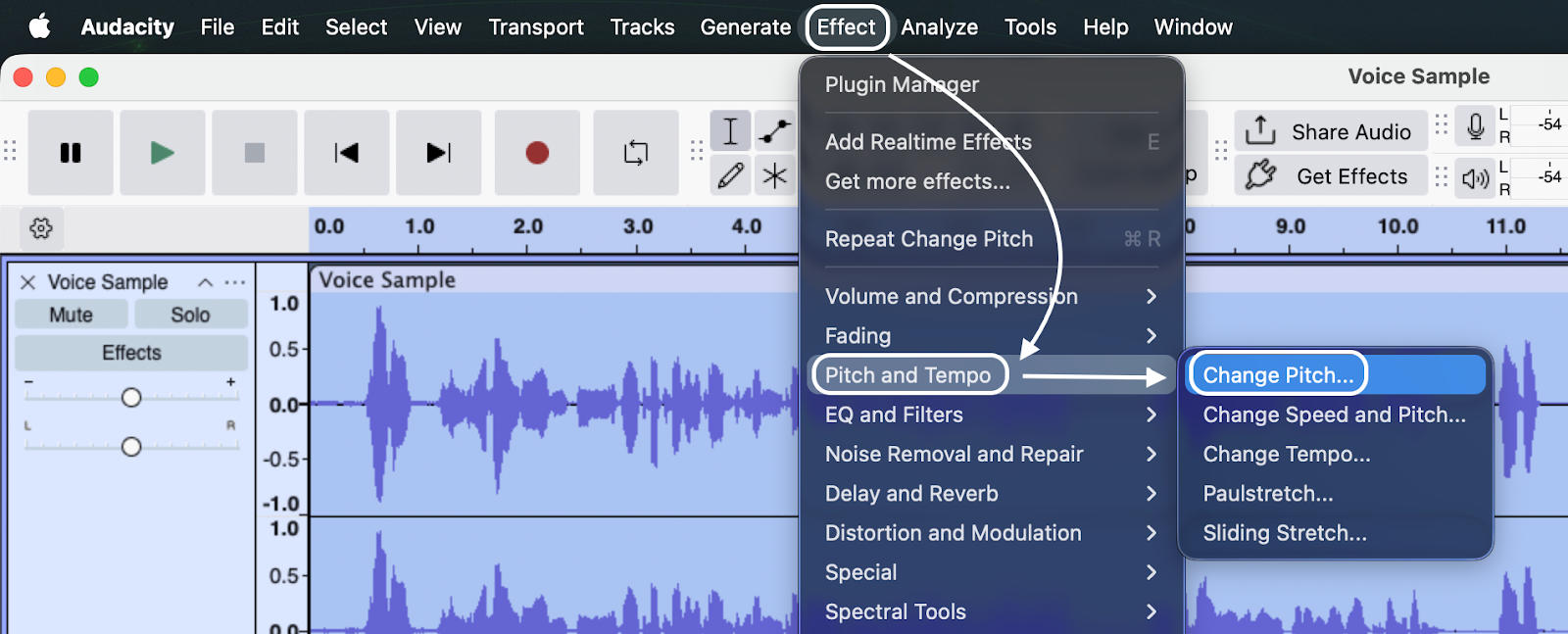
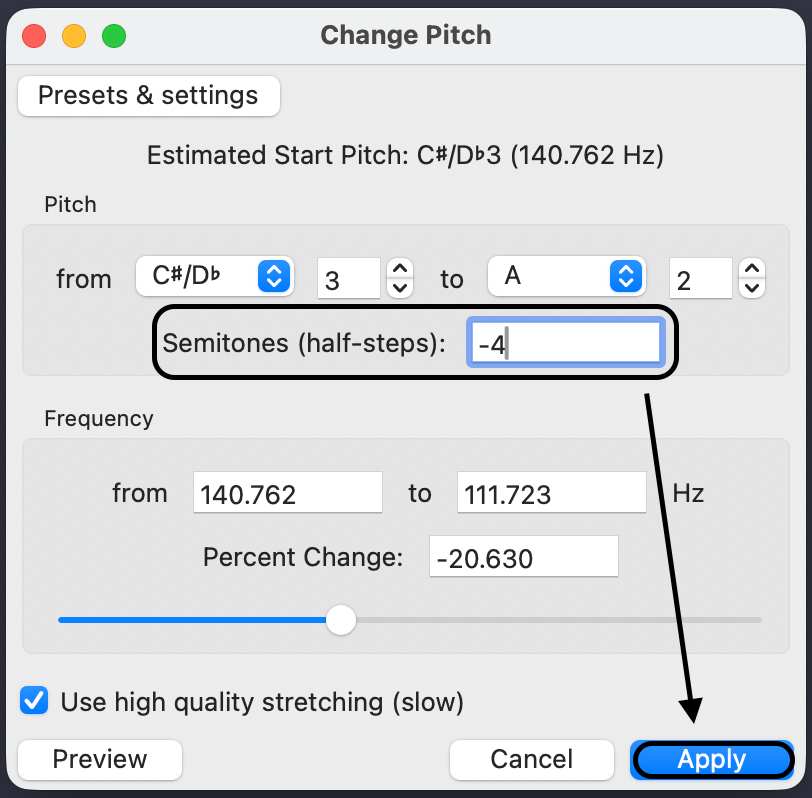
- Open the Effect: Go to Effect > Pitch and Tempo > Change Pitch.

- Adjust the Semitones: Ignore the frequency numbers. Focus on the slider labeled “Semitones (half-steps).”
- Lower the Pitch: Move the slider to the left (negative numbers). Start small with -2 to -4 semitones.
- Check Quality: If your version of Audacity has a checkbox for “Use high-quality stretching,” make sure it is checked.
- Preview and Apply: Click Preview. If it sounds natural, click Apply.

Pro Tip: Avoid the “Robotic” Zone
Less is more. If you push the slider beyond -5 semitones, the audio will start to degrade. This results in digital artifacts that make your voice sound metallic. If -4 semitones isn’t deep enough, the issue is likely the original recording, not the editing.
Method 2: Using Filter Curve EQ (The Professional Approach)
While “Change Pitch” alters the note, Equalization (EQ) changes the texture. This is how professionals add warmth without sounding synthetic.
Instead of lowering your voice, EQ boosts the low-end frequencies already present in your recording to add “body.”
- Select Your Track: Select the entire recording (Ctrl + A / Cmd + A).

- Open the Effect: Go to Effect > EQ and Filters > Filter Curve EQ.

- Load the Preset: Click Presets & Settings, go to Factory Presets, and select “Bass Boost”.

- Adjust the Curve (Crucial Step): The default Audacity Bass Boost is often too aggressive and causes distortion.
- Look at the green line on the graph.
- Click and drag the points on the line downward to reduce the intensity.
- Target: Aim for a gentle slope that boosts roughly +6dB to +9dB around the 100Hz to 200Hz range.
- Preview: Click Preview. If the voice sounds “muddy” (unclear) or muffled, lower the line slightly around 200Hz.

- Apply: Once you are satisfied with the warmth, click Apply.
Note: If your audio hits the top or bottom edges of the track after applying EQ (clipping), use Effect > Volume and Compression > Normalize to bring the volume back to a safe level (-1.0 dB).


Method 3: Polishing the Deep Voice (Compression & Normalization)
Once you deepen your voice, you might notice a new problem: inconsistency. Low frequencies carry more energy, which can cause your volume levels to jump around. Some words might boom while others disappear.
To get that smooth “broadcast” sound, you need to tame the dynamics.
Step 1: The Compressor (The “Glue”)
A compressor evens out your audio. It lowers the loudest parts and boosts the quietest parts, making your deep voice sound consistent.
- Select your track.

- Go to Effect > Volume and Compression > Compressor.

- Use these starting settings for spoken voice:
- Threshold: -15 dB to -20 dB
- Ratio: 3:1
- Attack Time: 0.10 secs
- Release Time: 1.0 secs
- Make-up gain (dB): 0 dB
- Click Apply.

Step 2: The Limiter (The Safety Net)
After adding bass and compression, your audio peaks might be close to the “Red Zone” (0 dB). A Limiter creates a ceiling your audio cannot cross, preventing distortion.
- With the track selected, go to Effect > Volume and Compression > Limiter.

- Set Threshold (dB) to -1.0 dB. This is the standard for YouTube and podcasts.
- Click Apply.

Order Matters: Always apply effects in this order: Noise Reduction → EQ/Pitch → Compressor → Limiter.
Common Mistakes When Deepening Voice
It is easy to get carried away chasing that movie trailer sound. If you push the software too hard, your audio will quickly become unusable. Here are three pitfalls to avoid.
1. Over-Boosting the Bass (The “Muddy” Effect)
More bass isn’t always better. If you boost the low frequencies (100Hz and below) too much, you will drown out the crisp details of your voice. This creates “muddy” audio—it sounds like you are speaking through a thick blanket.
- The Fix: Apply bass boosts in small increments (+3dB to +6dB). If you need more depth, try cutting the high frequencies slightly rather than cranking the bass further.
2. Changing Speed Instead of Pitch
Audacity offers several ways to manipulate audio, and beginners often pick the wrong one.
- Change Speed: Slows down the entire recording. You will sound like you are slurring your words.
- Change Pitch: Changes the key without changing the tempo.
- The Fix: Always verify you are using Effect > Pitch and Tempo > Change Pitch.

3. Ignoring Background Noise
Low frequencies are where “room tone” lives. Air conditioners, computer fans, and traffic rumble all sit in the low end. When you apply a Bass Boost, you boost that noise alongside your vocals.
- The Fix: You need a clean recording. This is where a microphone with Professional ENC (Environmental Noise Cancellation), like the Hollyland LARK MAX 2, is essential. It filters out low-frequency rumble before it reaches your computer, so you can boost your voice without boosting your AC unit.
Frequently Asked Questions (FAQ)
Can I make my voice sound deeper without sounding robotic?
Yes. The robotic sound usually happens when you use Change Pitch too aggressively (more than -10%). To sound natural, rely on EQ to boost the low-end “timbre” of your voice, and use the Proximity Effect during recording.
What is the best EQ setting for a deep voice?
Every voice is different, but these ranges are a good starting point:
- Boost 80Hz – 150Hz (+3dB to +6dB): This is where the “thump” of a male voice sits.
- Cut 200Hz – 400Hz (-2dB to -4dB): This range often sounds “muddy.” Cutting it cleans up the audio.
- Boost 3kHz – 5kHz (+2dB): A deep voice still needs clarity. This ensures you don’t sound like you are mumbling.
Does Audacity have a real-time voice changer?
No. Audacity is for post-processing (editing after recording). If you need to change your voice live for streaming or gaming, you need dedicated software like Voicemod or a hardware audio interface.
Why does my voice sound muffled after adding bass?
You likely boosted the “mud” frequencies (200Hz to 500Hz). Many beginners use the default Audacity preset, which boosts everything. Open Filter Curve EQ and manually drag the line down in the 200Hz–500Hz section.
Conclusion
Achieving a commanding voice isn’t magic—it’s a blend of physics and engineering. While Audacity’s tools are powerful, they work best when the raw audio has a solid foundation.
Remember that a professional deep voice is 50% recording technique and 50% editing. If you record thin, distant audio, digital bass boosting will just make it sound distorted.
To get the best results:
- Master the Proximity Effect: Get closer to your mic.
- Use the Right Gear: Use a 32-bit float microphone like the Hollyland LARK MAX 2 so you can speak right up against the capsule without clipping.
- Edit Subtly: Use the Filter Curve EQ to polish that rich raw file.
By combining good hardware with smart editing, you can transform a standard recording into a broadcast-ready performance.