.png)
 简体中文
简体中文 
It’s impossible to think of online engagement and reach without going live on YouTube. The interaction between you and your audience through the content feels real. However, it can only happen when your streaming looks professional and perfect.
Let’s take a look at how you should start streaming on YouTube.
YouTube Live Streaming Requirements (For Beginners)
a. Create + Verify Your YouTube Account
Verification Process
- Go to ‘YouTube Studio’ to click on ‘Settings’. Select ‘Channel’ to find ‘Feature Eligibility’.
- ‘Features that require phone verification’ contains ‘Verify Phone Number. Click on it.
- Enter your country and phone number. Now, submit the code sent to your phone.

Activation Period: You must endure YouTube’s 24-hour activation window to use live streaming after verification.

Subscriber Numbers: Desktop/Webcam streaming is independent of subscriber counts. However, having at least 50 subscribers is mandatory for mobile streaming.
Account Standing: Your channel must be in good condition (no recent strikes or restrictions).
b. Strategic Planning of Content
- Gaming streams focus on playthroughs, speedruns, or multiplayer matches. Use overlays and live chat for immersion.
- Tutorials are about teaching a skill or processing step-by-step. Include visuals and answer questions.
- Product demos showcase features, benefits, and use cases. You should try closer views, direct usage, and live Q&A.
c. Internet Connection
- Minimum Requirements: An HD stream requires a minimum of 5 – 10 Mbps upload speed. A twice the bandwidth for your stream bitrate can confirm stability.
- Connection Standards: Use Ethernet as wired connections are more stable than Wi-Fi. Limit network usage by pausing downloads. Also, disconnect all unused devices from the network.
Set Up and Equipment for Live Streaming on YouTube
a. General Setup
For Channel Optimization
- Art + Description: Use a high-resolution banner image (2560 x 1440 px) to show what your channel is all about. Include keywords that are related to your channel in an engaging description. Include clickable links to your social media and website.
- Channel Sections: Sort your existing content into playlists like ‘Live Q&A’, ‘Tutorials’, or ‘Product Demos’. Mention upcoming live streams in the ‘Featured’ section for visibility.
Stream Settings Configuration
- Privacy Settings: ‘Public’ makes your stream visible to all (ultimate standard). ‘Unlisted’ keeps the stream accessible through a direct link for private communities. ‘Private’ means only you can see (primarily for testing).
- Category Selection: Choose relevant categories like “Education,” “Gaming,” or “How-to”. It helps YouTube recommend your stream to the right viewers.
b. Equipment Setup
Camera Setup
- Webcams are mostly suitable for plug-and-play streaming. They’re affordable enough for beginners and casual streamers.
- DSLR and mirrorless cameras take better pictures and have more depth. It’s the best choice for product demos, tutorials, and interviews.
- Portable smartphone cams can get quite HD capable in pricier models. You can deliver the perfect on-the-go streaming.
Professional Option: Options like the Hollyland VenusLiv Air stand out with 24/7 streaming. It comes with a 1/1.3” CMOS sensor and 4K30 quality.
Microphone: You should get USB mics for simple plug-and-play. However, XLR mics deliver studio-grade audio recording. Installing foam panels, carpets, and curtains can reduce echo.
Lighting: Affordable ring lights seem adequate for face illumination. Softboxes can eliminate shadows and create depth. Position yourself near a window without backlighting for optimal natural light.
Streaming Live on YouTube: A Step-by-Step Guide
a. Streaming from Desktop
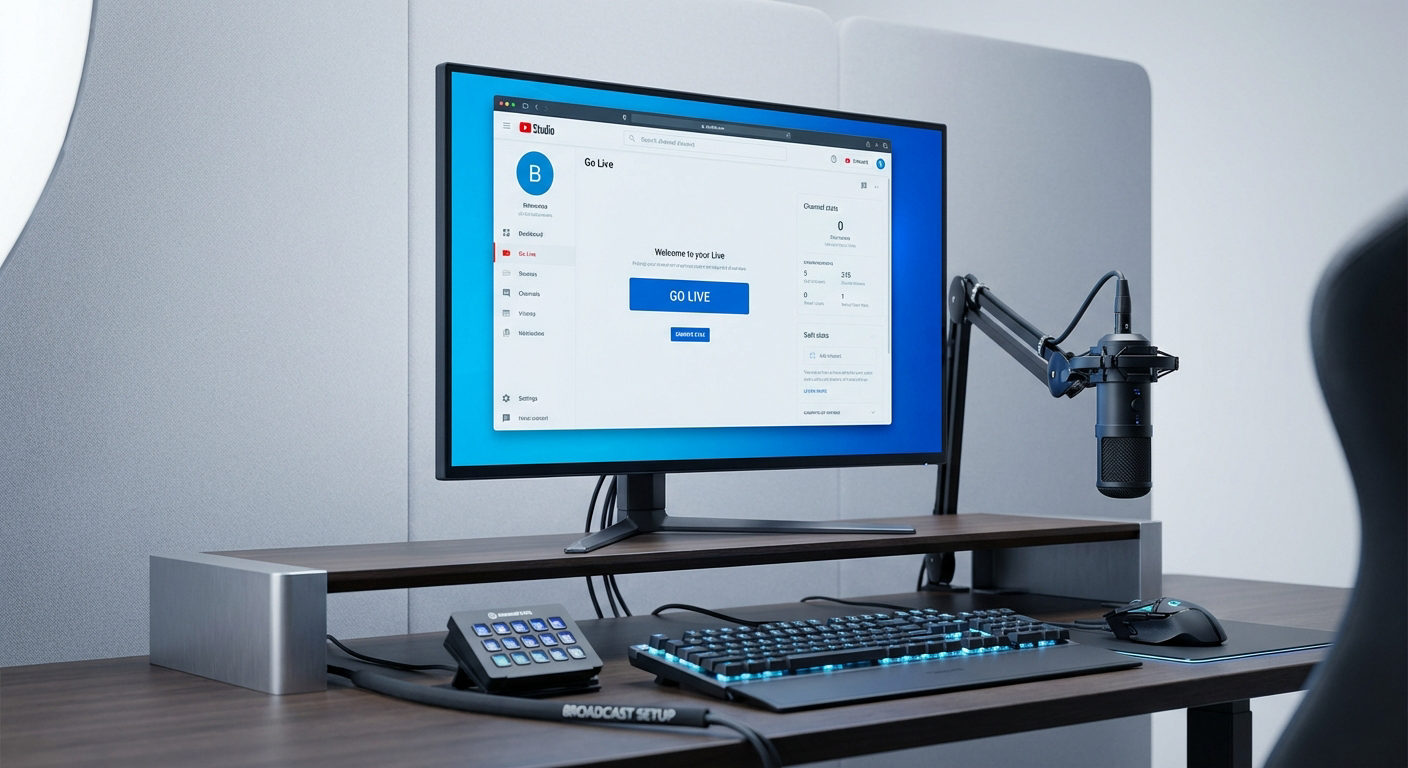
Step 1: Accessing YouTube Studio
Enter YouTube Studio to log in to your verified account. Check whether you’re eligible for live streaming.

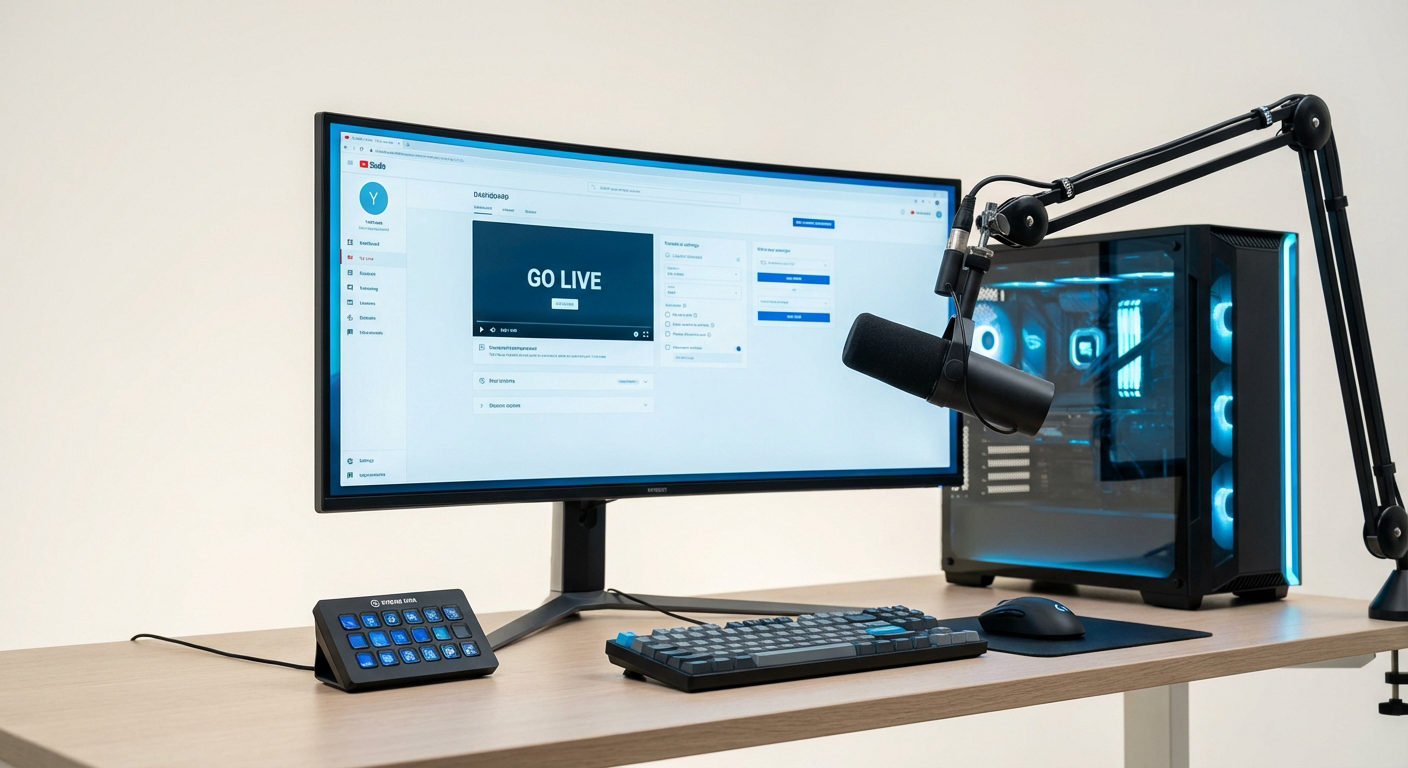
Step 2: Navigate to the “Go Live” Section
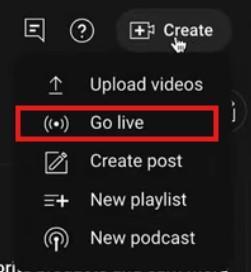
Click on the ‘Create (+)’ icon in the top-right corner. Select ‘Go Live’ to enter the ‘Live Control Room’.

Step 3: Choose from Streaming Software vs Webcam Option
Webcam enables direct browser-based streaming for casual chats/quick updates. Streaming software comes with an external encoder for multi-camera, overlays, and gameplay setups.

Step 4: Configuring Stream Settings
Choose 720p (HD) or 1080p (Full HD) streaming. 1080p is the standard for pro streaming. 720p requires 2500 – 5000 kbps, whereas 5000 – 9000 kbps is enough for 1080p. Also, set ‘Low’ latency for real-time interaction. Alternatively, choose ‘Normal’ for better video quality.
Step 5: Setting Up Title, Description, and Thumbnail
Use searchable keywords first. Put timestamps, links, hashtags, context, and other things in their own boxes. Upload a personalized picture to boost your click-through rates (CTR).


Step 6: Starting the Stream and Managing Live Chat
Click ‘Go Live’ to start broadcasting. Use ‘Live Chat’ tools for pin messages and Q&A sessions. Moderate the comments with filters and delays. YouTube automatically archives the video for replay and analytics after the stream.
b. Mobile/Smartphone Streaming
Step 1: Opening the YouTube Mobile App
Launch the YouTube app on Android/iOS. Your verified channel must have at least 50 subscribers.

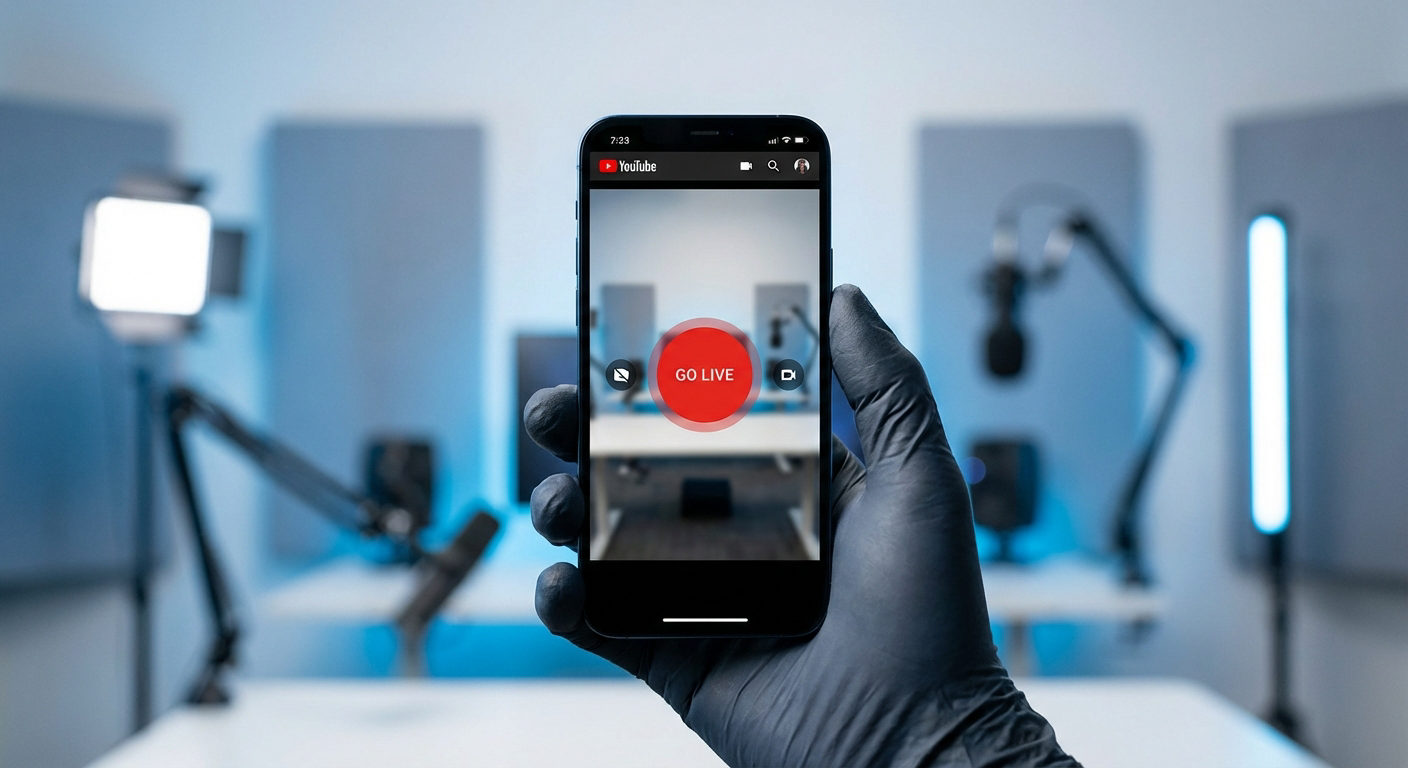
Step 2: Accessing the Create Button and Live Option
Tap the ‘+ ‘(Create) icon at the bottom center. Select ‘Go Live’.


Step 3: Setting Up Mobile Stream Parameters
Enter stream title, description, and privacy settings. Proceed to ‘orientation’ (portrait or landscape). You can add a thumbnail by taking a picture or uploading one. Impose up the stream, turn on live chat, and, if necessary, impose age limits.

Step 4: Going Live from Mobile Device
To start broadcasting, tap “Go Live”. Use filters, polls, and live chat to talk to people. End the stream by tapping ‘Finish’.
Advanced Tips for Optimizing Your YouTube Live Stream
a. General Optimization
- Bitrate and Resolution
| Resolution | Frame Rate (FPS) | Recommended Bitrate (Mbps) | Target Audience |
| 720p | 30 | 2.5 – 5 | Mobile viewers, low-bandwidth regions |
| 1080p | 60 | 6 – 9 | General audience, desktop streamers |
| 1440p | 60 | 12 – 18 | High-end viewers, gaming streams |
| 4K | 60 | 20 – 35 | Premium content, demos + tutorials |
- Dealing with Buffering
When Ethernet isn’t accessible, switch to 5GHz Wi-Fi. Still, 5GHz is more stable than 2.4GHz. Stop any operations that use a lot of bandwidth, including cloud sync or downloads.
Also, adjust your latency settings. Normal latency enables quality with less interaction. Low latency holds a balance between chat and quality. Ultra-low latency allows real-time interaction with a higher buffering risk.
- Stream Quality Monitoring
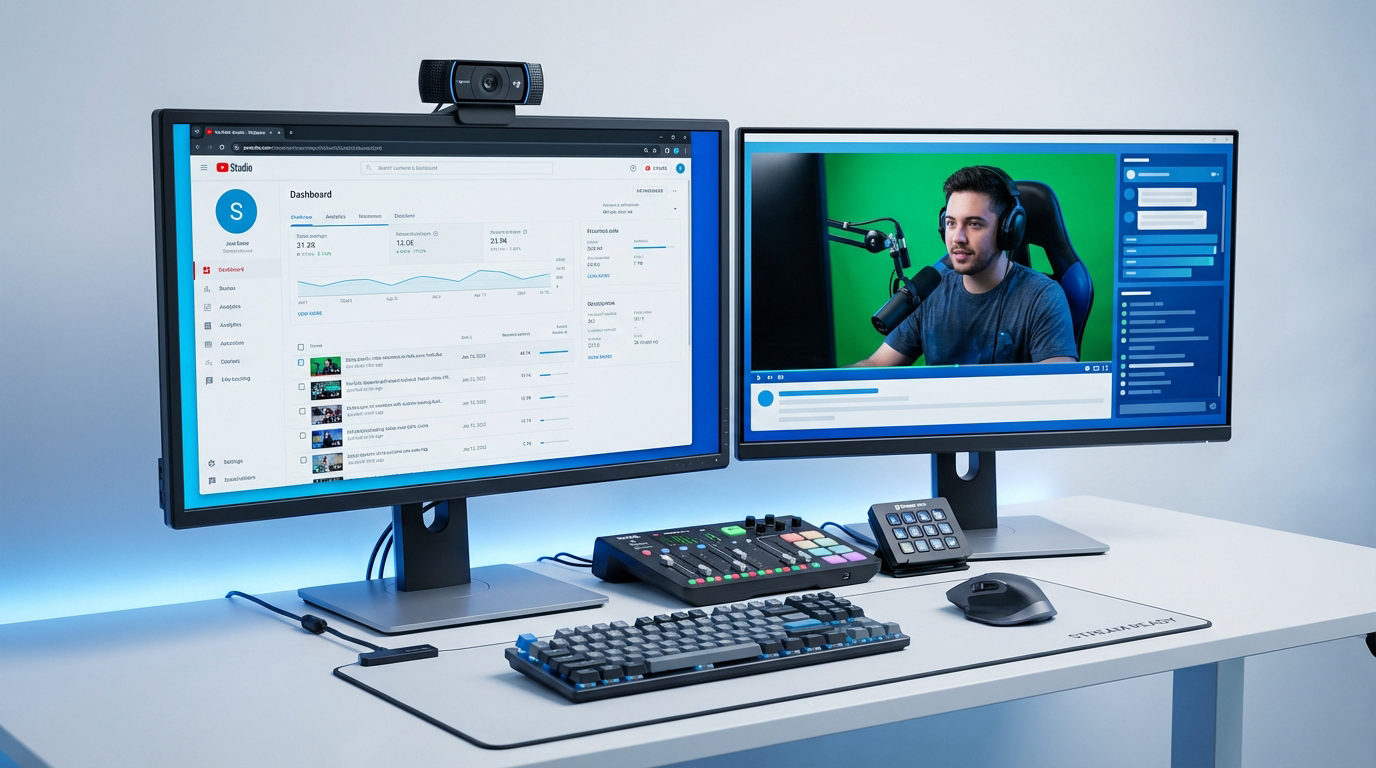
YouTube Live Dashboard contains built-in analytics to check on stream health, viewer count, and chat activity.
b. Further Optimization
- Multi-Camera Setups
Multi-camera streaming adds cinematic depth and keeps viewers engaged. For instance –
You can implement close-up, presenter, and audience reaction cams for product demos. Overhead, face cam, and ingredient station cams are necessary for cooking streams.
- Collaboration Streams + Guest Management
YouTube’s ‘Go Live Together’ lets you co-stream from mobile. Likewise, you (host) must have 50+ subscribers. Only one guest can stream at a time, and the guests can be rotated.
The host sends an invitation link, and the guest joins via mobile. The stream appears split-screen vertically. It seems beneficial for interviews, panel discussions, and influencer collaborations.
Conclusion
A pro-level stream on YouTube guarantees growth through reach and engagement. Proper planning, setup, and execution are crucial to make a good first impression. Top-tier tools are essential for confidently organizing high-quality streams without any complexity.
Frequently Asked Questions (FAQs)
- How much internet speed do I need for bufferless YouTube streaming?
A 4.5 – 6 Mbps upload speed suffices for 1080p streaming without buffering. A 4K streaming may need 13 – 34 Mbps based on your specs. Hold 25% – 40% extra bandwidth as a buffer to handle fluctuations.
- Why can’t I find the “Go Live” option on my YouTube channel?
The live streaming feature remains unavailable when your channel isn’t verified. The same goes for live streaming restrictions or failure to meet subscriber requirements (mobile streaming). Check channel status in YouTube Studio.
- What’s the difference between OBS and YouTube’s built-in streaming?
Simple built-in streaming offers limited customization. OBS Studio provides advanced features. You can enjoy multiple scenes, custom overlays, screen sharing, multiple angles, and enhanced audio control.