.png)
 简体中文
简体中文 
Learning how to cut and trim audio tracks in Audacity is the very first skill every podcaster and YouTuber needs to master. Before you start slicing up your recording, however, it is crucial to understand that “Cutting” and “Trimming” are two completely different actions.
Beginners often use these terms interchangeably, but clicking the wrong button can cause you to lose the exact section of audio you intended to keep. Here is the simple breakdown so you don’t lose your work:
- Cut: Removes the selected audio and saves it to your clipboard. The remaining audio snaps together to close the gap. Use this to move a section to a different spot.
- Delete: Removes the audio permanently without saving it. Like “Cut,” it closes the gap. Use this to remove mistakes, coughs, or dead air.
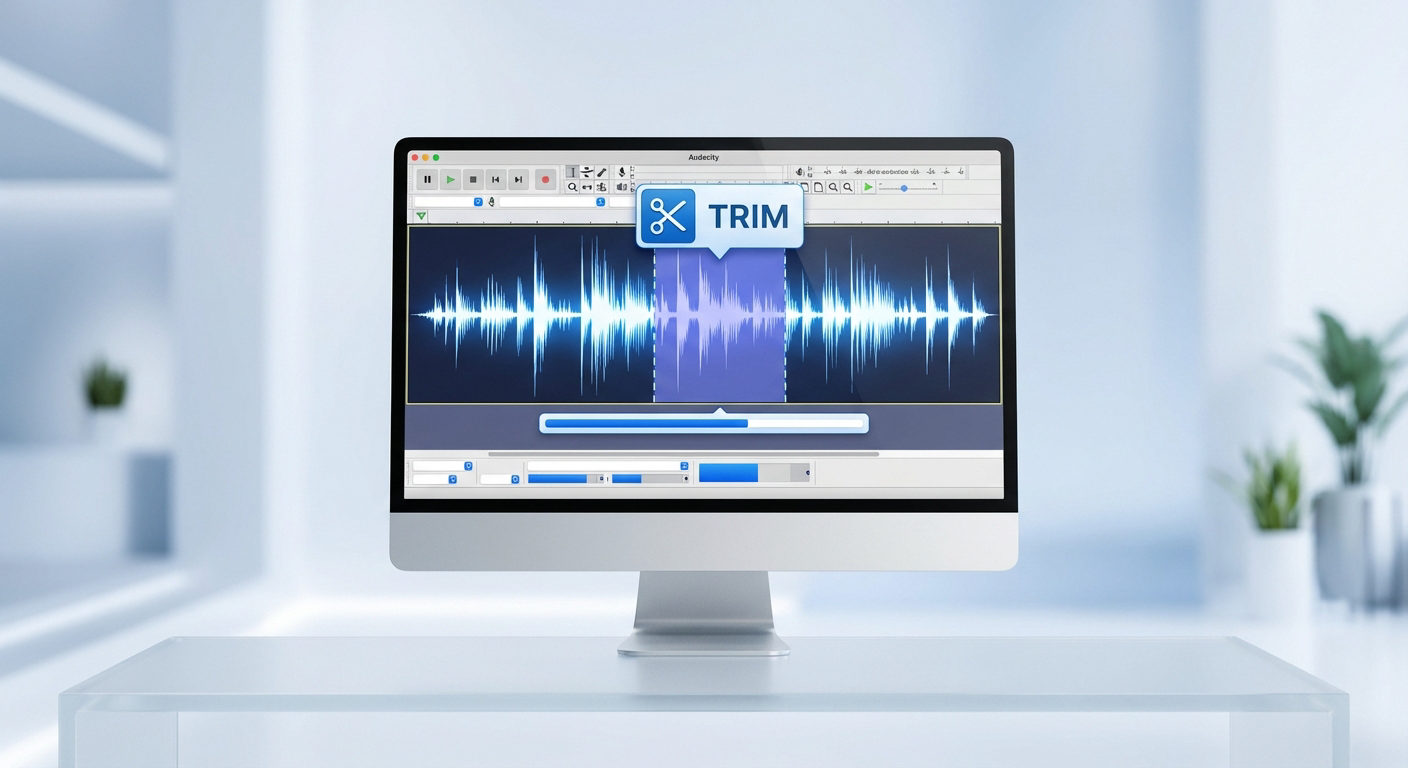
- Trim: The opposite of a cut. It removes everything except what you selected. Use this to isolate a specific soundbite and discard the rest of the track instantly.
Understanding these distinctions ensures you don’t accidentally delete your best takes or struggle to realign your tracks after an edit.
Method 1: How to Cut or Delete Audio (Removing Mistakes)
This is the most common editing task in Audacity. Use this method when you want to remove a specific section—like a stumble, a long pause, or a dog barking in the background—and have the remaining audio automatically snap together to close the gap.
Here is the quickest way to remove unwanted audio:
- Select the Tool: Click the Selection Tool (I-Beam icon) in the top toolbar, or simply press F1 on your keyboard.

- Highlight the Audio: Click and drag your mouse across the waveform you want to remove. The selected area will turn a different color (usually white or light gray).

- Execute the Removal:
- To Cut (Save to Clipboard): Press Ctrl + X (Windows) or Cmd + X (Mac). Do this if you plan to paste that clip somewhere else.
- To Delete (Remove Permanently): Simply press the Delete or Backspace key. Do this if the audio is trash.
What happens next?
As soon as you press the key, the selected section disappears. The audio on the right side of the cut will instantly shift to the left to join the previous section, creating a seamless transition without leaving a gap of silence.
Method 2: How to Trim Audio (Isolating a Section)
Think of Trimming as the inverse of Cutting. You use the Trim command when you want to keep a specific selection and delete everything else around it.
This is the fastest method if you have a long recording (like a 60-minute interview) and only want to save a specific 30-second quote. Instead of manually deleting the beginning and then deleting the end, Trimming does both instantly.
Here is how to trim audio in Audacity:
- Select the Selection Tool (I-Beam icon) or press F1.
- Click and drag to highlight the exact portion of audio you want to keep.
- Go to the top menu bar and select Edit > Remove Special > Trim Audio.

- Shortcut: Press Ctrl + T (Windows) or Cmd + T (Mac).
Once you execute the command, Audacity removes all audio before and after your selection. The rest of the timeline will turn gray (empty), leaving only your isolated clip.
Note: Trimming is “destructive” regarding timeline placement. It keeps your clip where it is but removes the rest of the file. If you need to move that remaining clip to the very start of your track, press Home to return the cursor to zero, then use Tracks > Align Tracks > Start to Cursor.

Method 3: How to Split Audio (Moving Clips Apart)
Sometimes you don’t want to delete anything; you just need to break a single continuous track into separate pieces. This is essential if you want to insert a gap of silence, add a sound effect between two sentences, or rearrange the order of your recording.
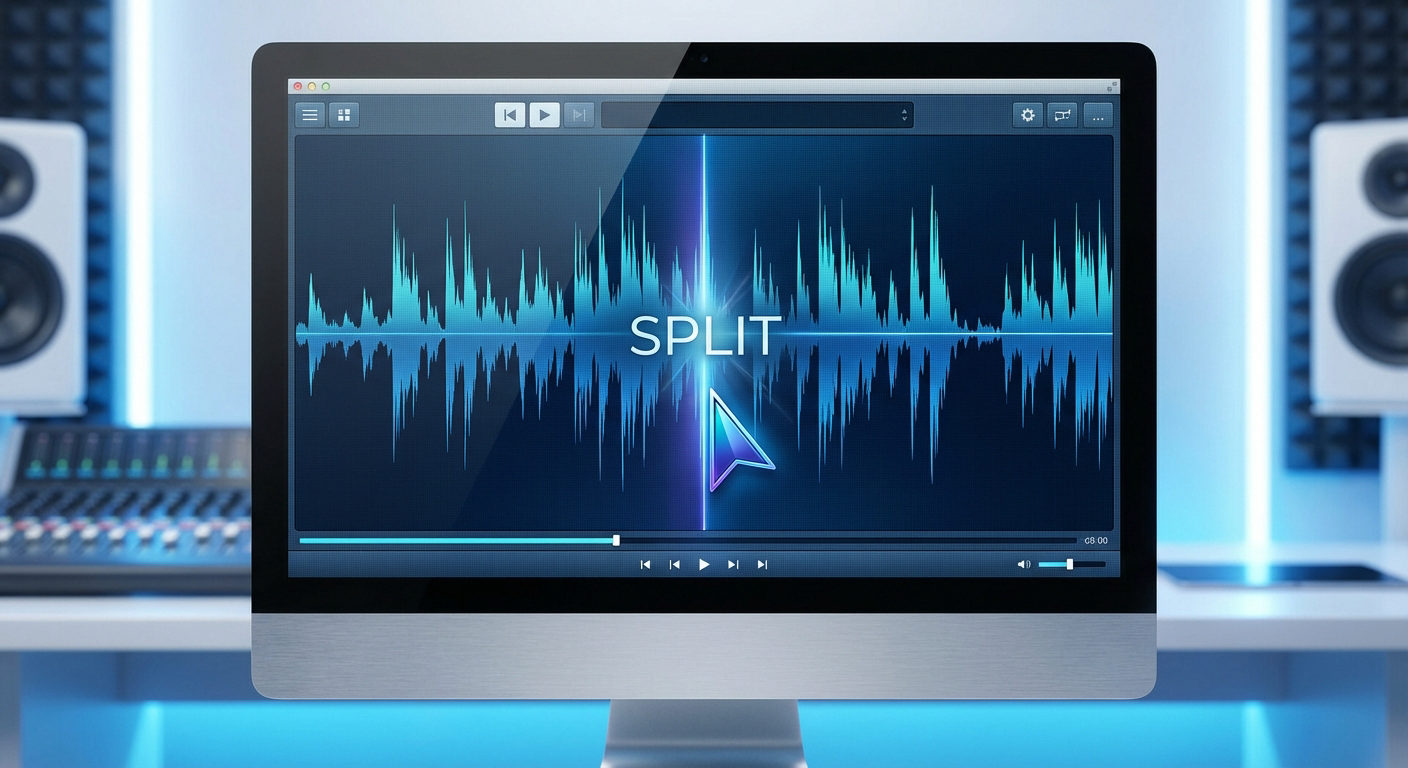
Unlike a “Cut,” a Split creates a break in the waveform, turning one clip into two independent clips without removing any data.
Step-by-Step: Creating a Split
- Position the Cursor: Select the Selection Tool (F1) and click on the specific point in the timeline where you want to break the track.
- Execute the Split: Go to Edit > Audio Clips > Split.

- Windows Shortcut: Ctrl + I
- Mac Shortcut: Cmd + I
- Verify the Split: You will see a bold vertical line appear at your cursor location. The track is now divided.
How to Move Split Clips
Once you have split your audio, you can move the sections independently to create space.
- Hover over the Clip Handle: Move your mouse over the title bar (the lighter strip at the top of the waveform clip). Your cursor will turn into a hand icon.
- Drag and Drop: Click and drag the clip to the right. This creates a gap of absolute silence between the two sections—perfect for inserting a musical transition.
Pro Tips for Cleaner Cuts (Avoid Clicks and Pops)
Nothing ruins an edit faster than a digital “pop” or “click” sound right at the edit point. This happens because the cut was made abruptly in the middle of a loud sound wave, causing a sudden jump in volume.
To make your edits invisible to the listener, use these two techniques.
1. Zoom In for Precision
You cannot make a precise cut if you are looking at the entire 30-minute timeline at once. Before making any selection, you must get close to the waveform.
- The Shortcut: Hold Ctrl (Cmd on Mac) and scroll up with your mouse wheel.
- The Goal: Zoom in until you can see the individual peaks and valleys of the audio wave. This ensures you don’t accidentally cut off the tail end of a word or leave a fraction of a breath behind.
2. Master “Zero Crossings”
This is the secret to smooth edits. Audio is a wave that moves above and below a center line (silence). If you cut the audio when the wave is at a high peak and join it to another section, it creates a “snap.”
To prevent this, you should always cut exactly where the waveform meets the center line. This point is called a Zero Crossing.
- The Manual Way: Zoom in extremely close and try to click exactly on the center line.
- The Fast Way (Audacity Secret):
- Make your rough selection using the mouse.
- Press the Z key on your keyboard.
- Audacity automatically shifts the edges of your selection slightly to the nearest Zero Crossing.
By pressing Z before every cut or delete action, you ensure the transition point is at zero volume, eliminating digital pops 99% of the time.
Workflow Optimization: How to Reduce Editing Time
The most time-consuming part of editing in Audacity isn’t actually “creative” cutting—it’s rescue editing. This happens when you have to surgically remove background hiss, cut out distorted peaks, or delete sections where the audio “clipped” (hit the red zone and distorted).
While mastering keyboard shortcuts helps, the most effective way to speed up your workflow is to improve your source audio. If your raw recording is clean, you only need to cut for content, not for technical errors.
To spend less time fixing audio in Audacity, start with a high-fidelity source like the Hollyland LARK MAX 2.

Hollyland LARK MAX 2 - Premium Wireless Microphone System
A premium wireless microphone for videographers, podcasters, and content creators to capture broadcast-quality sound.
Key Features: Wireless Audio Monitoring | 32-bit Float | Timecode
The Power of 32-bit Float Recording
The biggest enemy of a fast edit is audio clipping. If a speaker laughs too loudly or screams into a standard microphone, the waveform creates a flat line at the top. In Audacity, this sounds like harsh distortion. Usually, your only option is to cut out that section entirely, which can ruin the flow of a sentence.
The Hollyland LARK MAX 2 solves this with 32-bit Float Recording. This technology captures an incredibly wide dynamic range.
- No Distortion: Even if the audio levels spike unexpectedly, the LARK MAX 2 retains the data.
- No “Rescue” Cuts: Instead of cutting out a distorted laugh, you can simply lower the volume of that section in Audacity. The audio details are still there, perfectly preserved.
Studio Quality Means Less Noise Reduction
Another common reason for excessive cutting is removing “dead air” filled with static or hiss. If your microphone floor noise is high, you have to aggressively trim silences to make the track sound professional.
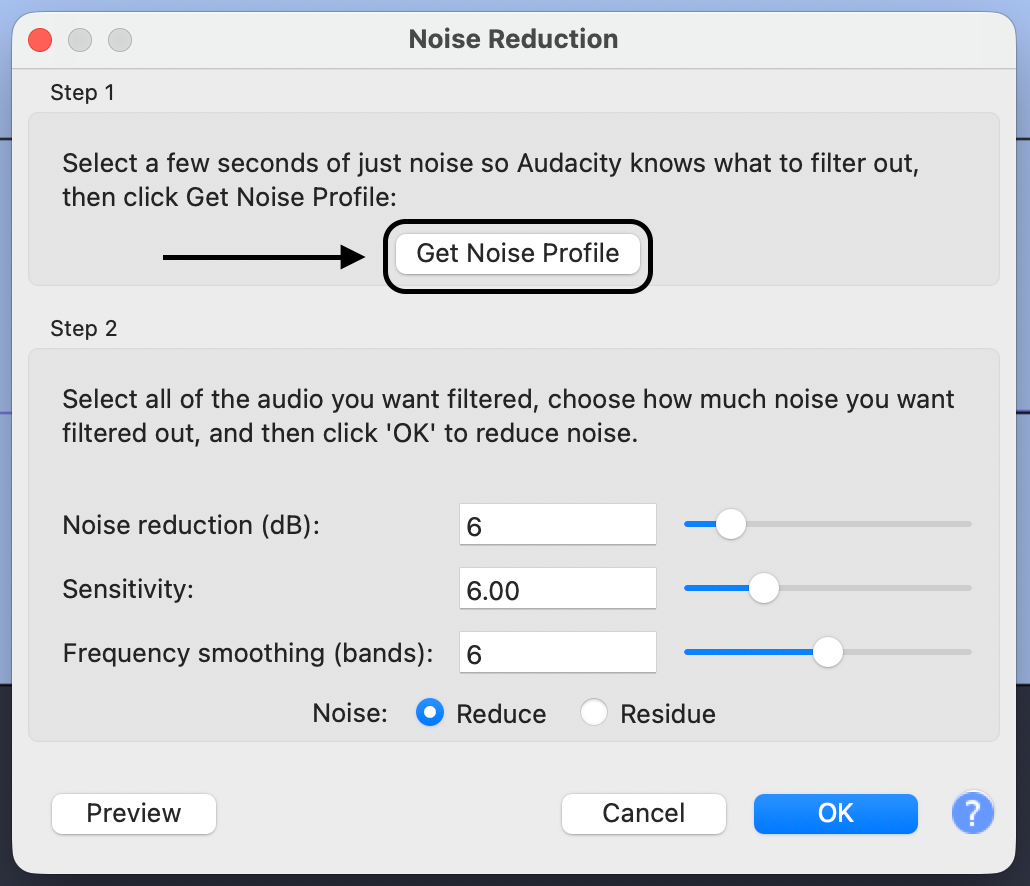
With the LARK MAX 2’s 48kHz/24-bit sampling rate, you get studio-quality depth with a naturally low noise floor. This minimizes the need for complex noise reduction plugins or tedious manual trimming of silent gaps, allowing you to focus purely on the story and pacing of your content.
Frequently Asked Questions (FAQ)
What is the shortcut key to cut audio in Audacity?
The default shortcut to Cut (remove audio and save to clipboard) is Ctrl + X on Windows or Cmd + X on Mac. To permanently Delete without saving, press Delete or Backspace.
How do I undo a cut in Audacity?
If you accidentally cut the wrong section, press Ctrl + Z (Windows) or Cmd + Z (Mac). Audacity supports unlimited undo steps, so you can press this multiple times to step backward through your history.
Can I cut audio without closing the gap?
Yes. A standard cut moves the remaining audio together. To remove audio while leaving an empty space (silence) in its place:
- Select the audio you want to remove.
- Go to Edit > Remove Special > Delete and Leave gap (Shortcut: Alt + Ctrl + K).

- Alternatively, click the Silence Audio button in the top toolbar to instantly flatten the waveform.
Why do I hear a click where I cut the audio?
This “pop” occurs when you cut a waveform at a point where it is not at the center line (silence). To prevent this, select your cut point and press the Z key to automatically snap to the nearest Zero Crossing before you cut.
Conclusion
Mastering the distinction between cutting, deleting, and trimming is the first step toward professional audio production. While these concepts seem simple, knowing exactly when to close a gap or isolate a specific clip allows you to shape your narrative without destroying your timeline.
To truly speed up your workflow, commit the keyboard shortcuts to memory. Relying on your mouse for every edit adds up to hours of wasted time; using hotkeys like Ctrl + X and Ctrl + T allows you to edit almost as fast as you can listen.
Finally, remember that the most efficient way to reduce editing time is to capture high-quality audio at the source. Using professional gear like the Hollyland LARK MAX 2 ensures your recordings are crisp and free of distortion. When your raw audio is pristine, you stop editing to “fix” problems and start editing to tell a better story.