.png)
 简体中文
简体中文 
Whether you are fixing a podcast that sounds like “chipmunks” or prepping audio for a high-quality YouTube video, knowing how to change the sample rate in Audacity is an essential skill. Mismatched rates are the number one cause of audio drifting out of sync with video or getting rejected by platforms like ACX and Spotify.
Quick Answer: The 3 Ways to Change Sample Rate
Audacity offers three distinct ways to adjust your sample rate depending on what you are trying to achieve.
- Change the Project Rate (Global): To set the quality for your entire project, locate the Project Rate (Hz) dropdown in the bottom-left corner (or under Audio Setup in newer versions). Select 44100 Hz for music or 48000 Hz for video.


- Resample a Specific Track: If you need to fix a specific clip that is playing at the wrong speed, select the track and navigate to Tracks > Resample. Choose your target rate to permanently convert that file’s data.

- Define Settings During Export: To ensure your final file meets platform requirements, go to File > Export Audio. In the export options window, verify the Sample Rate matches your project settings before clicking save.


Understanding Sample Rates: 44.1kHz vs. 48kHz
Before you start changing settings, it helps to know why you are changing them. The sample rate is essentially the “frame rate” of your audio—it measures how many snapshots of sound are captured per second.
While Audacity supports rates up to 384,000 Hz, you will almost exclusively use two industry standards. Choosing the wrong one is the most common reason for export errors and sync issues.
44100 Hz (44.1kHz)
This is the historical standard for CD audio and most digital music streaming platforms.
- Best for: Audio-only projects like music demos, voiceovers, or podcasts that will not be accompanied by video.
- Why: It covers the full range of human hearing (20Hz to 20kHz) efficiently.
48000 Hz (48kHz)
This is the standard for Video production (YouTube, TV, Film).
- Best for: Any audio intended to be synced with video footage.
- Why: 48kHz divides cleanly into video frame rates (like 24fps or 30fps). 44.1kHz does not, which eventually causes the audio to drift out of sync.
Method 1: Changing the “Project Rate” (Global Setting)
The Project Rate is the master setting for your entire Audacity session. Think of this as the “container” for your audio. Regardless of the sample rate of the individual files you import, the Project Rate determines the quality of your final export.
If you are mixing multiple audio sources (e.g., a voiceover at 44.1kHz and background music at 48kHz), this setting tells Audacity which standard to use for the final output.
How to Locate and Change the Project Rate
Depending on your version of Audacity, this setting is found in one of two places:
- Audacity 3.2 and Newer: Click the Audio Setup button in the top toolbar. Select Audio Settings and adjust the Project Sample Rate.


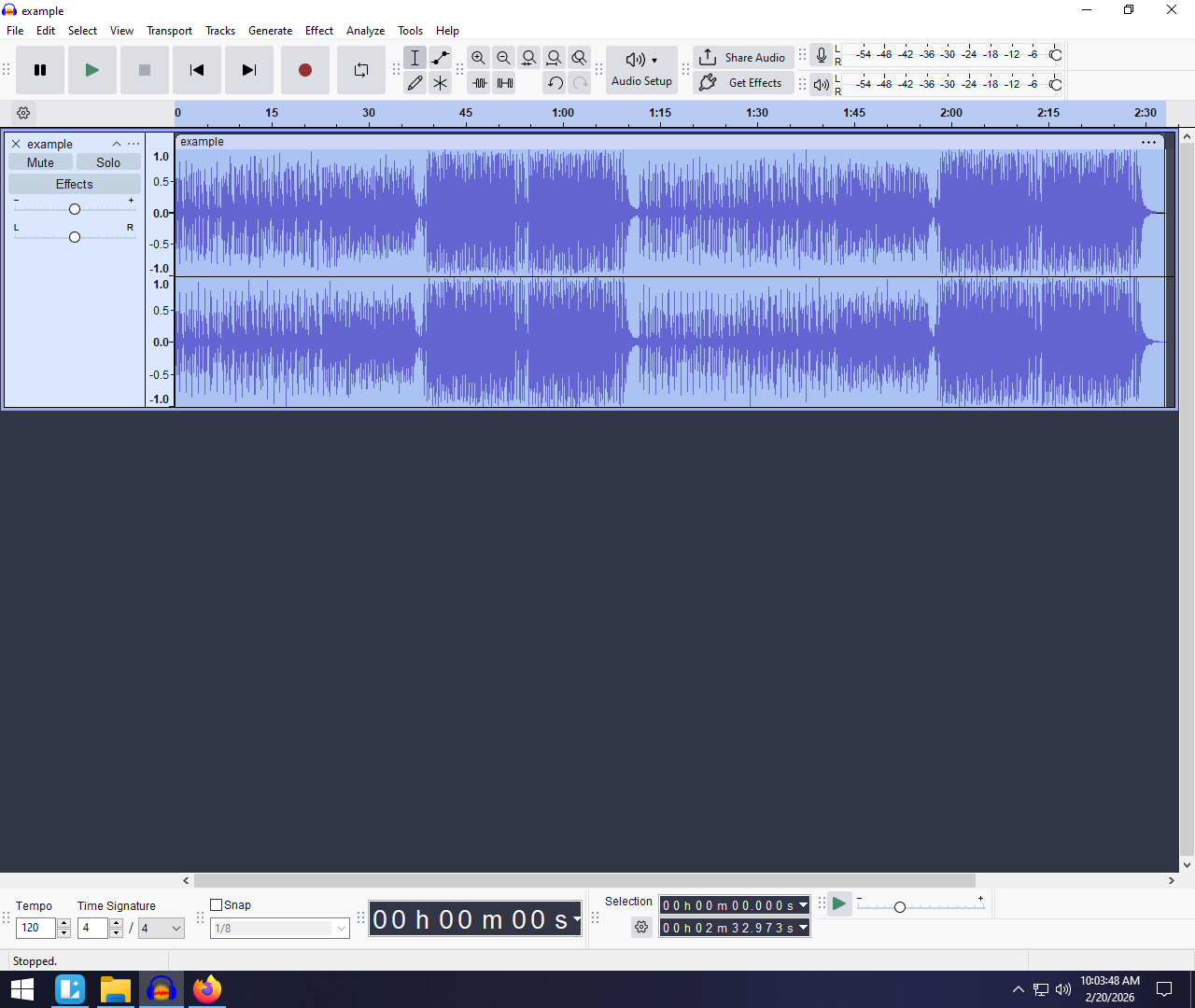
- Older Versions (Legacy): Look at the bottom-left corner of the Audacity window. You will see a dropdown menu labeled Project Rate (Hz).
Method 2: Resampling a Single Track (The Permanent Fix)
While changing the “Project Rate” affects the global playback, it doesn’t physically change your audio files. If you simply force a track to play at a different rate without converting the data, the audio will speed up or slow down (creating that high-pitched “Chipmunk” effect).
To convert a file’s sample rate without altering the pitch or speed, you must use the Resample command. This mathematically recalculates the audio data to fit the new standard.
How to Resample a Track
Follow these steps to permanently convert an audio clip:
- Select the Track: Click the empty space in the Track Control Panel (the gray box to the left of the waveform) to highlight the entire track.

- Navigate to the Resample Menu: In the top menu bar, click Tracks and select Resample…

- Choose Your Target Rate: A dialog box will appear. Select your desired frequency (usually 44100 or 48000).
- Confirm: Click OK.

Once finished, look at the Track Control Panel on the left. The text displayed above the “Mute/Solo” buttons should now reflect your new sample rate.
Note on Quality: Resampling involves interpolating data (guessing the missing info between samples). While Audacity does a great job, this process is technically “destructive.” To keep the highest fidelity, it’s always better to record at your target rate from the start.
Pro Tip: How to Avoid Sample Rate Issues Before You Edit
Changing sample rates in post-production is a useful skill, but it is fundamentally a corrective measure. Every time you convert audio, you risk introducing digital artifacts.
The most efficient workflow is to ensure your Input matches your Output. If you are creating content for video, you should record at 48kHz so your raw files match your final export settings immediately.
Upgrade Your Source Quality
Many entry-level USB microphones are locked at 44.1kHz, forcing you to resample constantly if you work in video. To avoid messy conversions and ensure your audio syncs perfectly with video frames, professional creators use microphones that record at studio standards natively.
This is where tools like the Hollyland LARK MAX 2 shine. The LARK MAX 2 is designed for creators who want “Studio Quality” source files without the headache of post-processing.

Hollyland LARK MAX 2 - Premium Wireless Microphone System
A premium wireless microphone for videographers, podcasters, and content creators to capture broadcast-quality sound.
Key Features: Wireless Audio Monitoring | 32-bit Float | Timecode
- Native 48kHz/24-bit Recording: It captures audio at the industry standard for video. When you drop these files into Audacity, they are already formatted correctly—no resampling required.
- 32-bit Float Recording: Beyond sample rates, the LARK MAX 2 offers 32-bit float recording. This acts as an infinite safety net for your gain levels, meaning you can recover audio that would normally be distorted from shouting.
By using hardware that matches your delivery specs, you spend less time fixing technical errors in Audacity and more time editing your content.
Method 3: Changing Sample Rate During Export
Even if you have adjusted your Project Rate, the Export process acts as the final gatekeeper. This step ensures that the actual file (WAV or MP3) saved to your computer matches your specific requirements.
If you skip this check, Audacity might default to the settings of the original raw file, undoing your previous work.
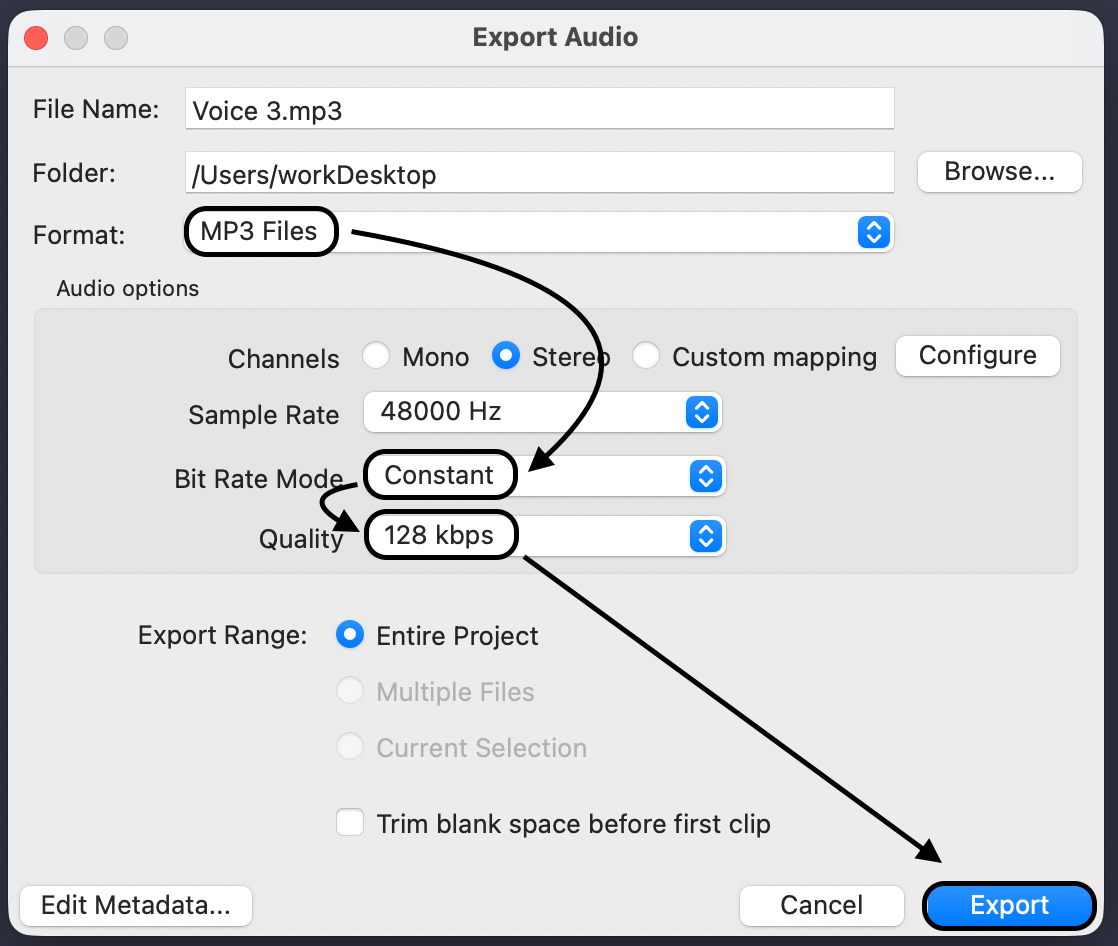
Follow these steps to lock in the sample rate during export:
- Navigate to File > Export Audio.

- Choose your desired Format (e.g., WAV or MP3).

- Locate the Audio Options section (often an expandable menu near the bottom).
- Find the Sample Rate dropdown menu.
- Manually select your target rate (e.g., 48000 Hz).

- Click Export.
Note: If you select a sample rate here that is different from your Project Rate, Audacity will automatically perform a high-quality conversion while saving the file. This is the safest way to guarantee your final delivery meets platform standards.
Troubleshooting Common Sample Rate Errors
If your project sounds distorted or won’t align with your video, you are likely experiencing one of these two common physics issues.
1. The “Chipmunk” or “Slow Motion” Effect
If you press play and your voice sounds high-pitched and fast (Chipmunk), or deep and sluggish (Slow Motion), you have a Sample Rate Mismatch.
- Too Fast: You are forcing a 44.1kHz file to play back at 48kHz. Audacity reads the samples faster than intended, shortening the duration and raising the pitch.
- Too Slow: You are forcing a 48kHz file to play back at 44.1kHz.
The Fix: Do not just change the Project Rate dropdown. You must use Method 2 (Resample) to mathematically convert the file so it plays correctly at the new speed.
2. Audio Sync Drift
This is the most frustrating issue for video creators. Your audio matches the video perfectly at the start, but by the 10-minute mark, the audio is a second or two behind the lips.
This occurs when you mix sample rates on the same timeline without resampling. While the software tries to compensate, minute mathematical discrepancies accumulate over time. To fix this, ensure all tracks are Resampled to 48000 Hz before you start editing.
Frequently Asked Questions (FAQ)
Does increasing the sample rate improve audio quality?
No. Changing a file from a lower rate (e.g., 44,100 Hz) to a higher rate (e.g., 96,000 Hz) will not improve the sound quality. This process, known as “upsampling,” cannot recreate audio data that wasn’t captured in the original recording. It simply increases your file size without adding fidelity.
What is the best sample rate for YouTube?
The standard sample rate for YouTube and almost all video production is 48,000 Hz (48kHz). Using 48kHz is safer because it matches the native frame rates of video cameras, preventing audio drift.
Why are the “Resample” or “Project Rate” options grayed out?
If your menu options are grayed out, it is usually because your audio is Paused rather than Stopped. Audacity locks most editing functions while a track is active. Hit the Stop button (yellow square) in the playback toolbar to unlock the settings.
Conclusion
Mastering sample rates in Audacity isn’t about memorizing physics—it’s about knowing your destination. Remember the golden rule: Project Rate determines your final export quality, while Resampling fixes the integrity of individual clips that don’t match your project settings.
If you frequently find yourself fixing sync drift or dealing with mismatched audio qualities, the bottleneck might be your hardware. The most efficient workflow is one where you never have to touch the “Resample” button because your source audio is perfect from the start.
For creators looking to eliminate these post-production headaches, consider upgrading to a system like the Hollyland LARK MAX 2. By recording natively in 48kHz/24-bit, you capture studio-grade audio that is ready for YouTube or Spotify the moment you hit “Stop.” Get the sample rate right at the source, and you’ll spend less time troubleshooting and more time creating.