.png)
 简体中文
简体中文 
If you have ever opened a file and your voice sounded like a chipmunk, or your audio drifted out of sync with your video, you have likely run into a sample rate issue. Understanding and setting Project Rate in Audacity is the single most important step to ensuring your recording session runs smoothly and your final export meets professional standards.
Here is everything you need to know about Hz, sample rates, and how to configure Audacity for 2025 workflows.
What is Project Rate in Audacity? (And Why It Matters)
In Audacity, the Project Rate is simply the Sample Rate. It represents how many distinct “snapshots” of audio the computer captures or plays back every single second, measured in Hertz (Hz).
To understand this, think of it exactly like Frame Rate (fps) in video:
- Video: A camera captures 24, 30, or 60 individual images per second to create motion.
- Audio: A microphone captures 44,100 or 48,000 individual audio samples per second to create sound.
If you tell Audacity to play back 48,000 samples per second, but your file only contains 44,100 samples, the software runs out of data faster than expected. This mismatch is the root cause of the most frustrating audio errors creators face.
The Consequences of a Mismatch
When your imported file does not match your Project Rate, you will experience one of two major issues:
- Pitch Shifts (The “Chipmunk” or “Darth Vader” Effect):
- If a 44.1kHz file is played on a 48kHz track, it plays about 8% faster, making your voice sound high-pitched (Chipmunk).
- If a 48kHz file is played on a 44.1kHz track, it plays slower, making your voice sound deep and sluggish (Darth Vader).
- Audio Drift (Sync Issues):
- For YouTubers and video editors, this is critical. A slight mismatch might sound okay to the ear, but over the course of a 10-minute video, the audio will slowly drift away from the video. By the end of the recording, your lips will be moving seconds before the words are heard.
💡 Quick Definition: The Standards for 2025
- 44100 Hz: The global standard for Music (CDs, Spotify, Apple Music).
- 48000 Hz: The global standard for Video (YouTube, TikTok, Netflix, Broadcast TV).
Pro Tip: If your content will eventually include video, set your Project Rate to 48000 Hz.
44.1kHz vs. 48kHz: Which Project Rate Should You Choose?
This is the most common question for Audacity users. While you can technically choose any rate, there are really only two standards you need to worry about in 2025.
Here is the breakdown of when to use each:
| Project Rate (Hz) | Standard Usage | Best For… |
|---|---|---|
| 44100 Hz (44.1kHz) | CD Quality | Music-only projects, audiobooks (ACX), and Spotify-only podcasts. |
| 48000 Hz (48kHz) | Video / Broadcast | YouTube, TikTok, Reels, and Podcasts with video elements. |
| 96000 Hz (96kHz) | High-Res Archival | Sound design and heavy FX processing (usually unnecessary for general content). |
The “Safe Bet” for 2025
If you are unsure, choose 48000 Hz.
In the past, 44.1kHz was the default because of CDs. Today, most content ends up on a video platform like YouTube or Instagram. Video editors and cameras strictly prefer 48kHz. If you record at 44.1kHz and import it into a 48kHz video project, you risk audio sync drift or slight quality loss during conversion.
The Hardware Connection: Matching Your Mic to Your Software
Setting your Project Rate to 48000 Hz in Audacity is only half the battle. You cannot fix bad source audio with software settings. If your microphone is older or lower quality, it might natively record at a lower rate, forcing your computer to “upscale” the audio. This doesn’t add quality; it just adds empty data.
To get the most out of Audacity, use a microphone that natively records at studio quality. The Hollyland LARK MAX 2 records at 48kHz/24-bit, ensuring that when you set your Audacity project to 48000 Hz, you are capturing true high-fidelity audio without upscaling artifacts.

Hollyland LARK MAX 2 - Premium Wireless Microphone System
A premium wireless microphone for videographers, podcasters, and content creators to capture broadcast-quality sound.
Key Features: Wireless Audio Monitoring | 32-bit Float | Timecode
How to Change Project Rate in Audacity (Step-by-Step)
Audacity allows you to adjust the sample rate in two ways: temporarily for your current session or permanently for all future projects.
Method 1: The Quick Fix (Current Project Only)
If you are already working on a track and need to adjust the rate before exporting, use the Project Rate dropdown. This setting controls the sampling rate of your final export.
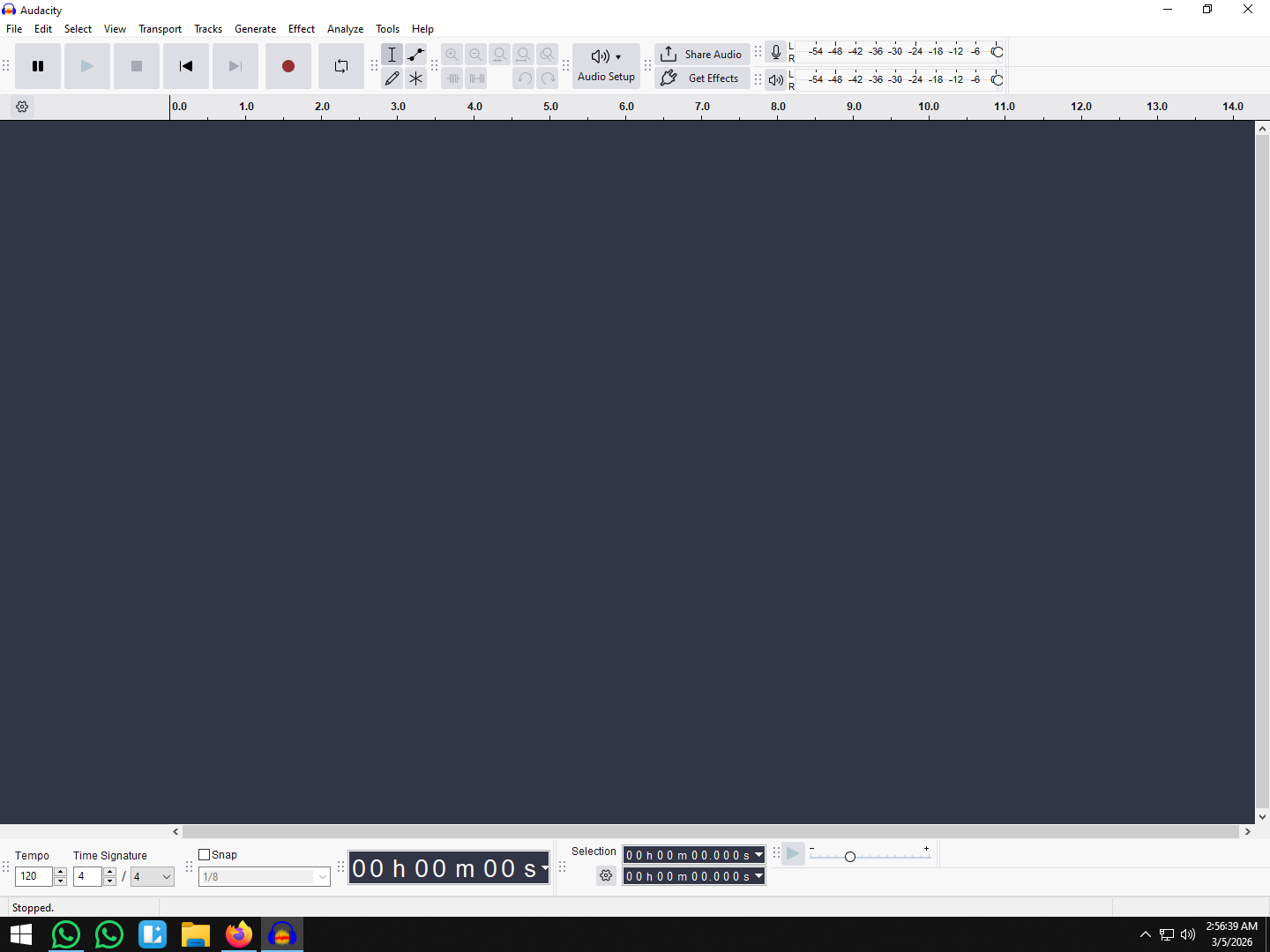
- Look at the bottom-left corner of the Audacity interface.
- Locate the dropdown menu labeled Project Rate (Hz).
- Click the number (usually defaults to 44100) and select your desired rate.
- Choose 44100 Hz for music or audio-only projects.
- Choose 48000 Hz for video sync (YouTube/Podcasts).
Note: In newer versions of Audacity, if the bottom bar is hidden, check the Audio Setup button in the top toolbar.
Method 2: The Permanent Fix (Default Settings)
To avoid having to change this setting every time you open the software, you should configure your global preferences.
- Navigate to the menu bar:
- Windows: Click Edit > Preferences.

- Mac: Click Audacity > Settings (or Preferences).
- Select the Audio Settings tab from the list on the left.
- Under Quality, find Default Sample Rate.
- Change this to 48000 Hz (or your preferred standard).
- Click OK to save.

Now, every time you hit “Record” (R), Audacity will capture audio at this high-fidelity rate automatically.
Critical Warning: Project Rate vs. Track Rate
A common mistake beginners make is confusing the Project Rate with the Track Rate. Mixing these up is the primary cause of speed issues.
- Project Rate (Bottom Left): This determines the resolution of the entire project. Changing this does not change the pitch or speed. It simply tells Audacity to resample the audio to match the new quality standard.
- Track Rate (Track Control Panel): This is the specific rate assigned to an individual audio clip. If you change this number, you are telling Audacity to play the existing data faster or slower. This will change the pitch immediately.
Rule of Thumb: Always change the Project Rate (bottom left) to adjust quality. Only touch the Track Rate if you are intentionally trying to fix a file that was recorded at the wrong speed.
Dealing with Imported Audio: Resampling vs. Changing Rate
Nothing kills an edit faster than importing a file and hearing your voice suddenly sound like a chipmunk (too fast) or a slow-motion monster (too slow).
This happens when there is a mismatch between the Sample Rate of the file and the Project Rate of Audacity. To fix this, you have two options, but they do completely different things.
The Difference: “Set Rate” vs. “Resample”
| Feature | What It Does | Effect on Pitch & Speed | When to Use |
|---|---|---|---|
| Set Rate | Tells Audacity to play the existing samples faster or slower. | Changes Both. (Like spinning a vinyl record faster). | Use this only if the file header is wrong or for creative sound design. |
| Resample | Mathematically adds or removes samples to match the project rate. | No Change. (Pitch and duration stay exactly the same). | Use this to fix mismatch errors and standardize files for your project. |
How to Resample (The Correct Fix)
If you imported a 44.1kHz file into a 48kHz project and need it to match the project quality without changing the speed of the voice, use Resample.
- Select the Track: Click the “Select” button on the track control panel or press Ctrl + A / Cmd + A.
- Open the Menu: Go to Tracks > Resample…

- Choose the Target Rate: Select the frequency that matches your Project Rate (usually 48000 Hz).
- Apply: Click OK.

Audacity will recalculate the audio data. The waveform might shift slightly, but the playback speed and pitch will remain natural.
Troubleshooting “Error Opening Sound Device”
While the message “Error opening sound device” is vague, the cause is usually specific: a Sample Rate Mismatch.
This happens when Audacity is set to one Project Rate (e.g., 44100 Hz), but your operating system or audio interface is locked to a different rate (e.g., 48000 Hz). When Audacity tries to start the audio stream, the computer refuses the connection.
Here is how to align your system settings with Audacity to resolve the crash.
Method 1: Windows Sound Settings
- Right-click the Speaker icon in your taskbar and select Sound Settings.

- Scroll down to Input (microphone) or Output (headphones) and click Device Properties.

- On the right side, click Additional device properties.

- Go to the Advanced tab.
- Under Default Format, select the sample rate that matches your Audacity Project Rate (usually 2-channel, 16-bit, 48000 Hz).
- Click Apply and restart Audacity.

Method 2: macOS Audio MIDI Setup
- Press Cmd + Space to open Spotlight Search and type Audio MIDI Setup. Open the app.
- Select your input device (microphone) from the left sidebar.
- Look at the Format line on the right side.
- Change the Hz setting to match your Audacity Project Rate (e.g., 48,000 Hz).
- Repeat this process for your Output device.
Pro Tip: The “Plug-First” Rule
Audacity detects audio devices and their native sample rates only during startup. Always plug in your interface or USB microphone—such as the Hollyland LARK MAX 2 receiver—before you launch Audacity. This allows the software to automatically detect the correct 48kHz standard, preventing the error before it happens.
Advanced: Project Rate and 32-Bit Float
While the Project Rate controls the frequency range (snapshots per second), Bit Depth controls the dynamic range (volume information). Most beginners stick to 16-bit or 24-bit, but the modern industry standard is 32-bit Float.
Why 32-Bit Float Matters
In traditional recording, audio has a “ceiling” (0dB). If a sudden scream or loud clap goes above this ceiling, the data is cut off, resulting in distortion that cannot be fixed.
32-bit Float is different. It creates a dynamic range so massive that it is mathematically almost impossible to clip. If the audio is too loud, the information is preserved above 0dB. You can simply lower the volume in post-production, and the distorted waveform is restored perfectly.
The Hardware Connection
There is a catch: Audacity’s internal 32-bit float setting can only save audio if the source file contains that data. If your microphone clips while recording in 24-bit, bringing that file into a 32-bit Audacity project won’t fix the distortion—the damage is already done.
This is where the Hollyland LARK MAX 2 becomes an essential tool. Unlike standard microphones, the LARK MAX 2 features internal 32-bit Float recording.
How to use this workflow:
- Record: Use the Hollyland LARK MAX 2’s internal recording feature. If the audio peaks, the LARK MAX 2 captures the full range without clipping.
- Import: Drag the audio file into Audacity.
- Recover: If the waveform looks like a solid block (clipped), use the Amplify effect and enter a negative number (e.g., -10dB).
- Result: Because both the hardware and Audacity utilize 32-bit float, the “clipped” peaks reappear, clean and distortion-free.
Frequently Asked Questions (FAQ)
Can I change the project rate after recording?
Yes, but you must use the “Resample” feature.
If you simply change the Project Rate dropdown after recording, you will change the playback speed (pitch). instead, select your track (Ctrl + A), go to Tracks > Resample, and choose your new rate. This keeps the timing natural.
Does a higher project rate improve sound quality?
Only if your source audio was recorded at that high quality.
Setting your project rate to 96000 Hz will not magically improve audio recorded on a cheap microphone. To benefit from high sample rates, your hardware must support it from the start.
Why does my voice sound like a chipmunk in Audacity?
This is a classic sample rate mismatch. It happens when you import a file recorded at a lower sample rate (e.g., 44.1kHz) into a project set to a higher rate (e.g., 48kHz) without resampling. Audacity plays the samples faster to “catch up,” causing the pitch to rise.
What is the best project rate for a podcast in 2025?
The industry recommendation is 48000 Hz (48kHz).
Since most modern podcasts are now filmed for YouTube, TikTok, or Spotify Video, recording in 48kHz prevents audio drift and synchronization issues when you eventually sync your audio with video footage.
Conclusion
Getting the Project Rate right in Audacity is the difference between a smooth workflow and hours spent fixing sync drift. While the technical details can get complicated, the practical rule for 2025 is simple: match your settings to your destination.
If you are strictly recording music for CD, stick to 44100 Hz. For almost everything else—especially if your content will ever touch YouTube, TikTok, or video editing software—48000 Hz is the standard you should lock in as your default.
Remember, however, that Audacity can only process the quality you feed it. Stop fighting with syncing issues. Set your Audacity default to 48000 Hz, grab a 48kHz-native microphone like the Hollyland LARK MAX 2 to capture true 32-bit float audio at the source, and start creating professional-grade content today.