.png)
 简体中文
简体中文 
You just sat down to edit your latest podcast or video commentary. You drag your file—an M4A, MOV, or MP4—into Audacity, expecting to see waveforms appear. Instead, you’re hit with a frustrating error message: “Audacity requires the FFmpeg library to import this file type.”
Don’t panic. Your file isn’t corrupted, and Audacity isn’t broken.
Because Audacity is free and open-source software, it cannot legally bundle proprietary, patent-protected audio codecs (like AAC, M4A, and AC3) in its default installation. To work with these files, you simply need to install a separate plugin called FFmpeg.
This guide will walk you through how to install the FFmpeg library for Audacity on both Windows and Mac, ensuring you can import virtually any audio file without a headache.
Why You Need the FFmpeg Library
By default, Audacity handles standard formats like WAV and AIFF perfectly. However, modern content creation relies heavily on compressed formats used by smartphones and cameras.
Installing the FFmpeg library acts as a universal translator for Audacity. It bridges the gap between the software and these complex file types. Once installed, you can:
- Import Audio from Video: Drag video files (MP4, MOV, AVI) directly into Audacity. It will automatically extract just the audio track for you to edit.
- Open Apple Formats: Edit M4A and AAC files natively.
- Export More Formats: Save your work in WMA, AC3, and other specialized codecs.
Critical Step: Check Your Architecture First
Before downloading anything, you must know which version of Audacity you are running. Installing a 64-bit FFmpeg library for a 32-bit version of Audacity (or vice versa) is the most common reason for failure.
- Open Audacity.
- Go to Help > About Audacity (Windows) or Audacity > About Audacity (Mac).
- Look at the Build Information.
- 64-bit: Standard for Audacity 3.0+ and almost all modern computers.
- 32-bit: Found on older versions of Audacity or legacy hardware.

Make a mental note of this. You need to download the installer that matches this specific version.
Method 1: Installing FFmpeg on Windows (The Automatic Way)
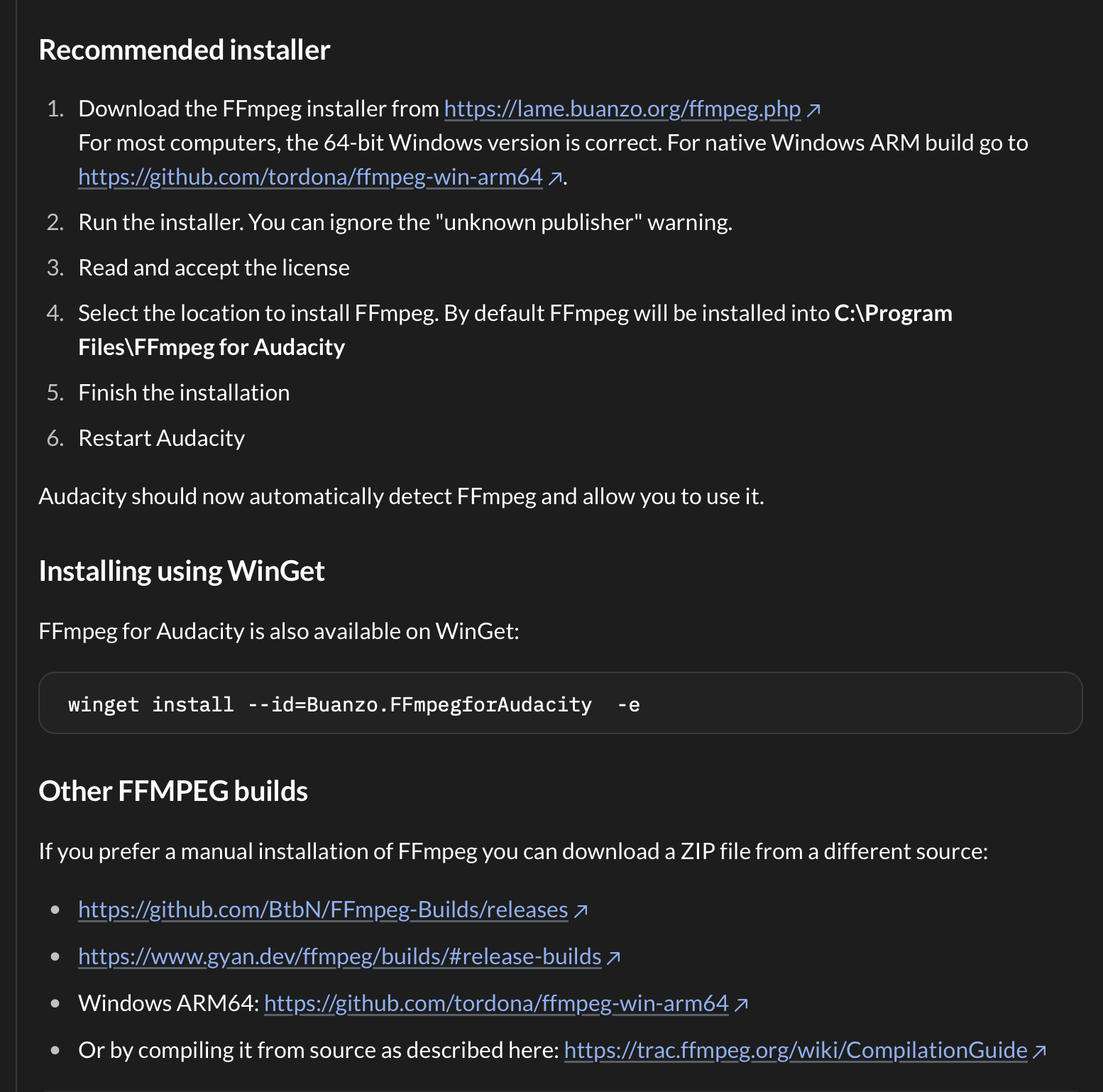
For most users running Audacity 3.0 or later, the automatic installer (.exe) is the safest and fastest method. It places the necessary .dll files exactly where Audacity expects to find them.
- Go to the external download site. Visit the Buanzo download page (this is the partner site officially recommended by the Audacity Team).
- Download the installer. Look for the file named “FFmpeg_v2.2.2_for_Audacity_on_Windows_64bit.exe” (or the latest version matching your system).
- Note: Ensure you select the 64-bit version if you are on a modern Windows 10/11 machine running Audacity 3.0+.

- Close Audacity. The installation may fail or not register if Audacity is running in the background.
- Run the Installer. Double-click the .exe file. Accept the license agreement and keep the default install path (C:\Program Files\FFmpeg For Audacity).
- Restart Audacity. Once the installation finishes, open Audacity. It usually detects the library automatically.
Method 2: Installing FFmpeg on macOS
Mac users face a slightly different hurdle due to Apple’s Gatekeeper security protocols, which often flag open-source installers as “Unidentified Developers.”
- Download the package. Visit the same Buanzo download page and locate the FFmpeg installer for macOS (usually a .pkg file).

- Run the installer. Double-click the downloaded file.
- Handle Security Warnings. If you receive a warning that the file “cannot be opened because it is from an unidentified developer”:
- Click OK to dismiss the popup.
- Go to System Settings > Privacy & Security.
- Scroll down to the “Security” section. You should see a note about the FFmpeg installer being blocked. Click “Open Anyway”.
- Complete the Installation. Follow the on-screen prompts to finish the setup, then restart Audacity.
How to Verify FFmpeg is Working (And Manual Linking)
If you restarted Audacity but still can’t import your files, you may need to manually tell Audacity where the library is located.
- Open Audacity.
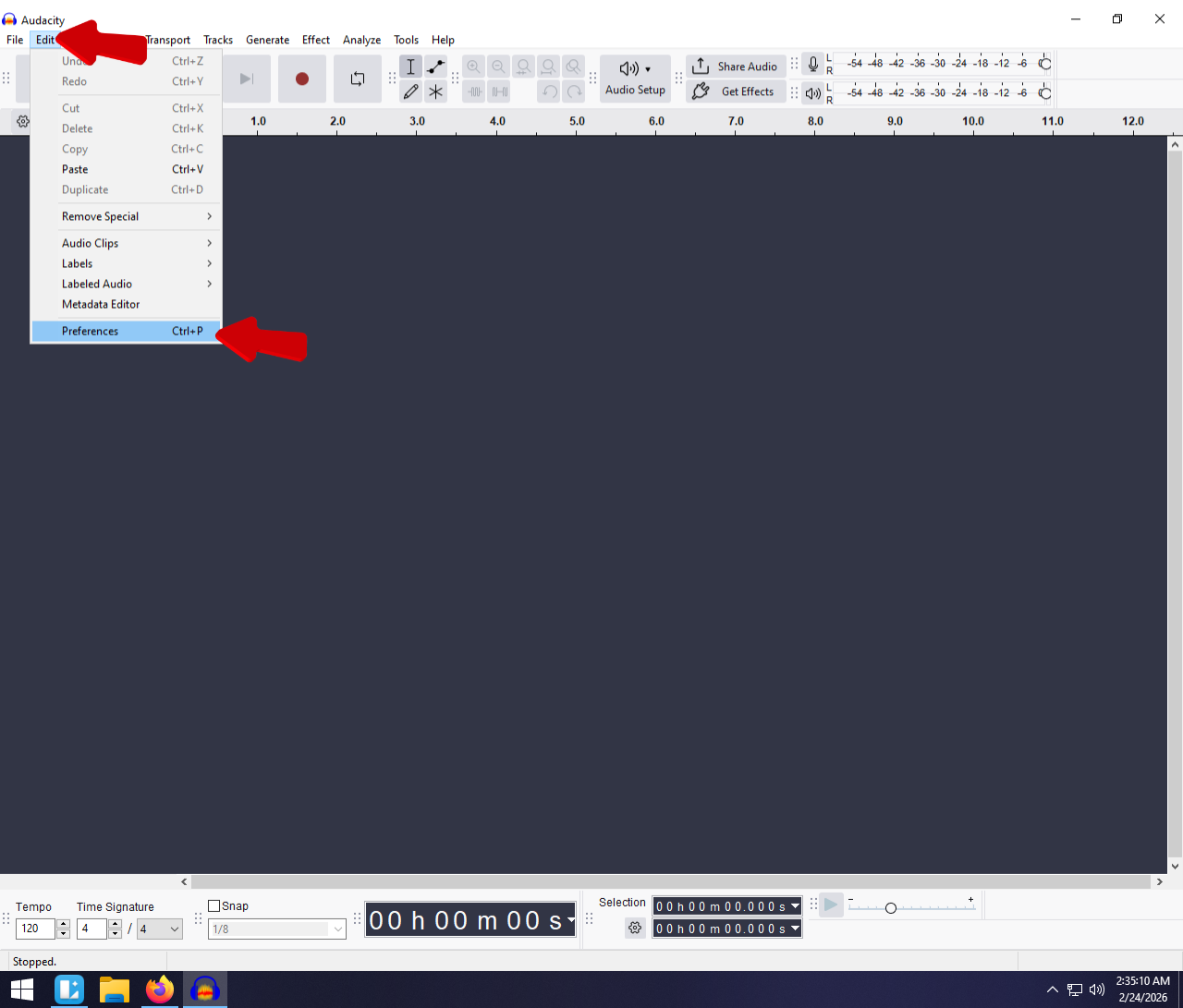
- Go to Edit > Preferences (Windows) or Audacity > Settings (macOS).
- Select the “Libraries” tab on the left sidebar.
- Look at the “FFmpeg Library Version”.
- Success: If you see a set of numbers like F(55.33.100), the library is active. You are done.
- Failure: If it says “not found,” click the Locate… button.

- Manual Fix: Browse to the installation folder (usually C:\Program Files\FFmpeg For Audacity on Windows) and select the file named avformat-55.dll. Click Open, then OK.


Pro Tip: Improving Source Audio Before Editing
FFmpeg is a lifesaver for compatibility, allowing you to open complex file formats. However, it cannot fix quality issues like clipping or distortion. If your source audio was recorded too loud, no amount of codec troubleshooting will save the take.
You can save yourself hours of editing time by using 32-bit Float recording technology.
This is where gear like the Hollyland LARK MAX 2 fits into your workflow. The LARK MAX 2 features 32-bit Float Recording, which captures such a massive dynamic range that the audio is mathematically impossible to clip. Even if your subject screams into the mic, you can simply lower the gain in post-production, and the waveform will be perfectly clean.

Hollyland LARK MAX 2 - Premium Wireless Microphone System
A premium wireless microphone for videographers, podcasters, and content creators to capture broadcast-quality sound.
Key Features: Wireless Audio Monitoring | 32-bit Float | Timecode
By using a 32-bit float mic like the LARK MAX 2, you ensure your source files are studio-quality (48kHz/24-bit) before you even import them into Audacity.
Common FFmpeg Errors & Troubleshooting
If you are still stuck, consult this table for quick fixes to the most common errors.
| Error Message | Likely Cause | Solution |
|---|---|---|
| “Library not found” | Audacity cannot see the installed files. | Go to Preferences > Libraries > Locate and manually select avformat-55.dll. |
| “avformat.dll is missing” | Bad installation or wrong architecture. | Uninstall FFmpeg. Re-download the 64-bit installer and run as Administrator. |
| “Audacity requires FFmpeg…” | You are trying to import AAC/M4A without the library. | Follow Method 1 (Windows) or Method 2 (Mac) above. |
| Confusing LAME with FFmpeg | LAME is for MP3 export; FFmpeg is for import/export of other formats. | You do not need to install LAME for modern Audacity versions (it is now built-in). Focus only on FFmpeg. |
Frequently Asked Questions (FAQ)
Is FFmpeg safe to install?
Yes, provided you download it from the links recommended by the official Audacity Team (usually the Buanzo site or their GitHub). Avoid downloading .dll files from random “DLL fix” websites, as these often contain malware.
Do I need FFmpeg to export MP3 files?
No. In older versions of Audacity, you needed a separate “LAME” library for MP3s. However, in Audacity 3.0 and later, the LAME encoder is built-in. You only need FFmpeg for formats like M4A, AC3, and WMA.
Can I import MP4 video into Audacity with FFmpeg?
Yes! Once FFmpeg is installed, you can drag an MP4 video file directly onto the Audacity timeline. Audacity will strip the video data and import the audio track as a waveform, allowing you to edit the sound of your video projects.
Conclusion
Installing the FFmpeg library is a one-time “set it and forget it” task that drastically expands what Audacity can do. It transforms the software from a simple WAV editor into a powerful tool capable of handling audio from videos and mobile recordings.
Ready to start editing? Restart Audacity now and try dragging that stubborn M4A file in one more time—it should load instantly. And if you want to stop fixing distorted audio forever, check out the Hollyland LARK MAX 2 to upgrade your recording source.