.png)
 简体中文
简体中文 
If you are trying to figure out how to install LAME for Audacity to export MP3s, you might be following outdated advice. For years, installing this specific library was a frustrating rite of passage for new podcasters and musicians. You would hit “Export,” get a “missing .dll” error, and spend the next hour hunting for safe download links.
The good news? That process is largely a thing of the past.
Below, we’ll explain why you likely don’t need to install anything at all, how to check your version, and—if you are stuck on a legacy system—how to manually install the LAME encoder safely.
Do You Actually Need to Install LAME? (Read This First)
Before you go hunting for external download links, stop. There is a very high chance you do not need to install LAME manually.
Historically, Audacity couldn’t bundle the LAME MP3 encoder because the format was protected by a patent. However, those patents expired in 2017. Because of this legal shift, Audacity versions 3.2 and later include the LAME MP3 encoder natively for both Windows and macOS.
If you are using a modern version of the software, MP3 export works out of the box.
Checklist: Verify Your Version
Use this quick checklist to see if you can skip the installation process entirely:
- Open Audacity.
- Find the Version Number:
- Windows: Click Help > About Audacity.
- macOS: Click Audacity (in the top menu bar) > About Audacity.

- Compare Your Version:
- Version 3.2 or higher: ✅ You have LAME. You can already export MP3s. If you see an error, it is likely a file path issue or a setting mismatch, not a missing installation.

- Version 3.1 or lower: ❌ LAME may be missing. You have two choices: update Audacity (recommended) or install the library manually.
Our Advice: Unless you are using a very old computer (e.g., Windows XP or an older macOS) that cannot run modern software, do not install LAME manually. It is much faster, safer, and easier to simply update Audacity to the latest version.
Method 1: The Easiest Fix (Update Audacity)
The simplest solution to the “missing LAME” error isn’t finding a patch—it’s updating the software. Since the patent expiration, the Audacity team has integrated the encoder directly into the program.
How to Check for Updates
If you are currently running an older version, you can update it directly through the application:
- Open Audacity.
- Navigate to the top menu bar:
- Windows/Linux: Click Help > Check for Updates.
- macOS: Click Audacity > Check for Updates.

- If a new version is available, a pop-up will direct you to the download page.
Installing the Latest Version Manually
If your version is remarkably old, the “Check for Updates” feature might not work. In that case:
- Go to the official Audacity Team website which is audacityteam.org or https://www.audacityteam.org/download/..

- Download the installer for your operating system – Windows, macOS, or Linux.

- Run the installer. It will automatically overwrite your old version and update your system files.

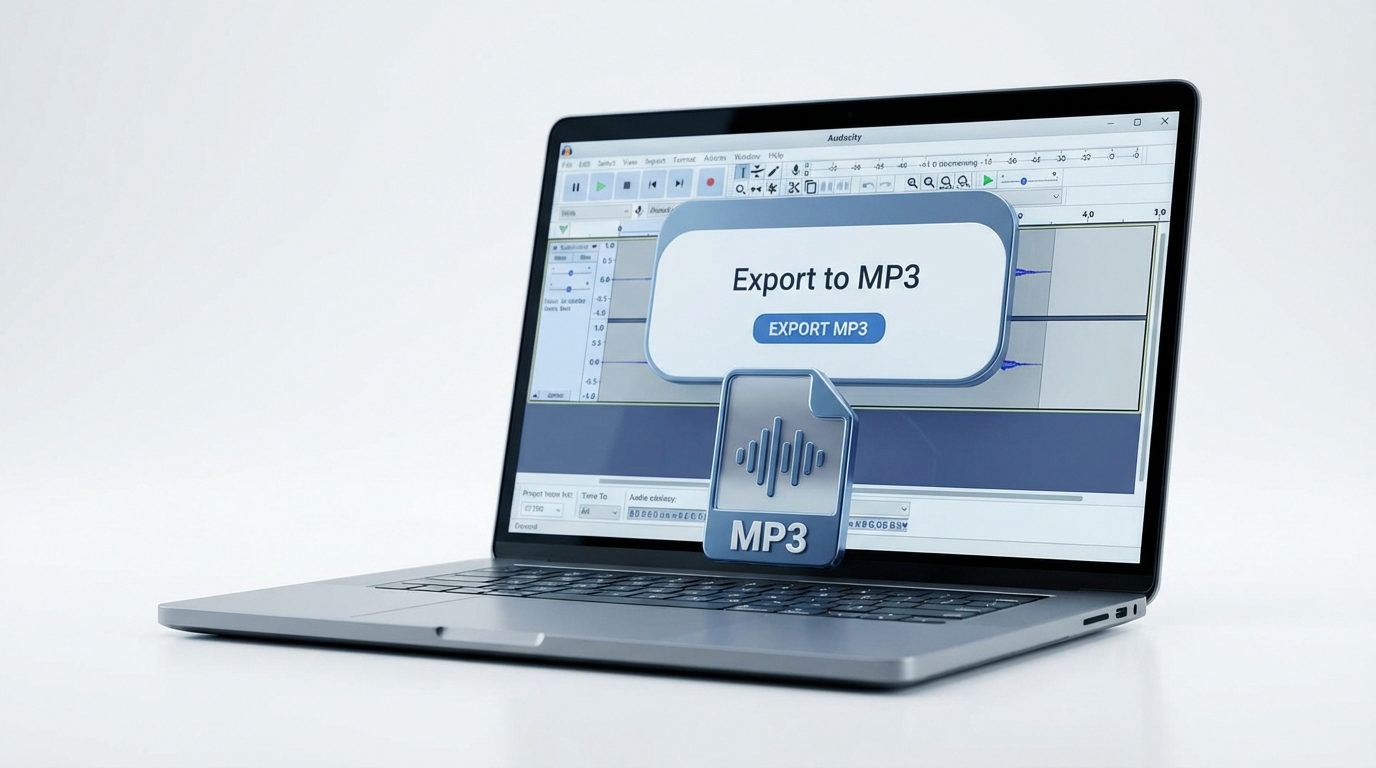
Once installed, try to export a file (File > Export > Export as MP3). If it saves without an error, you are done.
Troubleshooting Common MP3 Export Errors
Even after installing the library, you might hit a wall when you click Export. Here is how to fix the three most common roadblocks.
Confusion: Constant (CBR) vs. Variable (VBR) Bitrate
Choosing the wrong bitrate mode won’t stop the export, but it can cause playback issues on older devices.
- Constant Bitrate (CBR): The data rate stays the same (e.g., 320 kbps). This is the safest choice for podcasts and streaming because the file size is predictable.
- Variable Bitrate (VBR): The encoder uses more data for complex audio and less for silence. This saves space but can cause timing glitches in some video editors.
- Recommendation: If you aren’t sure, select Constant and set the Quality to 320 kbps (Insane) for the best audio fidelity.
Error: FFmpeg Conflicts
Users often confuse LAME (strictly for MP3) with FFmpeg (for M4A, AAC, and video imports). If you are trying to export an MP4 or AAC file, installing LAME won’t help—you need the FFmpeg library instead.
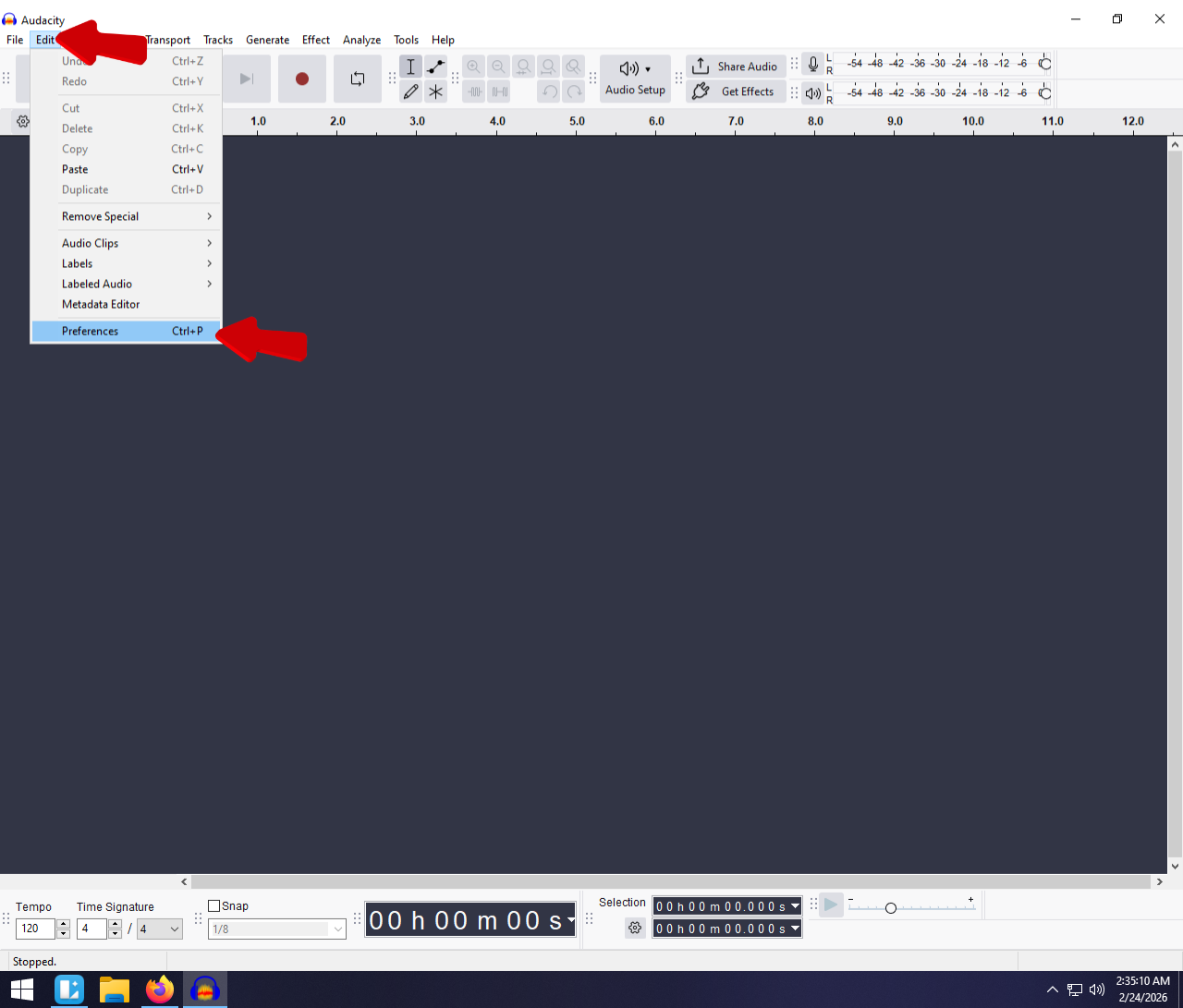
Check the Libraries tab in Preferences. You should see “LAME MP3 Library Version” and “FFmpeg Library Version” listed separately. If the FFmpeg section says “not found,” you cannot export advanced formats.
Pro Tip: Ensuring Studio-Quality Audio Before You Export
Solving the “missing DLL” error is only half the battle. LAME handles the technical export, but it cannot fix the quality of your recording.
MP3 is a “lossy” format, meaning it compresses data to save space. If your source recording has background hiss or distortion (“clipping”), the MP3 conversion process often makes those artifacts sound worse. To get a professional result, your source audio must be pristine before it ever touches the encoder.
For creators using Audacity, we recommend the Hollyland LARK MAX 2 to ensure your input quality matches your software capabilities. It addresses two major problems novices face:

Hollyland LARK MAX 2 - Premium Wireless Microphone System
A premium wireless microphone for videographers, podcasters, and content creators to capture broadcast-quality sound.
Key Features: Wireless Audio Monitoring | 32-bit Float | Timecode
- 32-bit Float Recording: This is a massive safety net for podcasters. If you laugh too loudly or shout, standard microphones will distort the audio, ruining the take. The LARK MAX 2 uses 32-bit float technology to capture a huge dynamic range. This allows you to simply lower the volume in Audacity during editing to recover perfectly clear audio, even if it looked “clipped” initially.
- 48kHz/24-bit Studio Quality: The LARK MAX 2 records at a high-fidelity standard. When you use LAME to compress this down to a standard 320kbps MP3, the clarity remains intact because the starting material was studio-grade.
Frequently Asked Questions (FAQ)
Is LAME for Audacity free and safe?
Yes, LAME is completely free and open-source. It is safe to use, provided you download it from the correct source. Always download LAME from the Buanzo site (linked from the Audacity Wiki) to avoid malware.
Why is “Export as MP3” grayed out in Audacity?
This is rarely a plugin issue. In Audacity, you cannot export files while the audio is Paused. Check your transport controls. You likely hit the Pause button (two vertical lines) instead of the Stop button (yellow square). Click Stop to disengage the audio engine, and the export options should appear.
What is the best bitrate for MP3 export in Audacity?
- For Music: Choose 320 kbps (CBR) or VBR – Best Quality.
- For Podcasts/Voice: 128 kbps to 192 kbps (CBR) is the industry standard. This provides clear voice quality while keeping file sizes small enough for streaming.
- Avoid: Anything below 128 kbps, which will sound metallic and “watery.”
Do I need LAME for Audacity on Windows 10 or 11?
Not if you are using a modern version of Audacity. If you have installed Audacity 3.2 or later, the LAME MP3 encoder is built-in. You only need to install LAME manually on Windows 10/11 if you are intentionally running an older, legacy version of the software.
Conclusion
Exporting your work shouldn’t be a technical headache. While installing the LAME MP3 encoder manually is a reliable fix for legacy systems or Linux users, the smartest move for most creators is simply updating Audacity. Version 3.2 and higher handles MP3s natively, saving you from messing with DLL files entirely.
However, remember that the encoder is only the final step. LAME can compress your file, but it cannot fix a poor recording. Before you hit “Export,” double-check your input levels. If you want to guarantee your source audio is professional-grade—even without perfect gain staging—consider upgrading to a microphone like the Hollyland LARK MAX 2. Its 32-bit float recording ensures your raw audio is distortion-free before it ever reaches Audacity, so your final MP3 sounds crisp every time.