.png)
 简体中文
简体中文 
If you are trying to figure out how to import and decode ADPCM files in Audacity, you aren’t alone. You likely dragged a file from a digital voice recorder or an old game folder into the timeline, only to be met with an error message or—worse—loud, aggressive static.
ADPCM (Adaptive Differential Pulse-Code Modulation) isn’t your standard audio format. Unlike universal files like WAV or MP3, ADPCM is an older, heavily compressed format used to save storage space on devices with limited memory.
The issue is that Audacity, out of the box, is a bit picky. It doesn’t natively speak the language of every proprietary format. To fix this, you usually just need to give Audacity the right dictionary (the FFmpeg library) or tell it manually how to read the data.
Here is how to get your file working.
Why Won’t Audacity Open My ADPCM File?
When you try to open an ADPCM file, Audacity typically reacts in one of three ways:
- The Block: A pop-up says, “Audacity cannot open this type of file.”
- The Hint: The error log explicitly tells you, “Try installing FFmpeg.”
- The Noise: The file opens, but it plays back as pure white noise or hissing.
This happens because Audacity relies on an external library called FFmpeg to decode complex or older compression formats. If you haven’t installed that library yet, Audacity sees the compressed data but doesn’t know how to turn it into sound.
Method 1: Install the FFmpeg Library (The Best Solution)
Installing the FFmpeg library is the permanent fix. Think of FFmpeg as a “universal translator” for Audacity. Once installed, Audacity can open almost any format (including ADPCM, M4A, and AC3) without you needing to do anything else.
Step-by-Step Installation Guide
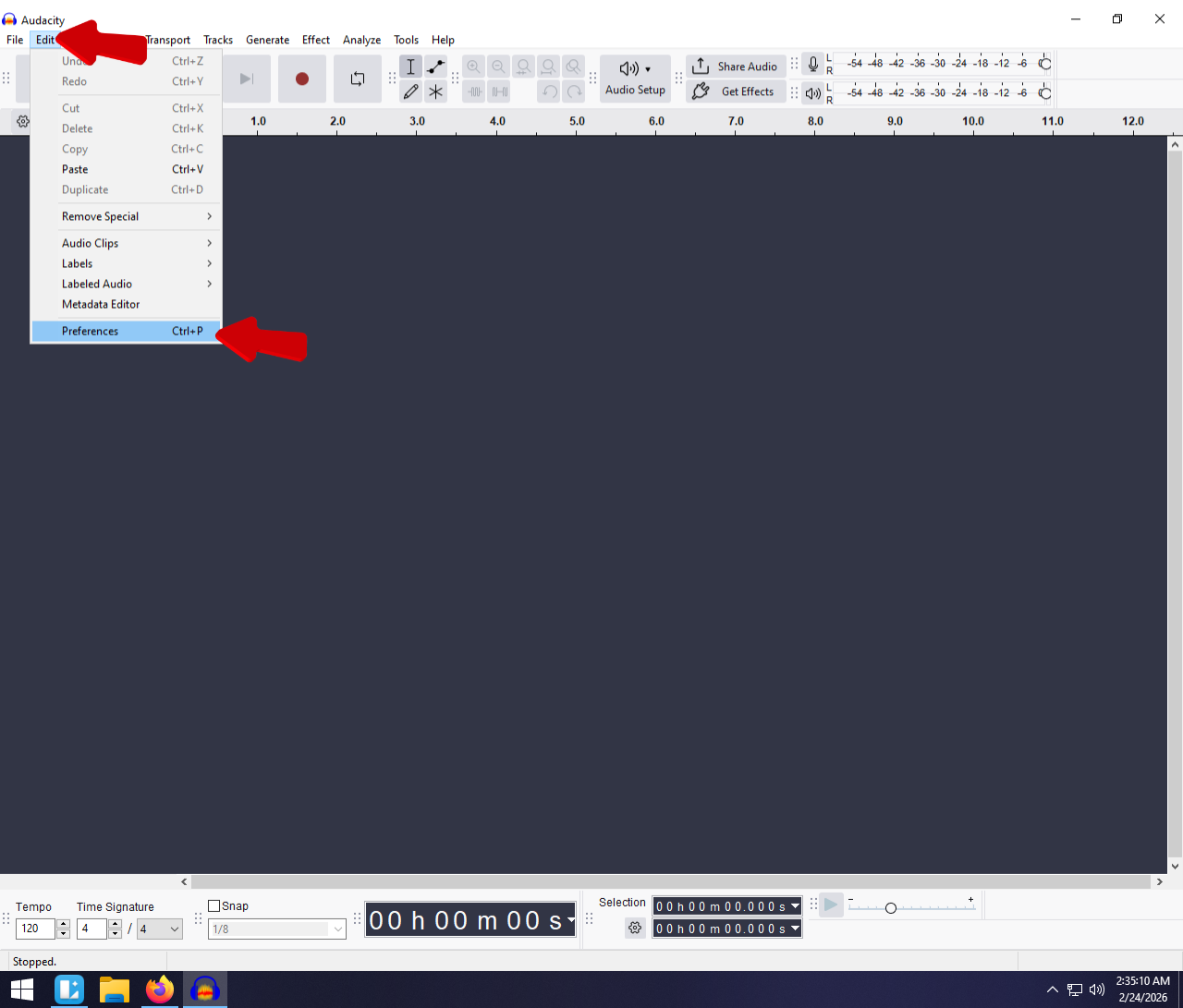
- Open Preferences:
- Windows: Go to Edit > Preferences (shortcut: Ctrl + P).
- macOS: Go to Audacity > Settings (shortcut: Cmd + ,).

- Find the Libraries Tab: On the left-hand menu, select Libraries.
- Click the Download button next to “FFmpeg Import/Export Library.”, it will open up your browser to https://support.audacityteam.org/basics/installing-ffmpeg.

- Get the Installer: Download the installer for your OS (Windows 64-bit or macOS).

- Note: Stick to the .exe or .pkg installer files. Avoid the .zip version unless you want to configure file paths manually.
- Restart Audacity: Close the program completely, run the installer you just downloaded, and then open Audacity again.
How to Verify It Worked
To make sure Audacity sees the new library:
- Go back to Edit > Preferences > Libraries.
- Check the FFmpeg Library Version.
- If you see a version number (like F(59.16.100)), you are good to go.
- Try importing your ADPCM file again. It should now appear as a clean waveform.
Method 2: The “Import Raw Data” Trick (For Corrupt Headers)
If installing FFmpeg didn’t work, or if you are dealing with .vox files, your file might be missing its “header.” The header is the part of the file that tells the computer, “I am an audio file, play me at this speed.”
Without a header, Audacity is flying blind. You can fix this by using the Raw Import tool to manually tell Audacity how to play the file.
How to Force a Raw Import
- Go to File > Import > Raw Data. (Do not use the standard “Open” command).

- Select your file and click Open.
- A configuration window will pop up. This is where you have to guess the settings.

Crucial Settings for ADPCM
If you choose the wrong settings here, the audio will sound like static or play at the wrong speed. Use this table as a cheat sheet:
| Setting | Value to Choose |
|---|---|
| Encoding | VOX ADPCM or IMA ADPCM (Try VOX first for .vox files) |
| Byte Order | Little-Endian (Standard for most Windows-based files) |
| Channels | 1 Channel (Mono) (ADPCM is rarely stereo) |
| Sample Rate | 8000 Hz (Start here), 16000 Hz, or 32000 Hz |
Troubleshooting the “Chipmunk” Effect
Since you are setting these manually, Audacity doesn’t know the correct speed of the recording.
- Voice sounds high-pitched (Chipmunk): You selected a Sample Rate that is too high. Re-import and try lower (e.g., drop from 16000 Hz to 8000 Hz).
- Voice sounds deep and slow: You selected a Sample Rate that is too low. Re-import and try higher.
Method 3: Convert Before Importing (External Tools)
If Audacity is still being stubborn, don’t fight it. The easiest workaround is to convert the file into a standard WAV file using different software, then import that new WAV into Audacity.
Option A: VLC Media Player (Recommended)
You probably already have VLC installed for watching movies. It also has a hidden conversion tool.
- Open VLC and go to File > Convert / Stream.

- Click Open Media and select your ADPCM file.
- In the Profile dropdown, select Audio – CD. This converts it to a standard WAV.


- Important: Click Save as File to choose where to save it, and manually name the file fixed_audio.wav.
- Click Save.

Pro Tip: Avoid ADPCM Issues with Better Recording Gear
If you find yourself constantly wrestling with codec errors, installing libraries, or converting files just to hear your audio, the problem is likely your source hardware.
ADPCM is a “lossy” format designed for older digital voice recorders or budget dictaphones. It saves space by degrading audio quality. In a professional workflow, you want uncompressed audio that opens universally.
Future-Proof Your Audio with the Hollyland LARK MAX 2

Hollyland LARK MAX 2 - Premium Wireless Microphone System
A premium wireless microphone for videographers, podcasters, and content creators to capture broadcast-quality sound.
Key Features: Wireless Audio Monitoring | 32-bit Float | Timecode
Instead of relying on legacy compression, consider upgrading your recording setup to the Hollyland LARK MAX 2.
Here is why upgrading solves the headache:
- Universal Compatibility: The LARK MAX 2 records in broadcast-standard 48kHz/24-bit WAV. These files are uncompressed and open instantly in Audacity, Premiere Pro, and DaVinci Resolve. No plugins required.
- 32-Bit Float Recording: Older recorders distort if you yell. The LARK MAX 2 uses 32-bit Float, which captures such a wide dynamic range that you can rescue distorted audio in post-production just by lowering the volume.
- Clean Audio: ADPCM files often have a high background hiss. The LARK MAX 2 uses Environmental Noise Cancellation (ENC) to ensure the audio is clean before it ever reaches your computer.
Fixing ADPCM files is a good skill for salvaging old data, but for new content, using a modern device eliminates the problem at the source.
Frequently Asked Questions (FAQ)
Why does my ADPCM file sound like static?
This usually happens during a “Raw Import” if you select the wrong Encoding. If Audacity guesses “PCM 16-bit” but the file is actually “VOX ADPCM,” it reads the data incorrectly, resulting in white noise. Re-import the file via File > Import > Raw Data and change the encoding to IMA ADPCM or VOX ADPCM.
Is ADPCM better than MP3?
Generally, no. ADPCM is an older method mostly used for voice to save processor power on cheap hardware. MP3 is far more efficient at maintaining quality while keeping file sizes small. ADPCM often sounds grainy or “lo-fi” compared to modern standards.
How do I find the correct Sample Rate for Raw Import?
It is mostly trial and error. The industry standard for ADPCM voice recordings is 8000 Hz (telephony quality). Start there. If the voice sounds too fast, go lower (6000 Hz). If it sounds too slow, go higher (16000 Hz).
Conclusion
Decoding ADPCM files in Audacity is usually a one-time hurdle. Once you have the FFmpeg library installed, you should be able to drag and drop these files just like any other audio track.
If that fails, remember that the Import Raw Data tool is your backup for files that have lost their headers.
Just be prepared to experiment with the sample rate until the pitch sounds natural.
However, the best long-term fix is to stop generating these files in the first place. By upgrading to a modern system like the Hollyland LARK MAX 2, you switch to universal WAV or 32-bit Float formats, allowing you to spend less time troubleshooting error messages and more time editing.