.png)
 简体中文
简体中文 
If you have recently switched from a Windows environment, you are likely frustrated trying to figure out how to record computer audio in Audacity on Mac. On Windows, you simply select “WASAPI” or “Stereo Mix” and hit record. On macOS, that option doesn’t exist.
This isn’t a bug in Audacity; it is a deliberate security feature of Apple’s Core Audio architecture.
Unlike Windows, macOS creates a strict wall between audio output (what goes to your speakers) and audio input (what goes into your microphone). By default, the operating system prevents applications from “hearing” the output of other apps. This prevents feedback loops and protects copyright, but it makes recording a podcast interview or capturing gameplay audio difficult.
The Solution: A Virtual Audio Driver
You cannot fix this by changing a simple setting in System Preferences. To bridge the gap, you must install a Virtual Audio Driver.
Think of a Virtual Audio Driver as a “digital auxiliary cable.” It tricks your Mac into sending audio out to a virtual destination, which Audacity then recognizes as a microphone. This allows the audio to flow from your browser, Spotify, or Zoom directly into your recording track.
Key Compatibility Note:
This restriction applies to every modern version of macOS, including Sonoma and Sequoia. Whether you are using an older Intel Mac or the newest Apple Silicon (M1, M2, or M3) chips, the solution is the same: you need a third-party bridge.
Method 1: The Free Standard (BlackHole + Audio MIDI Setup)
If you want a reliable solution without spending money, BlackHole is the industry standard. It replaces the obsolete “Soundflower” driver and works flawlessly on modern Apple Silicon Macs.
This method requires a one-time configuration of your Mac’s internal audio routing. Follow these steps exactly to avoid the common “silent recording” issue.
Step 1: Install the Virtual Driver
- Download BlackHole: Download the driver from https://existential.audio/blackhole/. You will need to enter an email address to get the link.
- Select the 2ch Version: For standard recording (YouTube, Zoom, Spotify), the BlackHole 2ch version is perfect. You don’t need the 16-channel version unless you are doing complex music production.
- Install: Run the installer package.

- Restart Audacity: If Audacity was open, close and reopen it so it sees the new driver.
Step 2: Create a Multi-Output Device
This is the step most people miss. If you just send audio to BlackHole, you won’t hear it through your speakers while recording. To hear the audio and record it, you need to split the signal.
- Open your Mac’s Spotlight Search (Cmd + Space) and type Audio MIDI Setup. Open the app.

- Click the + (Plus) icon in the bottom-left corner and select Create Multi-Output Device.

- In the device list on the right, check the boxes for BlackHole 2ch AND Built-in Output (or your headphones/interface).

- Why? This sends one signal to Audacity (BlackHole) and one to your ears (Built-in Output).
- Set the Master Device: Right-click your new “Multi-Output Device” in the sidebar and select Use This Device For Sound Output. Your Mac’s volume icon may gray out—this is normal.

Step 3: Configure Audacity
Now that your Mac is broadcasting audio internally, tell Audacity to catch it.
- Open Audacity.
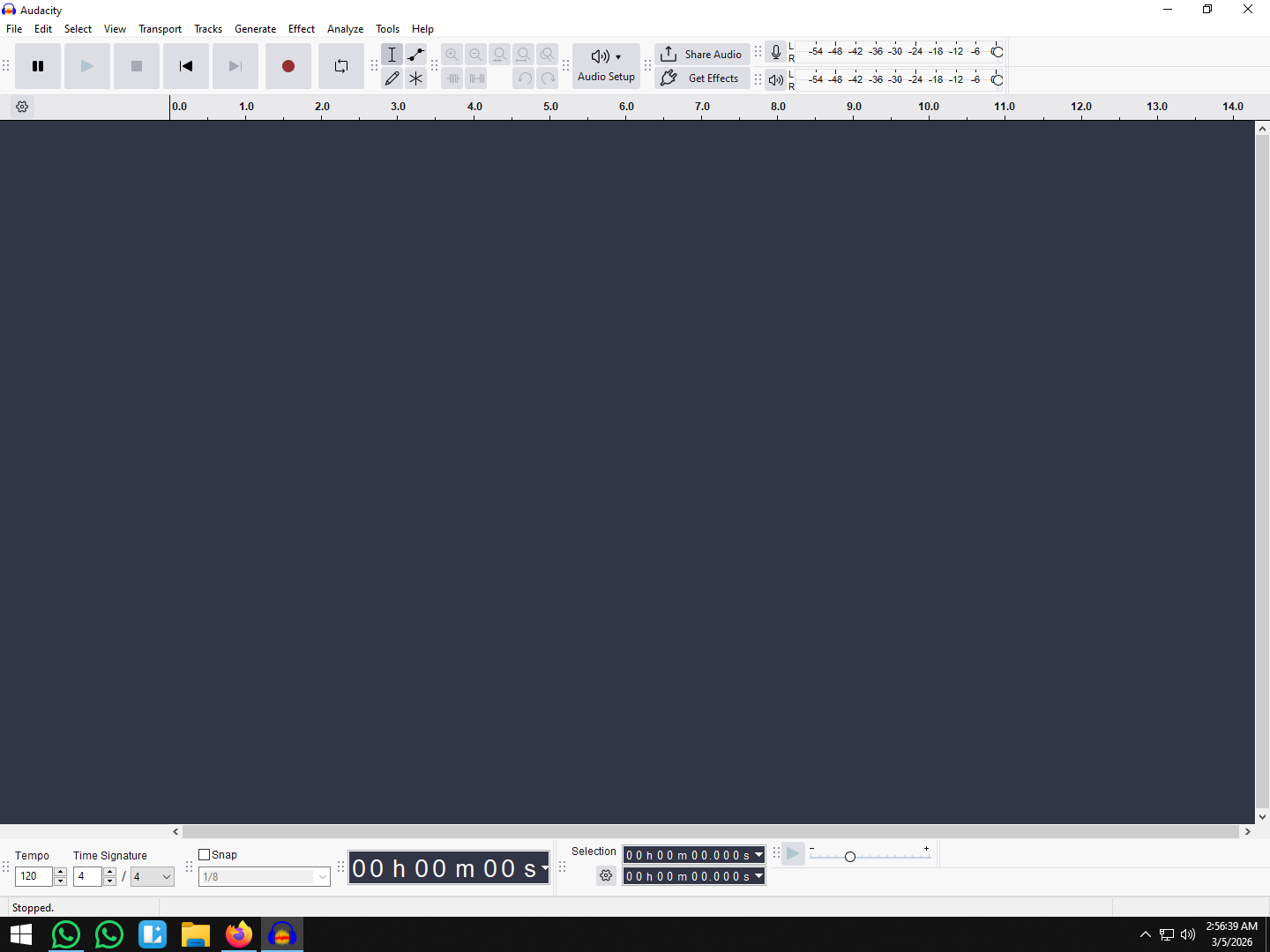
- Click the Audio Setup button in the top toolbar.
- Recording Device: Select BlackHole 2ch.

- Playback Device: Select Built-in Output (or your headphones).

- Recording Channels: Ensure this is set to 2 (Stereo).

- Hit the Record (R) button and play a video. You should see the waveform moving.

Pro Tip: Volume Control & Drift
- Drift Correction: Inside Audio MIDI Setup, check the “Drift Correction” box specifically for BlackHole 2ch. This prevents the audio from slowly desyncing over long sessions.
- Volume Lock: When using a Multi-Output Device, your keyboard volume keys won’t work. You must adjust the volume using the slider inside the specific app (like the YouTube volume slider) or your physical speaker knob.
Method 2: The Professional Software Route (Loopback)
If configuring “Multi-Output Devices” feels too complicated, or if you need to do this daily for work, there is a premium alternative: Loopback.
Developed by Rogue Amoeba, Loopback is the gold standard for macOS audio routing. While BlackHole is a simple cable, Loopback is a full mixing desk. It bypasses the Audio MIDI Setup utility entirely, offering a drag-and-drop interface that is much easier to manage.
Why Choose Loopback?
The main advantage is Per-App Audio. With BlackHole, you record everything your system outputs. If you get a Slack notification or an iMessage “ping” during your recording, that sound gets baked into your Audacity track.
Loopback lets you create a virtual device that captures audio from specific applications only (e.g., Safari or Spotify) while ignoring system alerts and background noise.
How to Set It Up
- Create a Device: Open Loopback and click New Virtual Device.

- Select Sources: Click the (+) button and select the specific app you want to record (e.g., Google Chrome/Safari).

- Configure Audacity: In Audacity, go to Audio Setup > Recording Device and select your new Loopback virtual device.

Is it worth $99?
- Yes, if: You are a professional podcaster or streamer who needs to record guests (Zoom) without capturing your own system sounds, or if you want a zero-latency, stable experience on Apple Silicon without tweaking system settings.
- No, if: You only need to record a webinar or song once in a while. BlackHole is perfectly capable for occasional use.
Method 3: The Hardware Solution (Audio Interface Loopback)
If you are a musician or podcaster, you might already own the solution. Many modern USB Audio Interfaces include a feature called “Loopback.”
This method is incredibly stable because it relies on the interface’s internal hardware rather than a virtual driver. It takes the audio leaving your computer and routes it back into the interface’s input stream.
Check Your Gear
This feature is common on “Creator” focused gear:
- Focusrite: Available on Scarlett 3rd Gen (4i4 and up) and most 4th Gen models.
- Presonus: Standard on the Revelator and Studio series.
- Audient & SSL: Many newer models include “Loopback” specifically for streaming.
Note: Entry-level models (like the Scarlett Solo or 2i2 3rd Gen) usually do not have this feature. Check your manual.
How to Configure Hardware Loopback
- Activate Loopback: Open your interface’s control software (e.g., Focusrite Control). Locate the “Loopback” mix and ensure it is unmuted.
- Open Audacity: Go to Audio Setup.
- Select Recording Device: Choose your audio interface (e.g., “Scarlett 4i4”).
- Select Playback Device: Set your Playback Device to the same interface.
- Test: Play a system sound. The meters in Audacity should jump.
Warning: Always use headphones plugged into the interface when doing this. If you use speakers, your microphone will pick up the sound, creating a feedback loop.
Advanced Setup: Recording Voice AND Computer Audio
Capturing system audio is only half the battle. If you are creating reaction videos, gaming commentary, or tutorials, you need to record your voice over the computer audio.
By default, Audacity only selects one “Recording Device” at a time. To record your mic and your computer simultaneously, you must create an Aggregate Device in Audio MIDI Setup (combining BlackHole + Microphone). But there is a bigger issue here: Audio Quality Mismatch.
If you mix pristine, digital system audio with a muddy, distant-sounding laptop microphone, the final result will sound amateur.
The Professional Workflow
For creators who need to commentate over video or gameplay, we recommend the Hollyland LARK MAX 2.

Hollyland LARK MAX 2 - Premium Wireless Microphone System
A premium wireless microphone for videographers, podcasters, and content creators to capture broadcast-quality sound.
Key Features: Wireless Audio Monitoring | 32-bit Float | Timecode
This wireless microphone system solves two specific problems inherent to reaction videos:
- 32-bit Float Recording: Reaction videos are dynamic. You might whisper during a tense scene and then scream at a jump scare. Standard mics will “clip” (distort) when you get loud, ruining the take. The LARK MAX 2 uses 32-bit float technology, which captures such a massive dynamic range that it is virtually impossible to distort. You can simply lower the volume of your scream in post-production, and the audio remains clear.
- Real-Time Monitoring: When recording over a video, you need to hear the computer audio clearly. The LARK MAX 2 connects with OWS (Open-Ear) earphones, allowing you to monitor the mix comfortably without the latency (delay) that often confuses speakers using software monitoring.
Pro Tip: Always record a 10-second test clip where you speak while the computer audio plays. This ensures your levels are balanced and your voice isn’t drowned out by the system sound.
Troubleshooting Common Errors
Setting up virtual drivers on macOS can be tricky. If your recording isn’t working, try these quick fixes before reinstalling everything.
- The “Flatline” (No Audio):
- Check Permissions: Go to System Settings > Privacy & Security > Microphone. Make sure the toggle next to Audacity is ON. macOS treats virtual drivers like microphones; if this is off, Audacity hears silence.

- Check Master Device: In Audio MIDI Setup, ensure your Multi-Output Device has the Master Device set to “BlackHole.”
- The “Echo Chamber” (Feedback Loop):
- Disable Software Playthrough: In Audacity, go to Transport > Transport Options and uncheck Software Playthrough. You are already hearing the audio via your Multi-Output Device; if Audacity plays it back too, it creates a loop.

- The “Glitchy” Audio (Clicks/Pops):
- Match the Hz: Open Audio MIDI Setup. Check if BlackHole is set to 44,100 Hz or 48,000 Hz. In Audacity, the Project Rate (Hz) (bottom left corner) must match this number exactly.
Frequently Asked Questions (FAQ)
Is BlackHole safe to install on my Mac?
Yes. BlackHole is open-source, meaning its code is transparent and inspected by the community. It functions strictly as a driver to route audio and does not track user data or impact system performance when not in use.
Does Soundflower still work on Apple Silicon?
Generally, no. Soundflower is obsolete. Trying to force it to work on macOS Sonoma or Sequoia—especially on M1/M2/M3 chips—often causes instability. BlackHole is the modern replacement.
Can I record a Zoom call using this method?
Yes. Because BlackHole captures “System Audio,” it will record anything coming out of your speakers, including Zoom participants. However, you must ensure Zoom’s “Speaker” output is set to your Multi-Output Device. Also, always ask for consent before recording conversations.
Conclusion
Recording system audio on macOS used to be a headache of tangled cables and broken drivers, but modern tools have bridged the gap.
- For the budget-conscious: BlackHole combined with Audio MIDI Setup is the best free route. It takes a few minutes to configure, but once it’s set, it works reliably.
- For the professional: Loopback saves time and offers granular control over which apps get recorded, justifying its price tag for daily users.
Remember, capturing the system audio is only step one. If you plan to publish your recordings—whether it’s a reaction video or a tutorial—your voice needs to sound just as professional as the computer audio. Consider upgrading your input to a Hollyland LARK MAX 2 to ensure your commentary is distortion-free and perfectly mixed.
Get your drivers installed, check your levels, and start creating.