.png)
 简体中文
简体中文 
Recording clear audio in WeVideo can be simple, yet many creators still struggle with poor sound or unexpected glitches. Whether you’re making a voiceover, capturing live commentary, or syncing external recordings, the right method can make all the difference.
Using reliable gear can take your results to the next level. For instance, the Hollyland LARK MAX 2 offers 32-bit float recording for rich detail and OWS Bluetooth monitoring for real-time listening without lag.

Hollyland LARK MAX 2 - Premium Wireless Microphone System
A premium wireless microphone for videographers, podcasters, and content creators to capture broadcast-quality sound.
Key Features: Wireless Audio Monitoring | 32-bit Float | Timecode
In this guide, you’ll learn practical ways to record audio in WeVideo and resolve common issues, ensuring your projects sound as professional as they look.
Method 1: Recording Live Voiceover Directly in WeVideo
Sometimes the fastest way to add great audio to your project is to record it directly in WeVideo. This works well for narration, commentary, or quick explanations. However, if you want to take your voiceover to the next level, pair it with a quality microphone to make your voice sound richer and more natural. Here’s what you need to do:
- Use the included USB-C to USB-A or USB-C to USB-C cable to connect the Hollyland LARK MAX 2 receiver to your computer or phone, then wear the transmitters. This ensures you get clear, high-quality audio from the start.

- Open WeVideo, select Create New, and choose Podcast to access the recording tools.

- Click Narrate in the editor, or use the Podcast shortcut. In the simplified editor, use the Voiceover icon; however, note that it only allows one voiceover and one music file to be used at a time. The full editor is best for more flexibility.

- Grant microphone access when prompted so WeVideo can detect the LARK MAX 2.


- Position yourself close to the mic, then click Record. The option to mute existing audio is on by default. Uncheck it if you want to hear background audio while speaking. With OWS Bluetooth monitoring, you can listen in real time and make adjustments instantly.

- Click Stop when done. Voiceovers have a 10-minute limit.

- Save your recording to add it to your media library. You can record again to replace it or cancel to discard it.

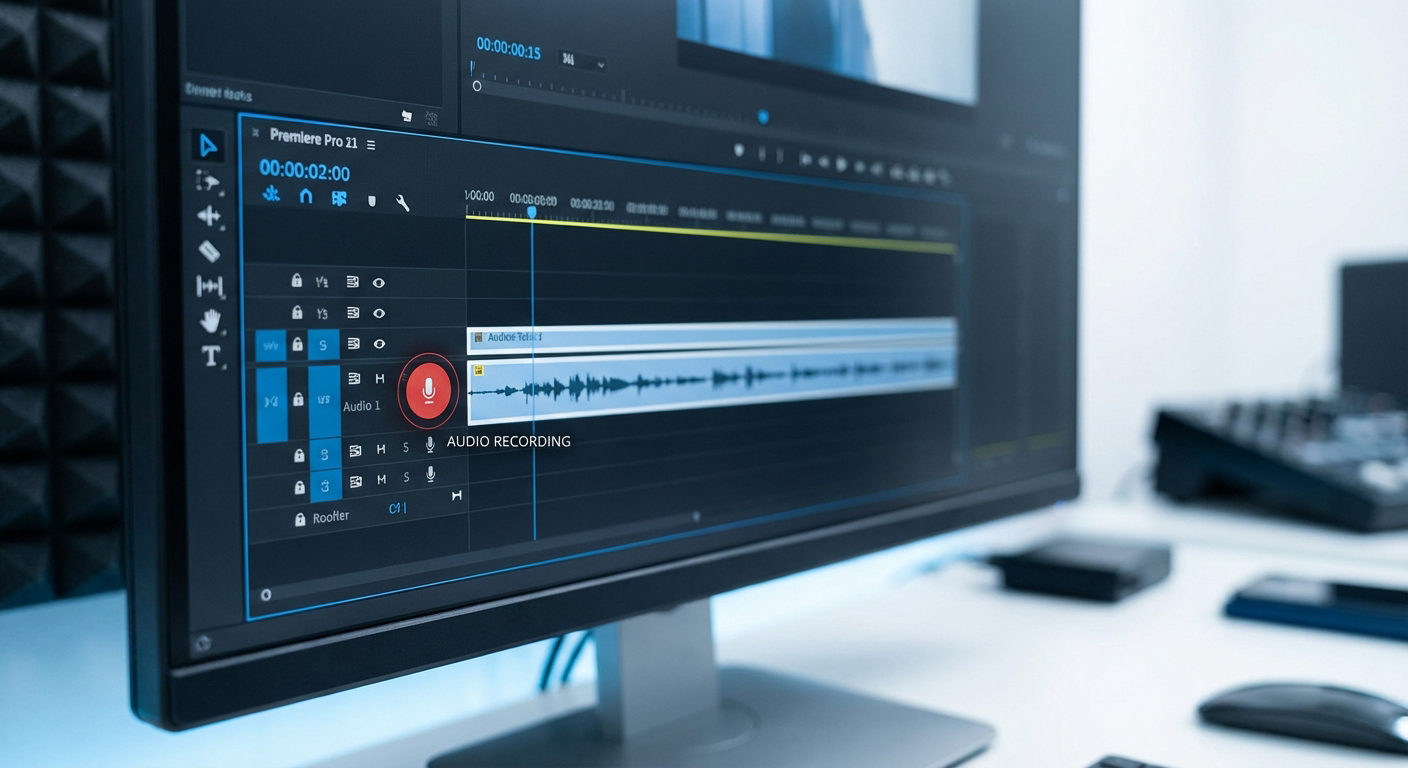
- The saved voiceover will appear in a new track at the location of the blue playhead in your timeline.

Method 2: Pre-recording Audio Externally and Importing into WeVideo
If you have a pre-recorded audio, it only takes a few steps to bring it into WeVideo and sync it with your visuals.
- Record your audio externally using a microphone or recording device. Save the file in a supported format such as WAV or MP3.
- Open the WeVideo app or online editor and start a new project. You can also choose a video template.
- Upload your recorded audio from your device or select a track from WeVideo’s stock library.

- Drag and drop the audio into the Timeline to begin editing.

- If your background music or sound is shorter than your video, enable auto-loop to cover the full duration.
- Use the Audio menu to find tracks by mood if you want to add extra music or sound effects.
- Continue editing by adding transitions, text, or annotations to enhance your video.
- Once satisfied, choose your preferred resolution and export your finished video.
Method 3: Recording Audio with the Mobile App
Recording audio directly from the WeVideo mobile app is a great option for capturing ideas or voiceovers on the go. Here’s how it’s done!
- Open the mobile application on your device.
- Click on Capture media at the top left of the screen.

- Navigate to the Audio section at the bottom.

- Tap the red button to start recording.
- When you are finished, tap the Stop button.

- Preview your recording using the play button.
- If satisfied, tap Save at the top right. To redo, tap Retake at the top left.

- (Optional) Open in editor to start a new project immediately on your device.
- (Optional) Upload media to your library for editing later on another device.
- Save and share locally or send via message, email, or other apps.

Voiceover Recording Tips
Here are a few tips to make your audio stand out.
Warm Up with Lip Trills
Blow out air so your lips vibrate, like a gentle horse sound. This loosens the lips, warms up the vocal cords, and balances air pressure. It is a quick way to get your voice ready for recording.
Use Humming Scales
Begin with comfortable middle notes, then move up and down slowly. This helps your vocal muscles relax and improves control before you start speaking.
Speak with Clarity and Control
Maintain a steady rhythm, but adjust your pace to emphasize key points as needed. Enunciate each word clearly so that your audience can follow along easily.
Match your Tone to the Script
Let your voice reflect the mood of the content. Use changes in pitch and inflection to highlight important points and make your delivery more engaging.
Fixing Common Audio Recording Issues in WeVideo
These are some quick solutions to help you get your recordings back on track:
No Audio During Playback
Check if the track is muted or the volume slider is too low. Make sure your device audio is on and your speakers or headphones are working.
Muffled Audio Quality
Move closer to the microphone and speak clearly. Adjust input levels to avoid capturing too much room sound, and consider using an equalizer to enhance clarity.
Background Noise
Record in a quiet space and use a microphone with noise reduction if possible. In WeVideo, apply audio filters to minimize unwanted sounds.
Distorted Audio
Lower your input gain to prevent clipping. If available, use a recording format that captures a wider range without distortion, then adjust levels during editing.
Conclusion
Recording great audio in WeVideo is all about using the right method and tools for the job. Whether you record directly, work with the mobile app, or import high-quality external files, clear sound can significantly enhance your project. Fixing small issues along the way will keep your workflow smooth. With the right setup and a little practice, your voiceovers and audio tracks can sound professional and engaging every time.
FAQs
Can I use a USB mic to record vocals?
Yes, you can use a USB microphone to record vocals. It is one of the easiest ways to get clear, high-quality sound into your computer. There’s no need for extra equipment such as XLR cables or audio interfaces. Just connect the mic, open your recording software, and you’re ready to capture clear and professional-sounding audio for voiceovers, music, or streaming.
How long can you audio record on WeVideo?
The voice recording length in WeVideo depends on the plan you are using. With the free plan, you can record as often as you like, but your recordings cannot be longer than 10 minutes. Paid plans remove this limit, allowing you to record and publish for longer.
How do I record my screen and audio with WeVideo?
With WeVideo’s built-in screen recorder, you can capture your screen and audio at the same time. It works on Windows, Mac, and Chromebook without any downloads. Before recording, simply select your screen and webcam as inputs. Once you finish, both files will appear in your Timeline, ready for editing. You can sync video with your voiceover, add subtitles, and include motion titles to create a polished final result.