.png)
 简体中文
简体中文 
Why Does Audacity Delete My Audio When I Try to Split It?
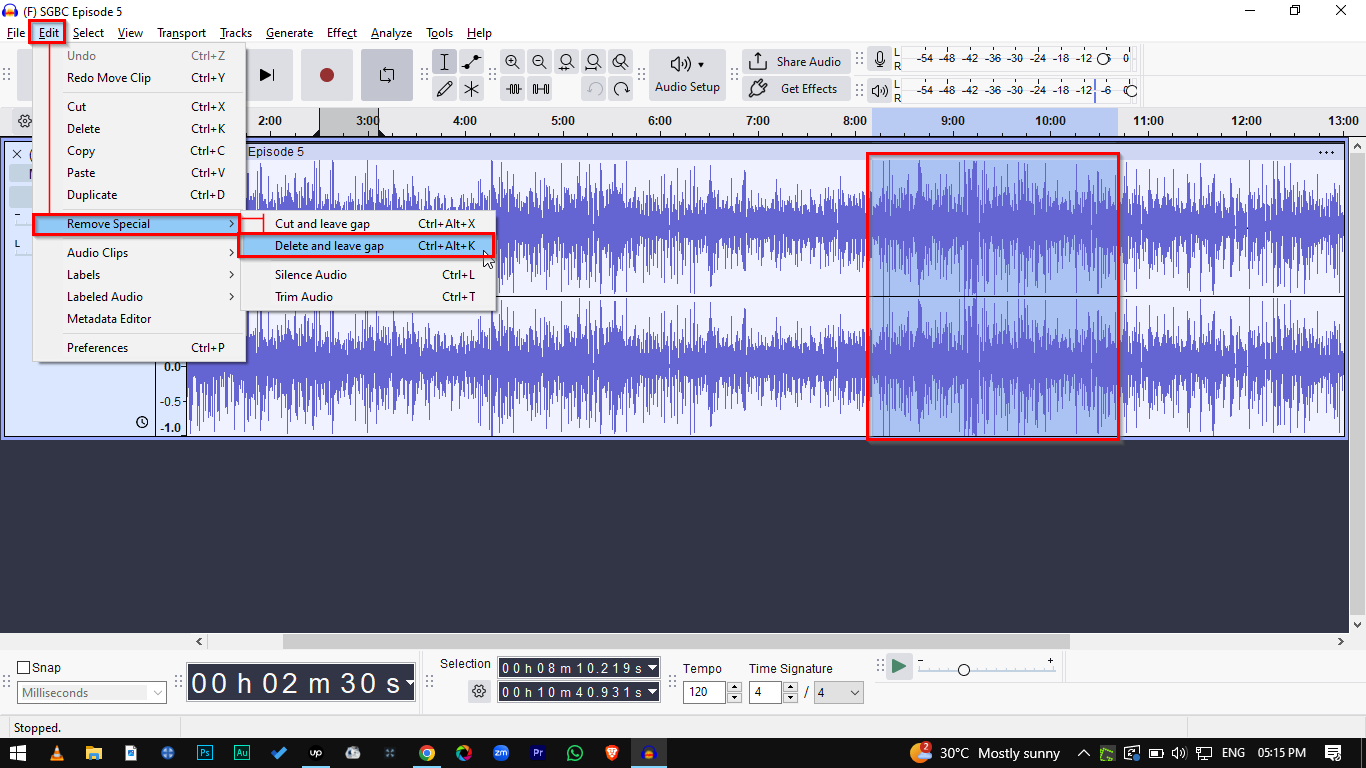
If Audacity split deletes when you don’t want that, you are likely pressing Ctrl + Alt + K (Split Delete) instead of Ctrl + I (Split), or you have a section of audio highlighted rather than a single cursor point. To split a clip without deleting anything, click once on the timeline and press Ctrl + I.
Welcome to our Fix: Audacity Split Deletes Audio (Troubleshooting Guide). Audacity is a powerful editor, but its dense menu of keyboard shortcuts can easily trip up beginners. Unlike simpler software, Audacity has multiple “Split” commands. Each one does something completely different.
Accidentally erasing a chunk of your track usually comes down to hitting the wrong shortcut. Triggering a destructive command like Split Delete instantly removes the audio and leaves a frustrating gap in your timeline.
How you select your audio also matters. If you highlight a block of audio and hit a split command, Audacity assumes you want to change that entire section. To safely separate a clip without losing any sound, you must use the Selection Tool to click a single, precise point on your timeline before you split.
The 3 Methods to Fix the “Audacity Split Deletes” Issue
Method 1: Use the Correct “Split” Shortcut (Ctrl + I)
The most common reason Audacity deletes your audio during a split is simply pressing the wrong keys. If you want to separate a track into two distinct clips without losing a single millisecond of sound, you just need to create a clip boundary.
Using the wrong command tells Audacity to remove the audio entirely. Memorize the differences below to ensure you are only cutting the track, not removing it.
| Command | Shortcut | Action |
|---|---|---|
| Split | Ctrl + I (Win) / Cmd + I (Mac) | Creates a cut line; deletes nothing. |
| Split Delete | Ctrl + Alt + K | Deletes the selected audio and leaves a silent gap. |
| Split Cut | Ctrl + Alt + X | Removes the audio but saves it to your clipboard to paste elsewhere. |
Method 2: Check Your Cursor vs. Selection Tool
Audacity reacts differently depending on what you select on your timeline. If you accidentally highlight a five-second chunk of audio and trigger a split command, the software assumes you want to manipulate or remove that entire block.
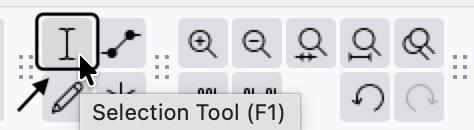
To split a track without accidental deletions, place a single cursor point rather than highlighting a range. Press F1 to equip your Selection Tool, click exactly once on the timeline where you want the cut to happen, and then press Ctrl + I.


Method 3: Disable “Sync-Lock Tracks” (If Other Tracks are Deleting)
Are you trying to edit a single vocal track, but Audacity keeps deleting audio on your background music track at the exact same time? You likely have Sync-Lock Tracks turned on.
This feature keeps multiple tracks perfectly aligned when you make cuts. But it causes massive frustration if you only want to edit one specific layer.
To fix this, look at your Edit Toolbar at the top of the screen. Find the button with a clock icon and click it to toggle off Sync-Lock Tracks. You can also disable it by navigating to Tracks > Sync-Lock Tracks in the top menu bar.

How to Recover Accidentally Deleted Audio in Audacity
If you already used the wrong split command and lost a crucial piece of your track, don’t panic. Audacity makes it incredibly easy to recover deleted clips, as long as you haven’t closed your current session.
Follow these steps to instantly get your audio back:
- Quick Undo: Press Ctrl + Z (Windows) or Cmd + Z (Mac) immediately after making the mistake.
- Use the History Tool: If you have made several other edits since the accidental deletion, go to the top menu and select View > History.

- Select Previous State: Scroll through the list to find the accidental “Split Delete” or “Split Cut” action. Click on the action right before that mistake to restore your project to that exact moment.

Once you restore the timeline to its previous state, you can safely resume editing.
Note: Audacity’s undo history is temporary. It resets the moment you close the application. You must perform this recovery process before shutting down the program, or the deleted audio is lost permanently.
Pro Tip: Stop Wasting Time Chopping Up Bad Audio
If you find yourself constantly splitting and deleting audio clips, take a step back and look at your raw recordings. Audio editors often spend hours chopping up tracks to remove distorted peaks, loud plosives, or distracting background noise. If you are constantly fighting your raw files, your microphone is holding you back.
You can skip heavy post-production surgery by upgrading to the Hollyland LARK MAX 2. Capturing clean audio at the source saves you time, and this microphone system is built specifically to prevent the errors that force you to edit in the first place.

Hollyland LARK MAX 2 - Premium Wireless Microphone System
A premium wireless microphone for videographers, podcasters, and content creators to capture broadcast-quality sound.
Key Features: Wireless Audio Monitoring | 32-bit Float | Timecode
Here is how upgrading your gear streamlines your Audacity workflow:
- 32-bit Float Recording: Your audio will never clip or distort, no matter how loud you get. You can permanently stop splitting and deleting blown-out audio peaks.
- Studio Quality with Professional ENC: Delivering 48kHz/24-bit audio combined with professional Environmental Noise Cancellation, this mic isolates your voice and kills background hums before they ever hit your timeline.
- OWS Earphones for Real-Time Monitoring: Catch audio issues live while recording using the new wireless OWS earphones, rather than discovering mistakes during your Audacity playback.
By capturing great audio right out of the gate, you save hours of frustrating editing in Audacity.
Frequently Asked Questions (FAQ)
How do I separate audio tracks in Audacity without deleting them?
To separate an audio clip without losing any data, click exactly where you want the break on the timeline and press Ctrl + I (Windows) or Cmd + I (Mac). This creates a clip boundary, visible as a thick dark line.
Once split, hover your cursor over the top edge of the clip until the Clip Handle (a hand icon) appears. You can now click and drag the separated clip left or right to move it independently without erasing anything.

What is the difference between Split and Split New in Audacity?
The standard Split (Ctrl + I) command cuts your audio into separate pieces while keeping them on the exact same track.

Split New (Edit > Audio Clips > Split New) takes the highlighted section of your audio, cuts it, and immediately moves it down to a brand-new track below. This is incredibly useful when you need to apply heavy effects, EQ, or volume adjustments to a specific piece of audio without altering the rest of the original track.


Why does deleting a clip in Audacity shift all my other audio?
When you highlight a section and press the standard Delete or Backspace key, Audacity removes the audio and automatically pulls the remaining track to the left to close the gap. This is known as ripple editing.
If you want to remove a specific section of audio but keep the surrounding clips exactly where they are to maintain your timing, use Split Delete (Ctrl + Alt + K). This commands Audacity to delete the targeted audio while leaving an empty, silent gap in its place, ensuring your timeline doesn’t shift out of sync.
Conclusion & Next Steps
Accidentally deleting audio in Audacity usually comes down to a simple shortcut mix-up. By learning the difference between Ctrl + I (Split) and Ctrl + Alt + K (Split Delete), you instantly gain a faster, non-destructive editing workflow.
Take a few minutes to practice these commands on a test track. Remember to click a single point with your Selection Tool before splitting. Always double-check your Sync-Lock Tracks setting if multiple layers are disappearing at once.
Finally, the best way to speed up your editing process is to capture flawless audio from the start. If you want to stop endlessly chopping up tracks to remove distortion and background noise, upgrade your recording gear to the Hollyland LARK MAX 2. With its 32-bit Float Recording and studio-quality ENC, you capture perfect, clip-free audio every time—leaving you with less time fixing mistakes in Audacity and more time creating.